75
Polyend Tracker Mini Manual
74
Polyend Tracker Mini Manual
Manual Step Entry
NOTESNOTES
Sequencing Steps
5
Sequencing Steps
5
Track 1 Track 4Track 3Track 2
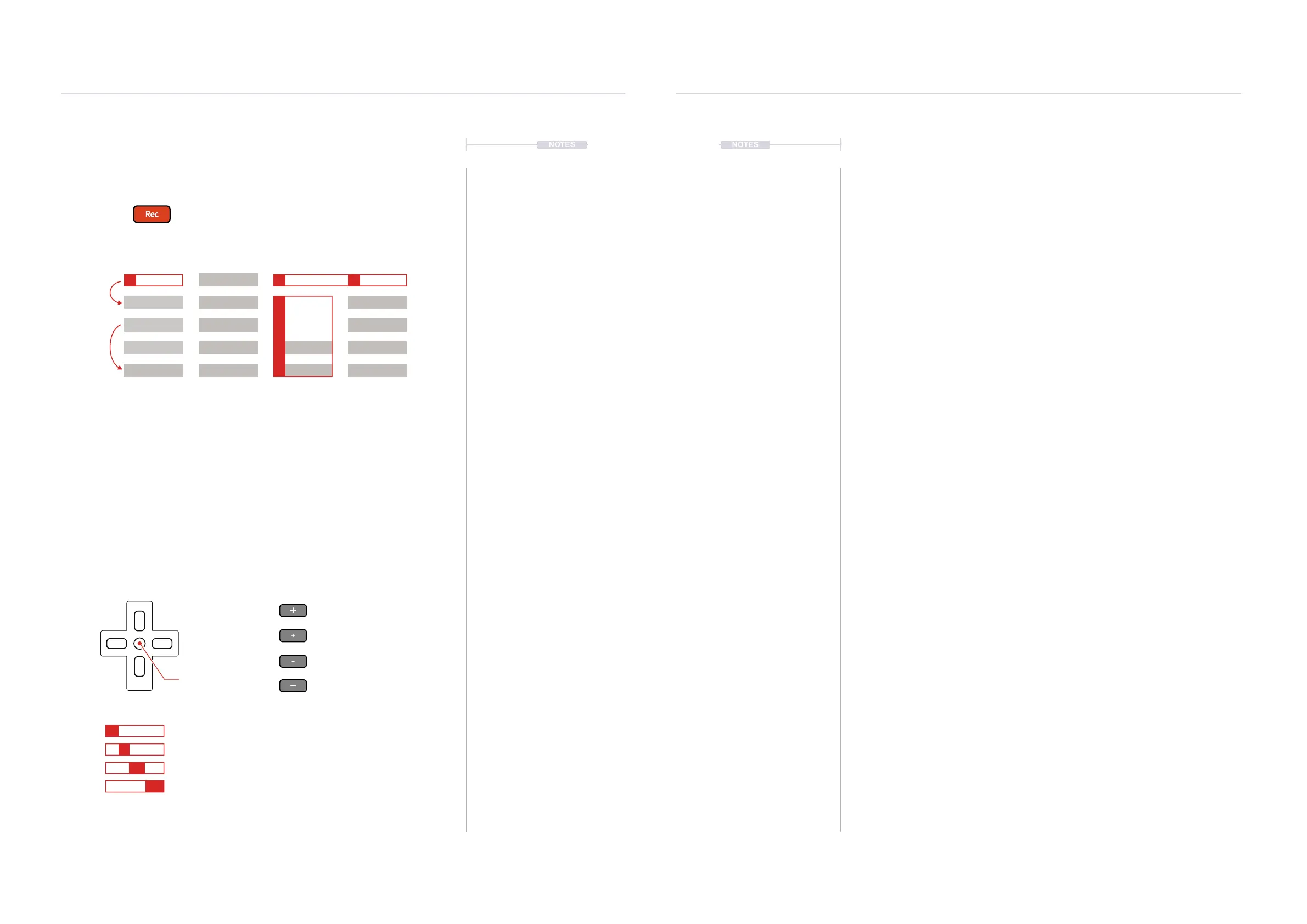
Recording mode on to edit steps in the pattern
Step Jump only
with (Enter)
Steps can be added individually.
Example: Hold [Note] + Navigate with (Up), (Down),
(Left), (Right) to select a note from the note grid.
Subsequent steps are recorded in when pressing the
D-Pad navigator (Enter) button. This will record
iteratively the selected note parameter into rows
dened by the ‘Step jump’ intervals.
Pressing the (Enter) button in recording mode will record the note and instrument into subsequent steps.
This is applied when the note or instrument which is selected and not applied for FX parameters.
Note Selected, C5.
Instrument Selected, Instrument #3.
FX1 Selected, Effect not applied.
FX2 Selected, Volume = 50.
Quick Tap Dedicated Parameter Button to lock the selection e.g. [Instrument] for editing
(Enter)
(Right)
[+]
Empty Step: Place a ‘C5’ note
Existing Note: Increment an octave
Empty Step: Place a ‘C5’ note
Existing Note: Increment a semitone
Empty Step: Place a ‘FAD’ command
Existing Note: Decrement a semitone
Empty Step: Place an ‘OFF’ command
Existing Note: Decrement an octave
[-]
[+]
[-]
D-Pad Navigator for moving around the pattern. Master [+] / [-] for editing of step parameter values.
(Down)
(Up)
(Left)
Select multiple step rows with [Shift] + (Up) or (Down).
Also across multiple tracks [Shift] + (Left) + (Right)
On the top row [Shift] + (Up) will select all steps in the
track. Press [Shift] + (Up) + (Up) to select all steps.
Edits to any existing parameters can be made
simultaneously, but only If a parameter is already set.
These changes will be relative to the original value.
Unassigned elements of a step will remain empty.
Step Jump
1
Step Jump
2
C5 40
----
P 25
C5 03
----
V 50
C5 03
----
V 50
C5 03
----
V 50
C5 03
----
V 50
D6 03
----
V 10 D6 03
----
V 10
D6 03
----
D6 03
----
----
----
----
----
--- ---
--- ---
V 50
V 30
Steps can also be edited collectively. Select a range within a track and/or
across tracks to edit the selected range.
▌ MANUALLY EDITING A RANGE OF STEPS
1. Press [1] to select the Pattern Mode page.
2. Select the target step to edit. Use (Up), (Down) on the D-Pad Navigator
or [+] / [-] to scroll top to bottom. Press (Left), (Right) to select a track.
The step should be highlighted with the green bounding box.
3. Hold [Shift] + (Left) or (Right) to select a range across tracks and Hold
[Shift] + (Up) or (Down) to select rows and expand the selected range.
4. To select all steps for an individual track, select the top row step on the
track to select, then Press [Shift] + (Up).
5. To select all steps in the pattern, select the top row step on any track,
then Press [Shift] + (Up) & (Up).
6. Press [Rec] to switch to recording mode. The step bounding box will
turn red and allow editing of the collective step range.
7. Press [Preview], 5
th
Screen button, to play only the selected range.
8. The [+] / [-] buttons will now change all existing parameter values for the
selected steps when in recording mode.
9. Select a parameter to edit. Only existing parameters can be changed.
Any empty parameter slots will not change and remain open.
• To change Note: Hold [Note] + Use the D-Pad Navigator to select a
note. Tap (Enter), centre button to replace any existing note on all
selected steps. If required, Tap [Note] to lock to retain the mode.
• To change Instrument: Hold [Instrument] + (Up) (Down) or use the
[+] / [-] buttons to replace existing instruments to the new
instrument. If required, Tap [Instrument] to lock to retain the mode.
• FX1 and FX2 Cannot be changed when a range is selected.
8. Press [+] / [-] to adjust the value of the selected parameter within the
step range. The selected parameter will be indicated in solid coloured
red. When adjusting values simultaneously they will each change
relative to the original value including any FX Values.



 To Next Page