65
Polyend Tracker Mini Manual
64
Polyend Tracker Mini Manual
NOTESNOTES
Pattern Format
4
Pattern Format
4
▌ CHANGING THE PATTERN GRID VISUAL DIVIDERS
The pattern grid has a number of graphic guides as a visual aids when
sequencing steps into a pattern. This is by default set to divisions of 4
providing a visual on beat guide at rows 1, 5, 9 etc. These can be changed
in the ‘Cong’ menu settings.
1. Hold [Shift] + [4] to open the ‘Cong’ project conguration menu.
2. Navigate to ‘Project Settings’ option. Navigate windows by pressing
(Left) or (Right). Menu windows will also be automatically be selected
when pressing the relevant screen keys below the menu window to
navigate [Up] or [Down].
3. In the project setting options, central window, highlight ‘Pattern Divider’.
4. Press [Change] - 6
th
from Left Screen Button.
5. Press (Up) / (Down) or [Up] or [Down] Screen Buttons to highlight the
desired option between 1 - 16.
6. Press [Apply] - 6
th
from left screen button to conrm selection or
[Cancel] - 3
rd
from left screen button to exit without changing.
7. The display will reect the new visual indicator divider bars.
Visual Dividers to aid step positioning.
Default shown = 4.
Pattern Divider.
Example = 3.
Pattern Divider.
Example = 7.
Pattern Divider Setting in ‘Cong’ Menu under ‘Project Settings’
Pattern
1
1
2
C5 40 ---- P-25
C5 M02 ----
C5 40 ---- P-25
-- --- ---- ----
-- --- ---- ---- -- ---
P 25
-- ---
-- --- ---- ---- -- ---
-- --- ---- ---- -- ---
-- --- ---- ----
-- --- ---- ---- -- ---
-- --- ---- ----
-- --- ---- ---- -- ---
-- --- ---- ----
-- --- ---- ---- -- ---
-- --- ---- ---- -- ---
-- --- ---- ---- -- ---
C5 02
C3 04
D3 04
D3 04
D3 04
C5 40
3
4
5
6
7
9
11
13
15
8
10
12
14
Length
32
Step Jump
0
Pattern 1
Pattern
1
1
2
C5 40 ---- P-25
C5 M02 ----
C5 40 ---- P-25
-- --- ---- ----
-- --- ---- ---- -- ---
P 25
-- ---
-- --- ---- ---- -- ---
-- --- ---- ---- -- ---
-- --- ---- ----
-- --- ---- ---- -- ---
-- --- ---- ----
-- --- ---- ---- -- ---
-- --- ---- ----
-- --- ---- ---- -- ---
-- --- ---- ---- -- ---
-- --- ---- ---- -- ---
C5 02
C3 04
D3 04
D3 04
D3 04
C5 40
3
4
5
6
7
9
11
13
15
8
10
12
14
Length
32
Step Jump
0
Pattern 1
Pattern
1
1
2
C5 40 ---- P-25
C5 M02 ----
C5 40 ---- P-25
-- --- ---- ----
-- --- ---- ---- -- ---
P 25
-- ---
-- --- ---- ---- -- ---
-- --- ---- ---- -- ---
-- --- ---- ----
-- --- ---- ---- -- ---
-- --- ---- ----
-- --- ---- ---- -- ---
-- --- ---- ----
-- --- ---- ---- -- ---
-- --- ---- ---- -- ---
-- --- ---- ---- -- ---
C5 02
C3 04
D3 04
D3 04
D3 04
C5 40
3
4
5
6
7
9
11
13
15
8
10
12
14
Length
32
Step Jump
0
Pattern 1
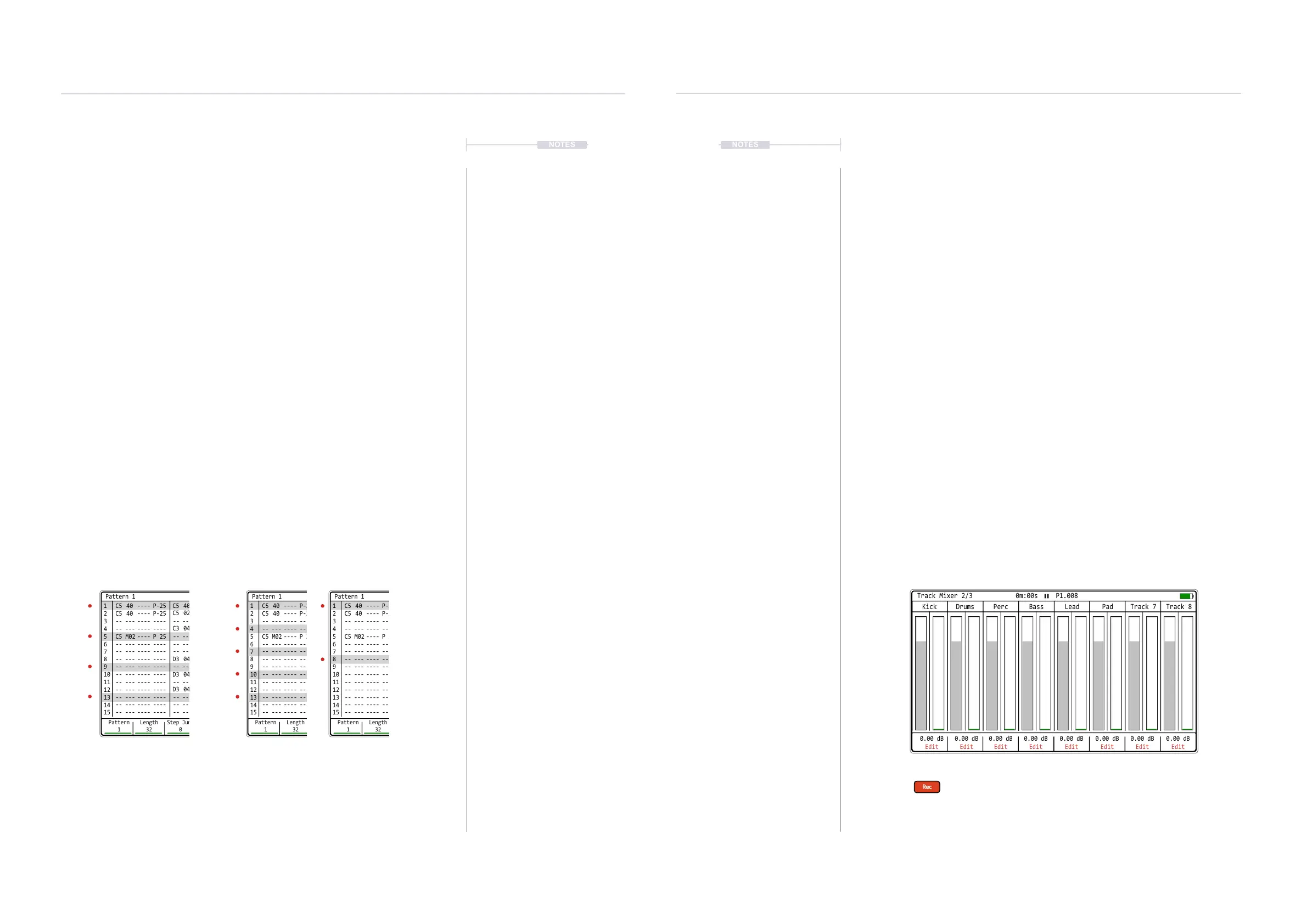
▌ EDITING TRACK NAMES
Track names can be edited and changed to custom text. Track name length
is maximum 7 characters. The defaults are Track 1, Track 2, Track 3 etc but
can be set to more appropriate names such as drums, perc, bass etc.
1. Press [4] to select the Master. This consists of 3 pages and each is
cycled in turn by pressing [4] button. Page is displayed top bar, left side.
2. Navigate to page 2/3 - Track Mixer. All tracks are displayed in this view.
3. Press [Rec] and the editing mode will be toggled on or off. Set to on, as
indicated by the word ‘Edit’ in red at the bottom of each track and
representing the screen buttons per track.
4. Press the relevant screen button 1 - 8 for the track to edit. For example,
Press Screen Button for Track 1 - 1
st
Button on the left.
5. The Alpha numeric QWERTY keyboard will be displayed and enable the
default ‘Track 1’ name to be changed. Edit as per normal using the
QWERTY functions with the D-Pad navigation and screen button
commands. Maximum 7 characters available for track names.
6. Press [Save], 8
th
Screen button, to conrm and immediately save the
new name for the track.
7. Repeat step 4 - 6 for other tracks if required.
Play Rec
Insert Menu
Delete Copy
Press [Rec] to toggle the track name editor on or off on the Master Page
2/3. Press a screen button 1 - 8 to select the specic track to edit.
0.00 dB
Edit
0.00 dB
Edit
0.00 dB
Edit
0.00 dB
Edit
0.00 dB
Edit
0.00 dB
Edit
0.00 dB
Edit
0.00 dB
Edit
Drums PadPerc Track 7Bass Track 8Kick Lead
Track Mixer 2/3 0m:00s P1.008



 To Next Page