780C Multi-Interface Interoperability Tester – User Guide Page 196
4. Power cycle the 780C using the rocker switch on the back panel.
The 780C will appear as a mass storage device on your PC like any other USB drive.
Note: If this is the first time you have used the 780C in the Disk mode you will have to reformat the disk.
The system will prompt you through the format process.
5. Connect the 780C to a PC host via the USB cable provided.
The 780C should appear as a USB storage device.
6. Transfer your custom EDID .xml files from your PC to the EDID directory of the 780C using standard
Windows methods for transferring files to a USB drive, i.e. by dragging and dropping or copying and
pasting.
Note: Your EDID names are limited to 8 characters with an extension (.xml).
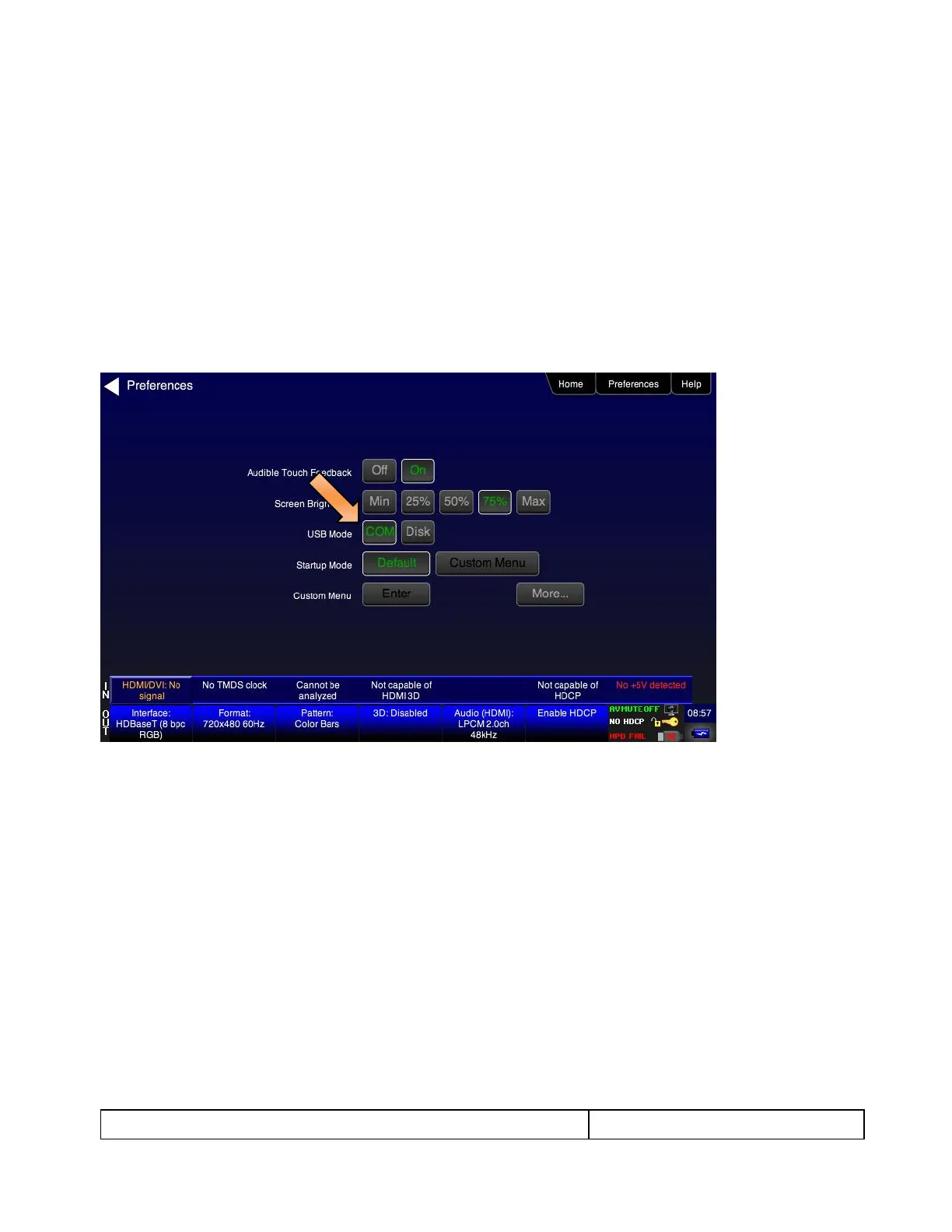
7. Touch select the Preferences from the 780C top level menu. Refer to the screen below.
8. Touch select COM for the USB Mode (refer to the screen above).
9. Power cycle the 780C.
10. Navigate to the EDID Test menu.
You should now see the new EDIDs on the list.


 To Next Page