780C Multi-Interface Interoperability Tester – User Guide Page 204
Table 10-2: Importing Bitmaps – UserPats.txt file
Bitmap Name (use 8.3 naming convention)
UserPats.txt Text File Structure
The structure of the UserPats file is:
<Bitmap Name> space <Description>
The contents of the UserPats.txt text file would be:
Mast480.bmp Master 720x480
Mast720.bmp Master 1280x720
Mast1080.bmp Master 1920x1080
Note 1: The bitmap name has to match the name of
the stored bitmap.
Note 2: The description is limited to 20 characters.
3. Transfer your UserPats.txt file from your PC to the SD card using standard Windows methods for
transferring files to a USB drive, i.e. by dragging and dropping or copying and pasting.
In this example, you would have created a bitmap called for example 980_640.bmp and stored it on the SD
card. In this example the bitmap is 640 x 480 resolution. You would then create a userpats.txt file as
follows:
4. 980_640.bmp 980 640x480
Note: Your bitmaps are limited to 8 characters with an extension (.bmp).
5. Insert the SD card into your 780C.
6. Power cycle the 780C.
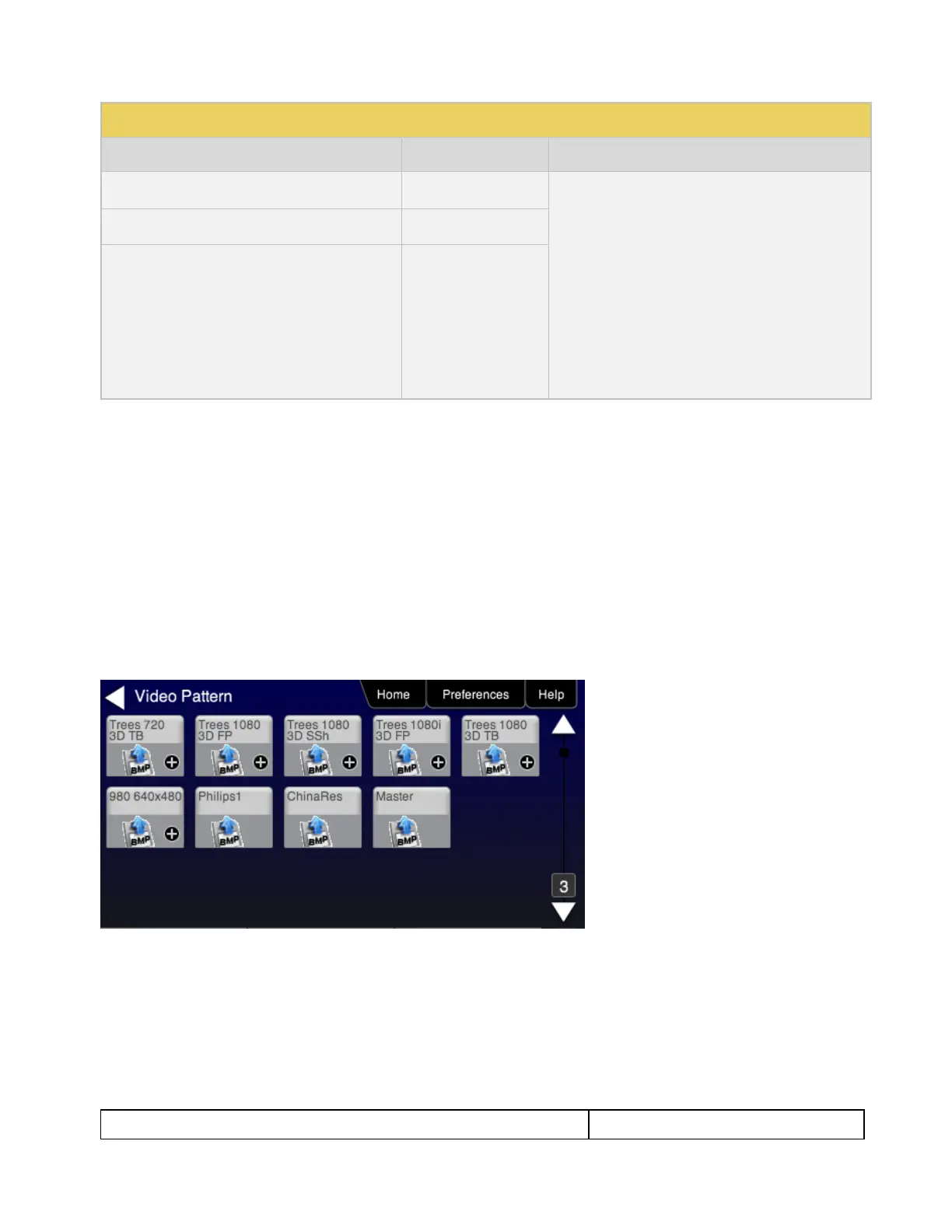
7. Navigate to the Video Pattern menu.
You should now see the new bitmap image(s) (980 640x480) on the pattern list (below).
11.4 Creating Custom Menus
This section describes how to configure custom menus on the 780C. Custom menus enable you to display a
menu of commonly used functions on the 780C touch display. This allows you to save time by quickly executing
a specific set of resolution and image combinations.


 To Next Page