Getting Started GM300 Radio Service Software Manual
2-34 6880902Z36-B October, 1996
Setting (Configuring) RSS Computer Defaults
2
2.10 Setting (Configuring) RSS Computer Defaults
Now that you are aware of how fields, screens and menus relate to one another, this section introduces
the concept of saving certain default computer information. Setting the computer defaults eliminates the
need to specify them every time you enter RSS or program a radio.
Read this section if you want to:
❏ Set a default archive and backup file path name so you won't have to specify it every time you
save a radio archive file,
❏ Set or change the default port used to interface with the radio and RIB,
❏ Set the default colors you see on your RSS screen, or
❏ Eliminate the SETUP COMPUTER CONFIGURATION MENU as shown in Figure 2-13 on
page 2-35 from appearing every single time you start RSS from the diskettes.
Otherwise proceed to Section 2.11 - Exit RSS.
If you've been with us from the start, you should be at the MAIN MENU. If you've just joined us or got
lost inside the RSS screens, press Esc to get to the MAIN MENU. From the MAIN MENU, press F9 to get
to the SETUP COMPUTER CONFIGURATION MENU.
From the SETUP COMPUTER CONFIGURATION MENU you can either read the on-line help, set some
default computer values, or exit. Pressing F3 on the SETUP COMPUTER CONFIGURATION MENU will
display the PC CONFIGURATION screen, where you can specify the default drive and path names for
future archive and backup files. Pressing F7 on the SETUP COMPUTER CONFIGURATION MENU dis-
plays COLOR CONFIGURATION screen where you can specify the colors for your screen's text, lines,
background and highlighted fields.
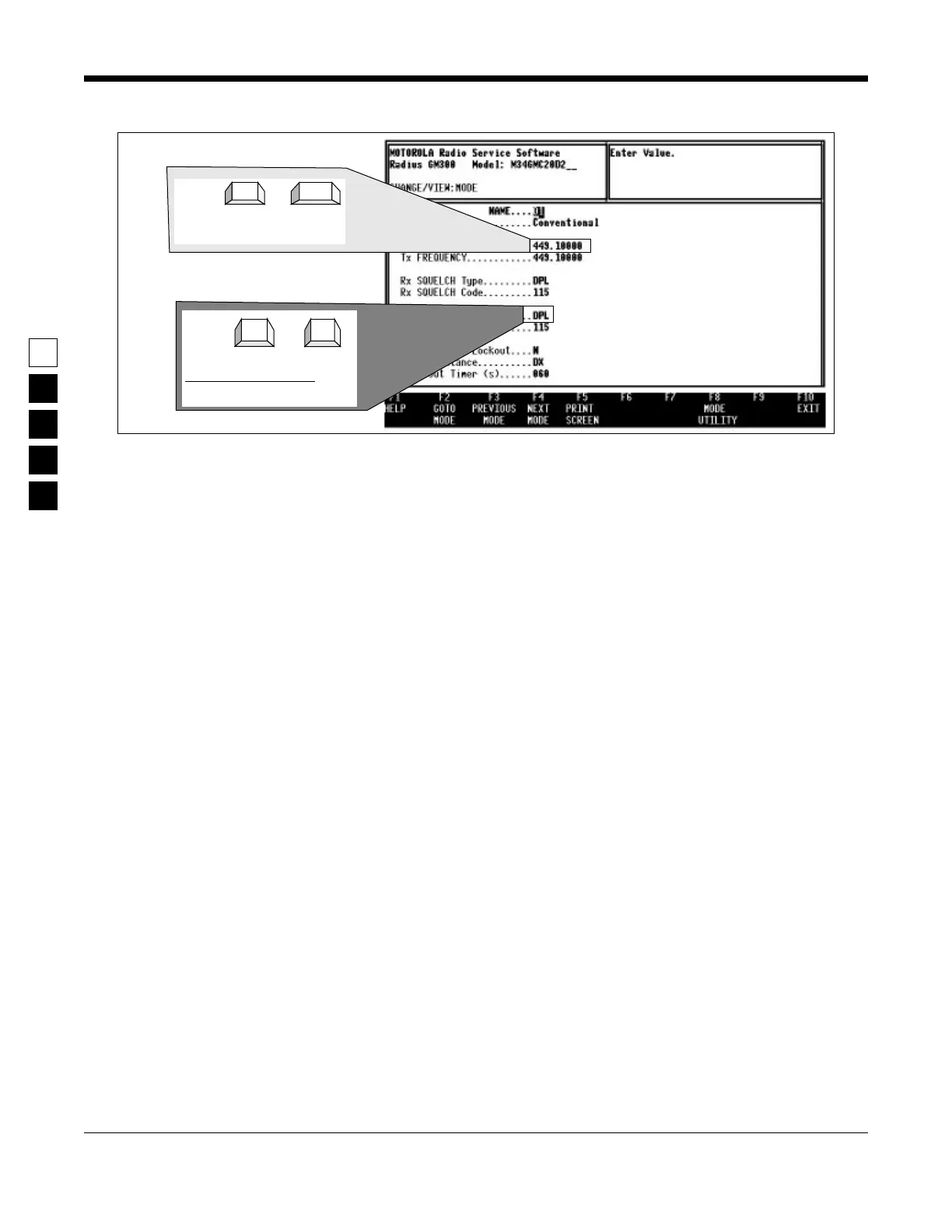
Press
or
to scroll through values
↓
↑
Other field choices:
CSQ TPL DPL INV.DPL
Press or
type new value
to move to field, then
Enter
Tab
Figure 2-12. Changing a Field Value


 To Next Page