Getting Started GM300 Radio Service Software Manual
2-36 6880902Z36-B October, 1996
Setting (Configuring) RSS Computer Defaults
2
2.10.1 Setting Default Archive and Backup Paths
First, you can set the drive name and path names for both archive files and backup archive files you will
create later. Making and using backup archive files can save a lot of programming time should your
archive files become damaged. We highly recommend making backup files. Also, specifying a default
path name here will save much typing time later every time you go to save an archive file. Here's how to
set the default archive and backup file paths.
The following paragraph is a work-around for the problem of the SETUP COMPUTER CONFIGURA-
TION MENU appearing every time you start RSS using the 5.25" diskettes. Our goal is to have it appear
the first time to allow you to set your defaults once - then subsequent times eliminate it from the display,
as the RSS finds the information it is looking for within a file on the diskette.
When using the 5.25" diskettes to start RSS, we recommend putting diskette #1 back into the drive before
pressing F8 at the PC CONFIGURATION screen. Doing this puts the computer configuration file named
GM300.CFG (tells RSS the computer's configuration and default paths) onto the diskette you use when
you start RSS. If RSS finds this file when the program is started next time, it won't ask you again for the
information it can find in this file, and the SETUP COMPUTER CONFIGURATION MENU will not auto-
matically appear.
Next are the steps to specify the serial port you use for interfacing with the radio and RIB. The default
port is COM1
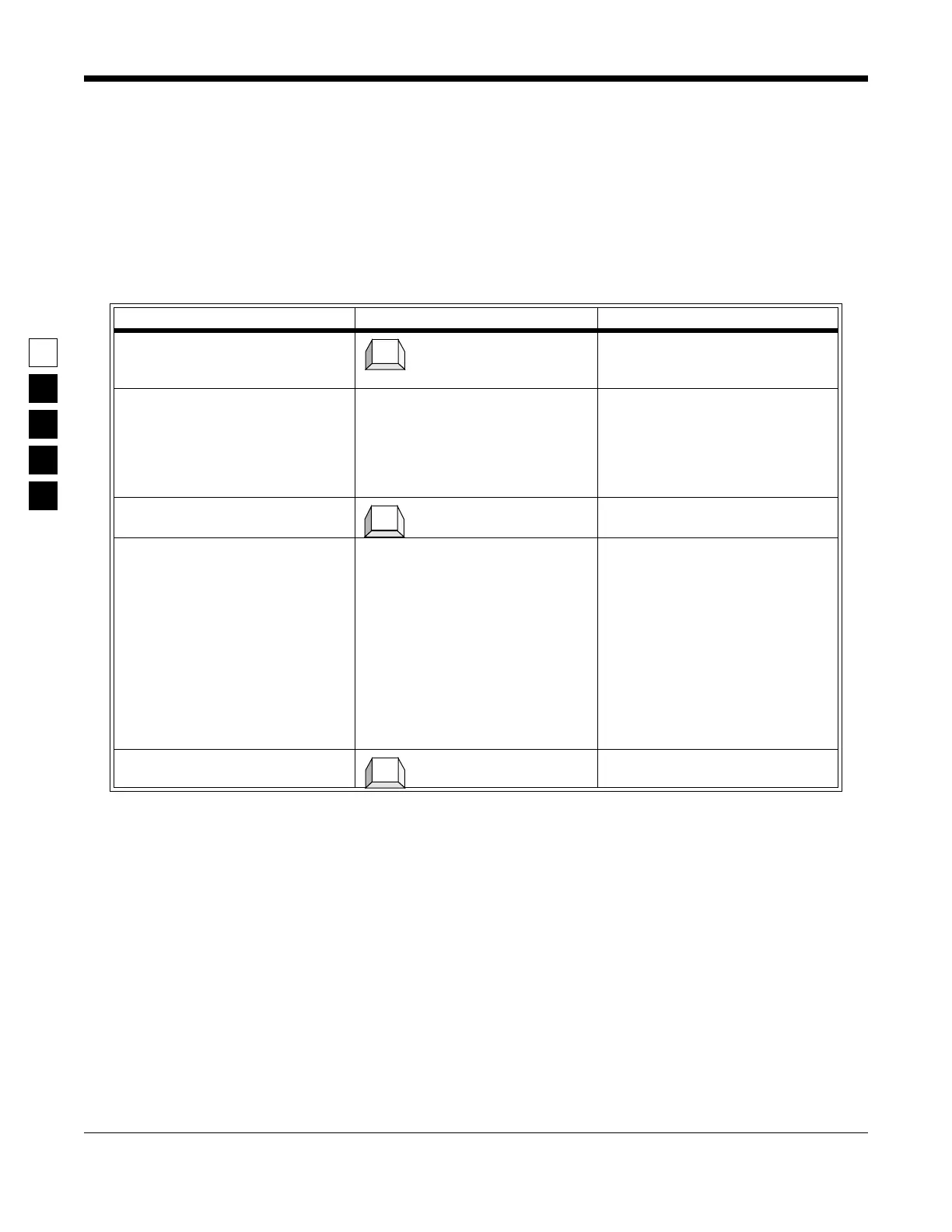
Table 2-16. Creating Archive/Backup File Paths
Instruction What to Type Explanation
1. Go to PC CONFIGURATION Press F3 at the SETUP COMPUTER
CONFIGURATION MENU to get to
PC CONFIGURATION
2. Specify archive file path C:\MRSS\GM300\ARCHIVE At PC CONFIGURATION, type this
archive file path name if you have a
hard disk. This is where you keep
you radio archive file. If you don’t
have a hard disk, specify one of
your diskette drives:
A:\
3. Go to next field Pressing Tab (or Enter or Return)
advances to the next field.
4. Specify backup file path. A:\BACKUP Always use a diskette for backup
files. Depending on the number of
radios you program, you may want
to make sub-directories as well. If
you are already using the A drive
for archive files, use the B drive for
backups. Remember to correctly
label the diskette’s contents on the
outside sticker (e.g. GM300 back-
ups). Proceed to step 2 in Table 2-17
on page 2-37 to select the communi-
cations port connected to the RIB.
5. Save this configuration
F8 save the field options displayed
on the screen.
F3
Tab
F8


 To Next Page