October, 1996 6880902Z36-B 3-13
GM300 Radio Service Software Manual Tutorials
Cloning Radios
3
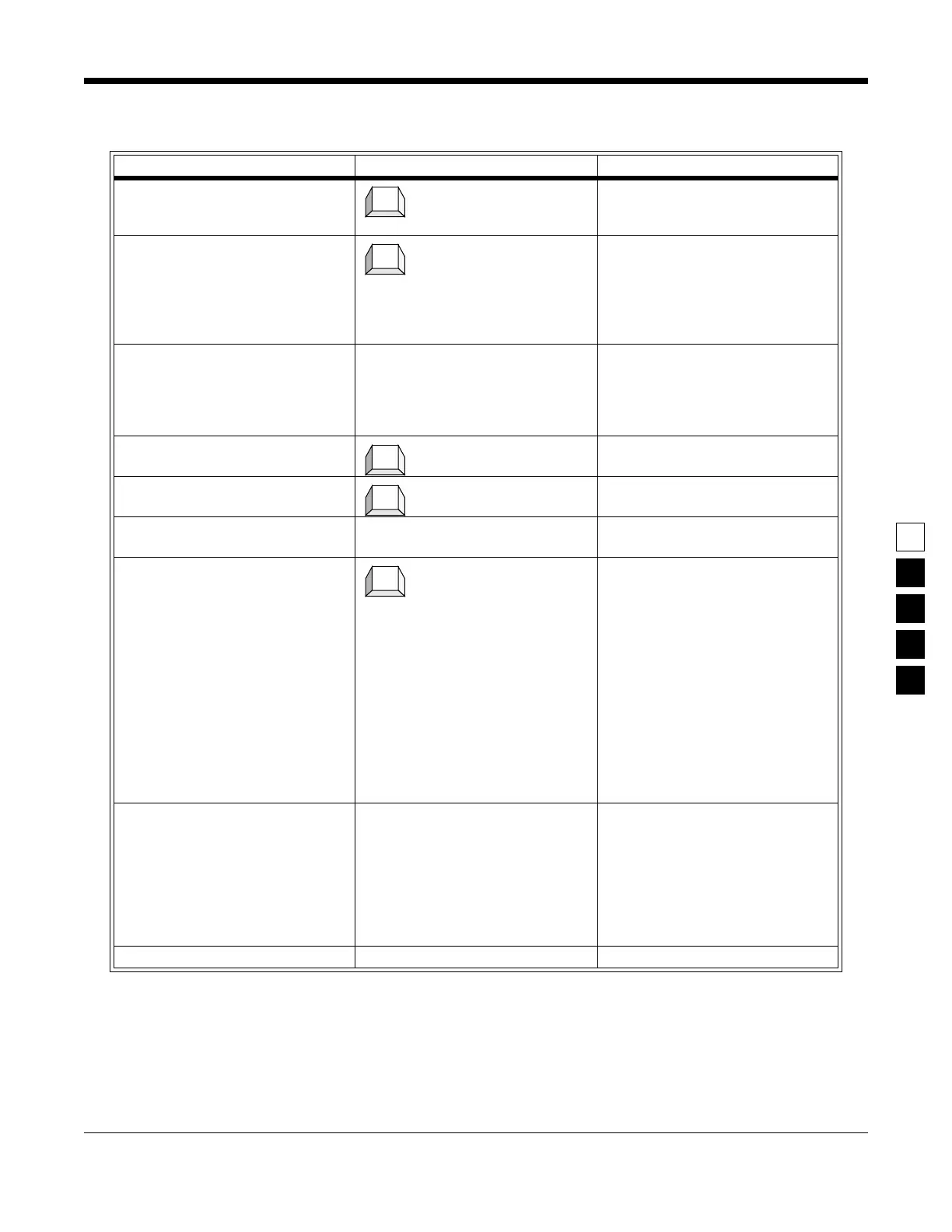
Table 3-10. Steps to Clone Radios
Instruction What to type What it does or means
1. Go to GET/SAVE menu (Press Esc to back up to MAIN
MENU.) Press F3 at the MAIN
MENU to see the GET/SAVE menu.
2. Go to GET ARCHIVE FILE Press F3 at GET/SAVE menu to go
to GET ARCHIVE FILE screen. (A
list of files is displayed which look
like serial numbers) that the RSS
program found under the directory
path shown.)
3. Type in path name C:\MRSS\GM300\ACRHIVE This tells RSS to display the file
names found in this directory. You
will see the file named
A9999999.999 that you saved in the
first tutorial.
4. Select desired file Press Tab until the A9999999.999
file is highlighted.
5. Get selected file Get the selected (highlighted) file.
6. Connect target radio Assemble the hardware and connect
the radio you want cloned.
7. Save source into target radio After Step 5 you should be back at
the GET/SAVE menu. Press F5 from
GET/SAVE to clone the current
radio’s codeplug with the selected
source file’s personality. The cloning
process will check for compatibility
of the two radios automatically. You
will receive an error message if clon-
ing cannot be performed. If for any
reason the radios cannot be cloned,
an error message will appear. Check
all connections or refer to Appendix
A (Error Code Explanations) and B
(Troubleshooting Problems).
8. Disconnect radio When Step 7 is finished, you can
disconnect the radio. In a matter of
seconds the second radio was
cloned. Disconnecting the radio
should only be done at the GET/
SAVE menu or the MAIN MENU, or
the radio may be left in an inopera-
ble state.
9. Proceed to step 1 in next table.
F3
F3
Tab
F8
F5


 To Next Page