98
2004 – 2014 Reliable Controls
®
Corporation. All rights reserved.
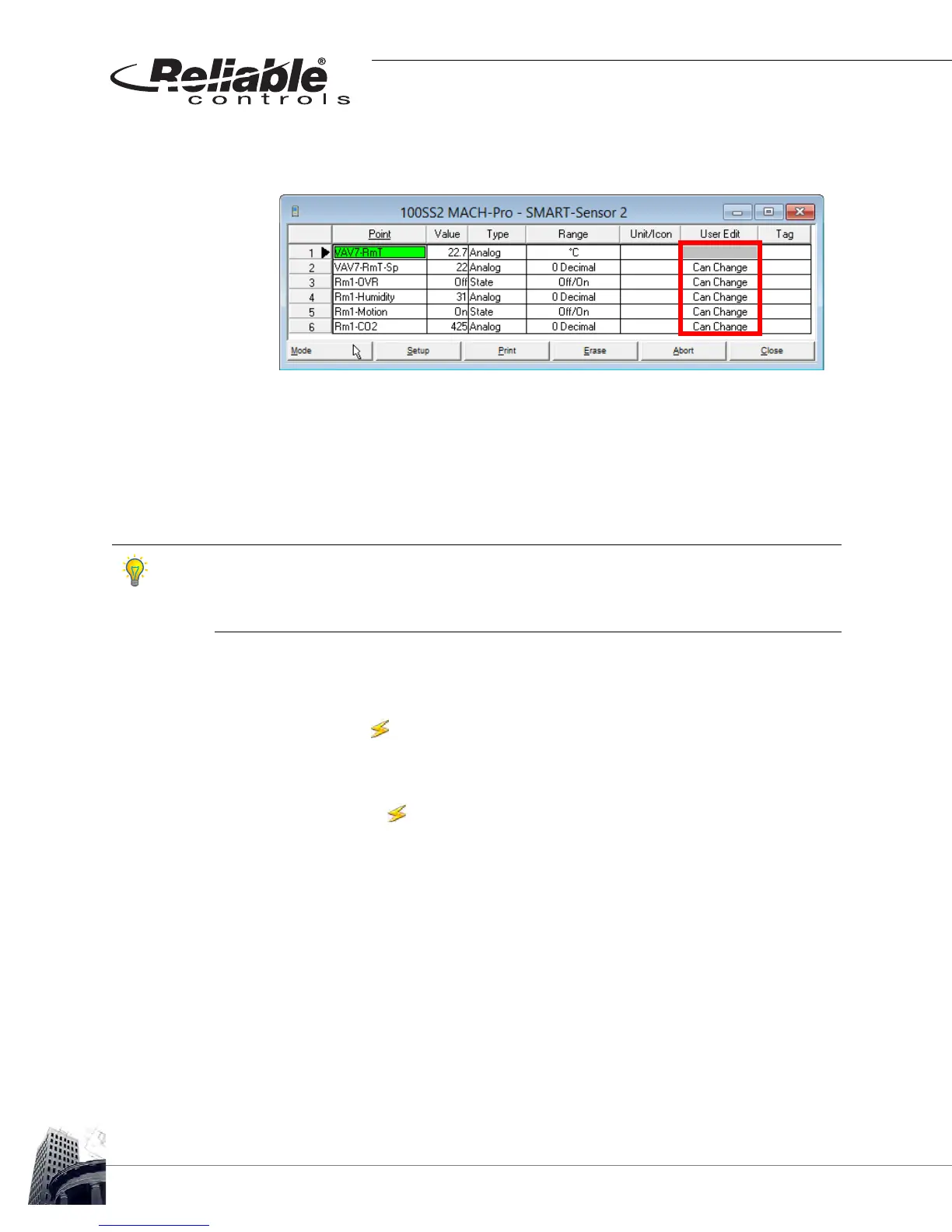
6 Decide which points should be modifiable from the SS. This is configured in the
User Edit column.
FIGURE 90: SS PROGRAMMING EXAMPLE - SMART-SENSOR WORKSHEET WITH USER EDIT CONFIGURED.
In Figure 90, note that the onboard motion sensor of the SS-H-OC is being
used. Notice that it is configured in Row 5 as required and that User Edit is
configured for Can Change. This is to permit the SS to change the value of the
mapped point.
If the User Edit column in the SMART-Sensor worksheet is set to a value of Can Change, an
SS can set the value of a point by one of two methods; 1) user-entry via the operator
interface buttons or slider, and 2) input sensors. If the User Edit column is set to a value of
Display Only, then the SS cannot change the value of a point.
7 After the SS display programming is complete, remember to toggle the
worksheet to mode to save the changes and commit the programming to the
host controller of the SS.
8 Verify proper operation of the SS, including;
•
In the mode, do the Value columns of the SS and Variables
worksheets dynamically update with space conditions from the SS?
• Can points configured as Can Change be modified, and do the values
on the appropriate host controller worksheet change? (Any points in the
host controller that are being written to by the SS should display SS in
the Program column for that point.)
• Do all of the onboard options function properly?
• Does the onboard temperature or humidity sensor require calibration?



 To Next Page