25. Click on the "Settings" menu name, and then click on "Modem Commands" in the menu that appears.
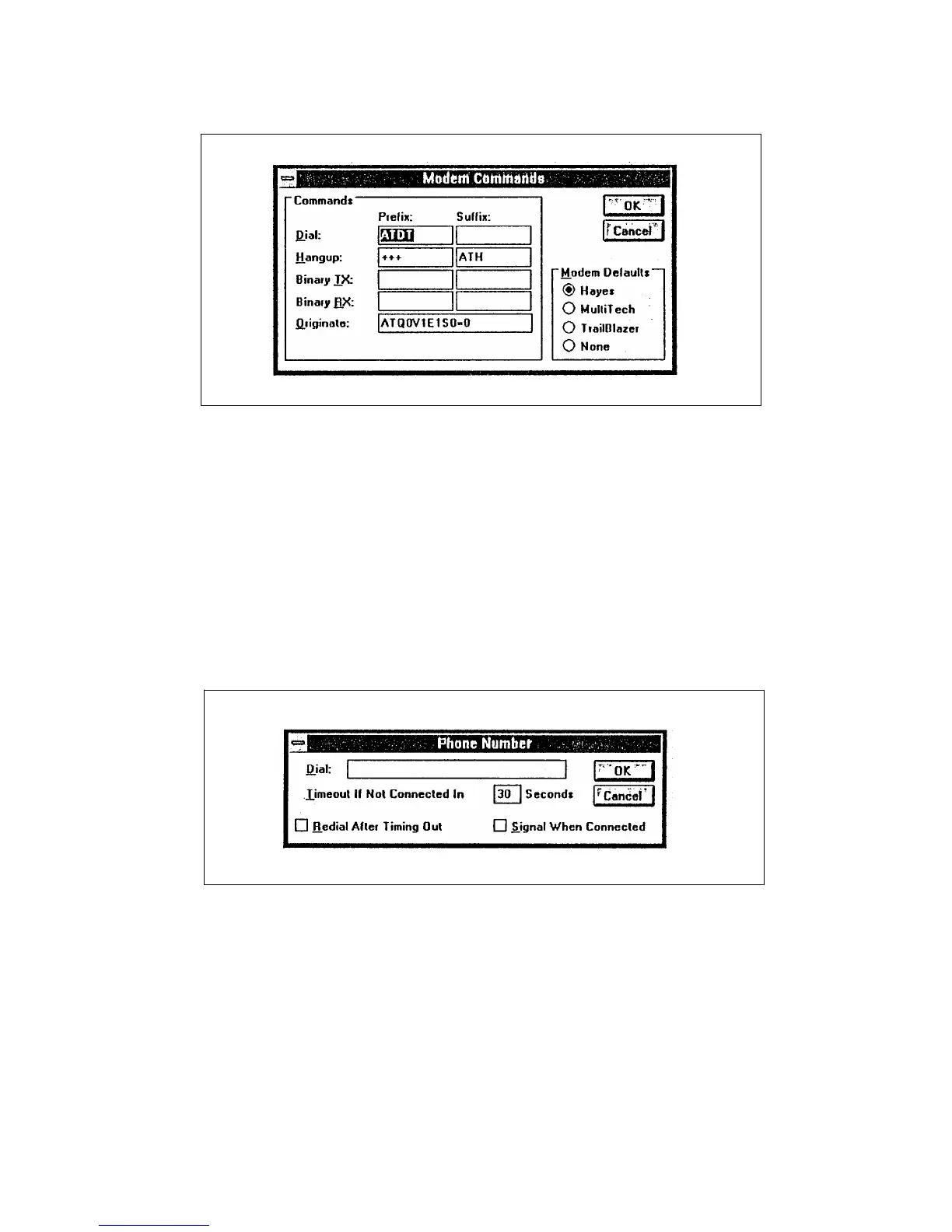
The "Modem Commands" window will appear. (See Figure 4-5.)
RFL 9660 RFL Electronics Inc.
April 24, 2007 4-6 (973) 334-3100
Figure 4-5. "Modem Commands" dialog box for Microsoft Windows Terminal Emulator
26. Click on the "Originate" box in the "Modem Commands" window, and type in the following modem
command string:
AT&D0S0=2
27. In the "Modem Defaults" box, make sure there is a black dot in the circle next to "Hayes." If not, click
on the box until a dot appears.
28. Click on the "OK" command button.
The "Modem Commands" window will disappear.
29. Click on the "Settings" menu name, and then click on "Phone Number" in the menu that appears.
The "Phone Number" dialog box will appear. (See Figure 4-6.)
Figure 4-6. "Phone Number" dialog box for Microsoft Windows Terminal Emulator
30. Enter the RFL 9660's phone number in the "Dial" box.
You can type in parentheses and dashed, but they are not required. Type commas to
provide any delays required before the number is processed by the telephone system. If
you are using a Hayes-compatible modem with the default settings, each comma will add
two seconds of delay. Other modem types may require another character for adding a
delay, or the delay interval may be different.
The following dial string will dial a 9, pause for 4 seconds, and then dial 555-1234:
9,,555-1234


 To Next Page