© 2019 Safe Fleet | All rights reserved | Part #: 700-1123 R4
p. 16
TH8 Installation and Conguration Guide
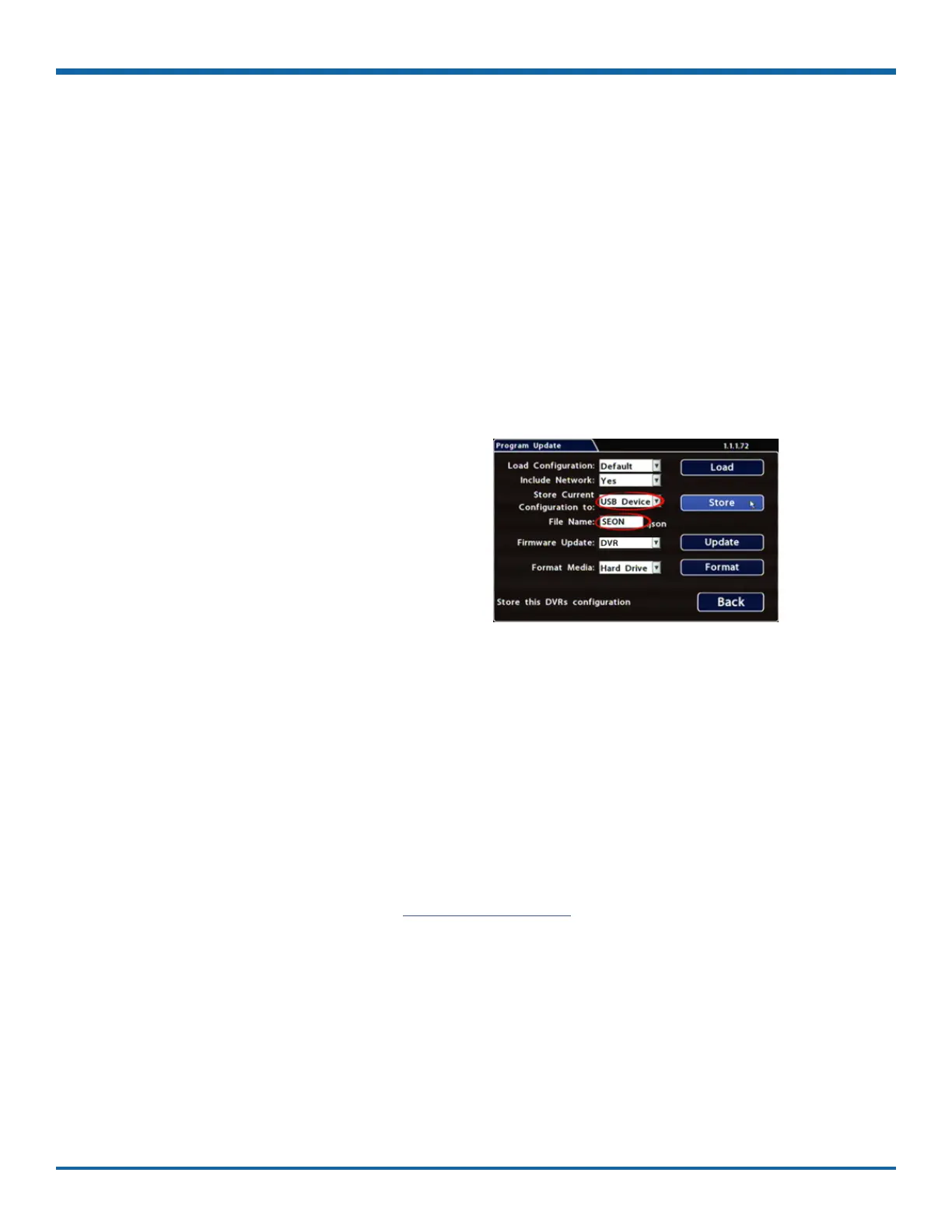
To create a conguration le:
1. Insert the USB storage device in the USB port on
the DVR's front panel. For more information, see
"DVR Front Panel Features" on page 20.
2. Access the OSD (On-Screen Display). For details,
see "Accessing the On-screen Display" on page
25.
3. Right-click anywhere in the OSD view to access
the Main Menu.
4. Select Conguration System
Program Update.
5. In the Store Current Conguration to: pull-down
menu, select USB Device.
6. Click the File Name eld and use the on-screen
keyboard to change the conguration le name
(maximum 4 characters).
Best practice is to choose a name that
references the eet and/or conguration type
(e.g. "SB5C" for a school bus with 5 cameras).
7. Click Store.
In the conrmation that appears, click Yes.
8. Click OK.
The conguration le is created on the USB
device.
Applying DVR Settings
For new DVR installations, apply predened settings from a conguration le on a USB memory stick.
Once a DVR is set up, you can also upload a new conguration le by connecting to the DVR over a network
(see "Web Browser access:" on page 33), or via the Commander application if the DVR is equipped with
wireless capabilities. Commander can also perform batch updates on multiple DVRs. For more information,
please see the on the Safe Fleet Community.
Copying DVR Settings



 To Next Page