© 2019 Safe Fleet | All rights reserved | Part #: 700-1123 R4
p. 25
TH8 Installation and Conguration Guide
Accessing the On-screen Display
About
This topic explains how to connect a local monitor to the DVR and access conguration menus, view live
camera feeds, or search, play back, and archive video.
Video Conguration, Playback, and Archiving
Installers and System Technicians can access DVR conguration, playback and archiving features locally
from the DVR, via the On-screen Display (OSD) and a portable video monitor. For full-featured video review,
searching, and archiving, we recommend vMax View video management software on a Windows-based
computer. For more information, see the on the Safe Fleet Community.
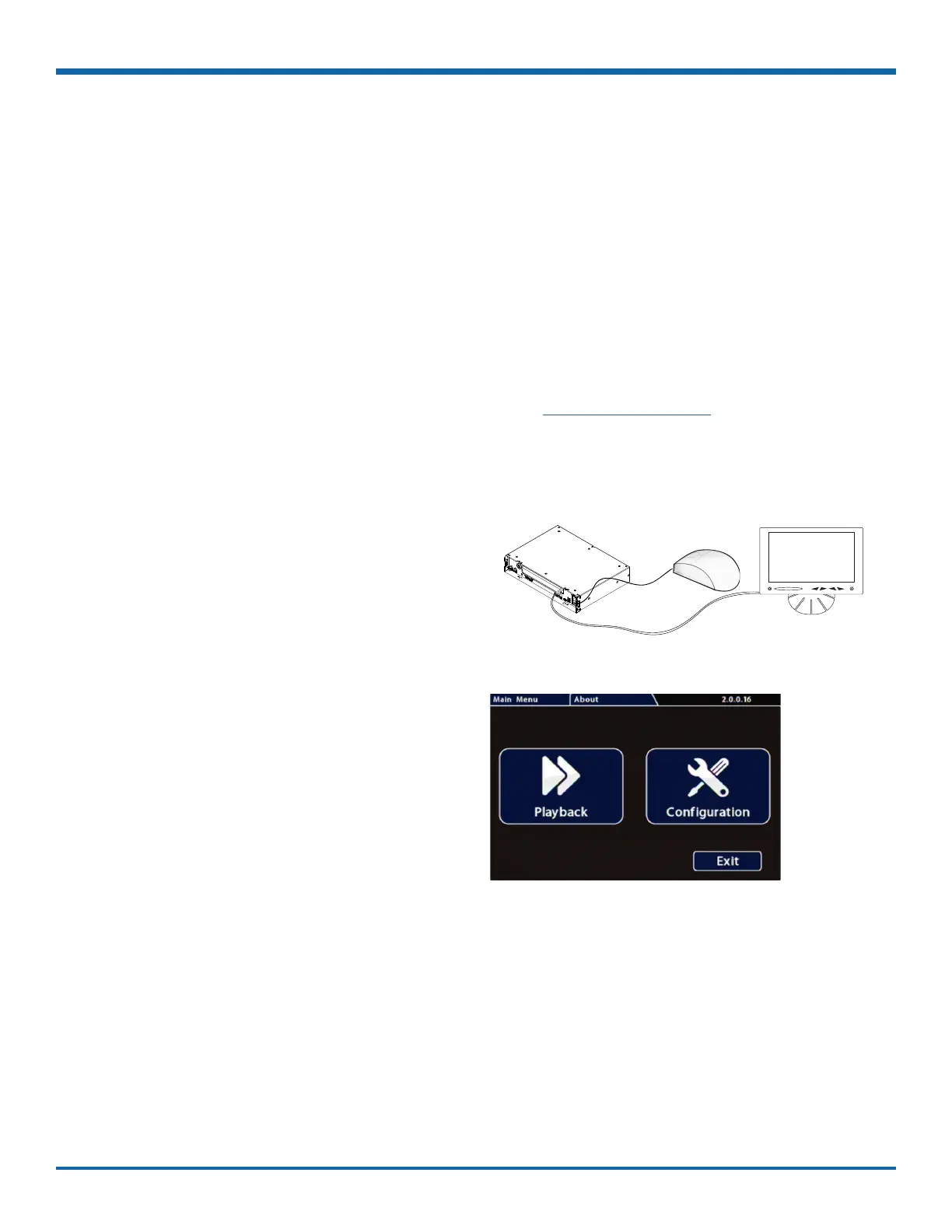
Using the On-screen Display
1. Connect a portable video monitor to VIDEO OUT
on the DVR front panel.
2. Plug a USB mouse in a USB socket on the front
of the DVR.
3. Power up the DVR.
The DVR splash screen appears briey; the
system displays live camera feeds, as described
below in Live View.
4. Right-click anywhere in the OSD screen to view
the Main Menu:
• Conguration - access DVR menus to set
up the system. For more information, see
"Setting up the DVR" on page 33.
• Playback - search, play back, and archive
video directly from the DVR. For more
information, see "Working with Video" on
page 28.
Portable
Video Monitor
Recorder
USB Mouse



 To Next Page