© 2019 Safe Fleet | All rights reserved | Part #: 700-1123 R4
p. 28
TH8 Installation and Conguration Guide
Working with Video
About
This tutorial explains how to use the Playback menu to search, play back, and copy video directly from the DVR
hard drive.
These procedures are intended for installers and system technicians to test and conrm mobile surveillance
system functionality. For full-featured video playback, search, and archiving, we recommend the vMax View
application on a Windows-based computer. For more information, please see the on the Safe
Fleet Community.
Playing Back and Copying Video
To search, play back, and archive video from the
OSD (On-Screen Display) menus:
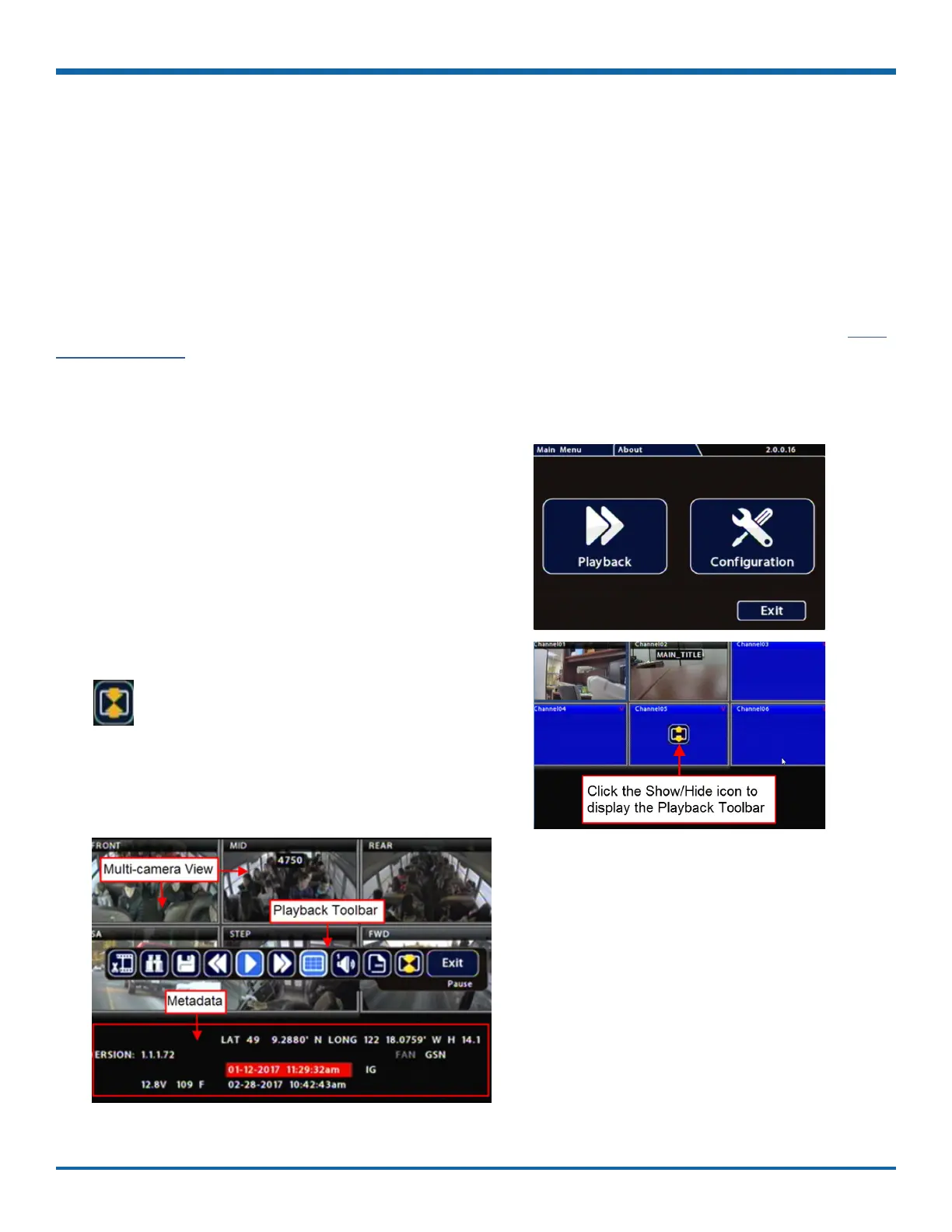
1. Connect a portable monitor and USB mouse, and
power up the DVR. For more information, see
"Accessing the On-screen Display" on page 25.
2. Right-click anywhere in the OSD view to access
the Main Menu tab.
3. Click Playback.
4. In the center of the playback view, click the
Show/Hide icon:
The Playback Toolbar appears.
5. Click icons to browse video and archive clips.
For icon descriptions, please see "Playback
Toolbar Icons" in the next section.



 To Next Page