© 2019 Safe Fleet | All rights reserved | Part #: 700-1123 R4
p. 37
TH8 Installation and Conguration Guide
Time/Date Menu
About
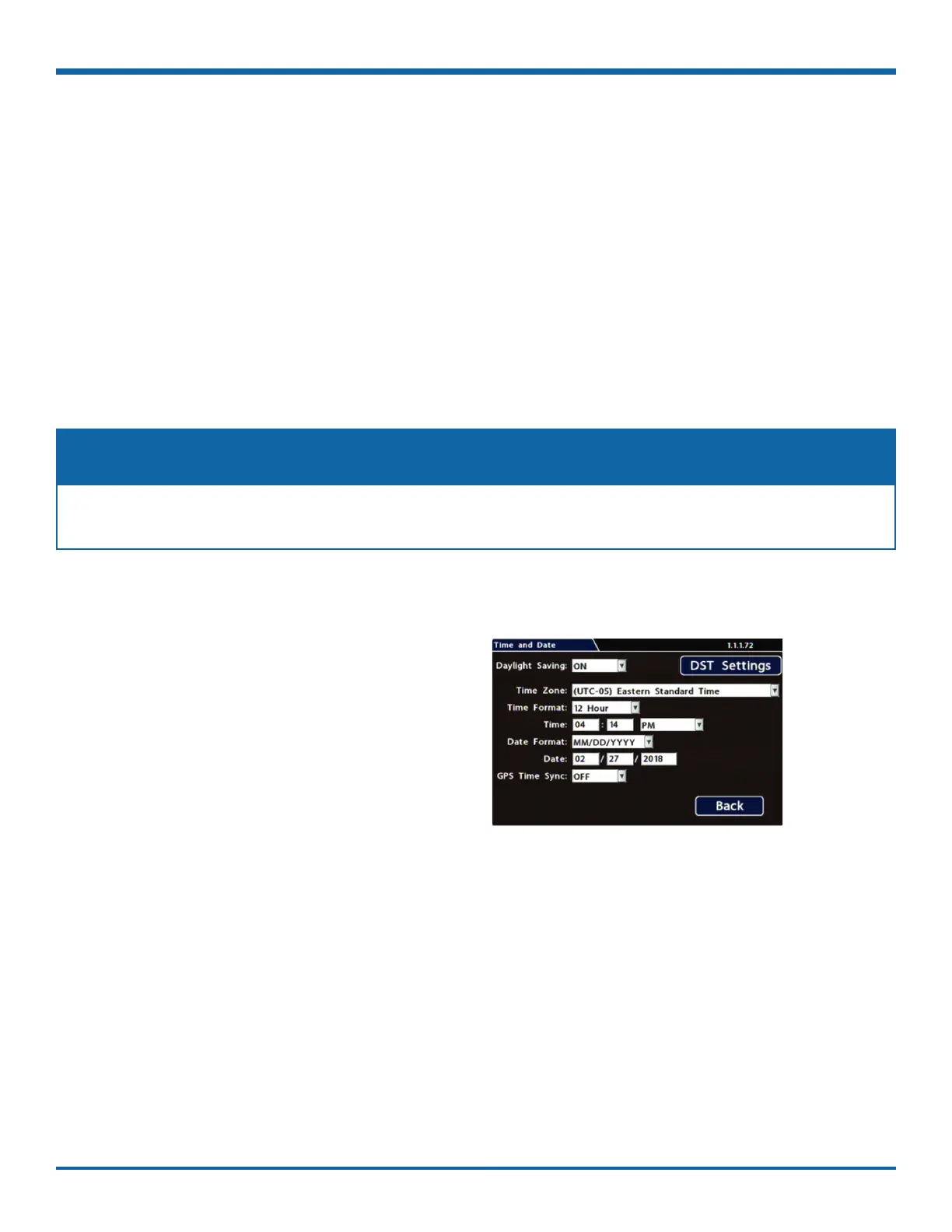
This topic describes the Time and Date conguration tab settings, including time zone, daylight savings (if
required), and optionally synchronizing the DVR date and time with GPS satellites.
Before you begin...
Power up the DVR with a monitor and USB mouse connected, then right-click in Live view and select
Conguration. For more information, see "Accessing the On-screen Display" on page 25.
Time/Date Tab
To update settings:
1. Select Time/Date to display the tab.
2. Select elds and/or use menus to make your
changes (menu options are described later in
this topic).
For details on entering data with the mouse, see
"Using On-screen Keyboards" on page 27.
3. Click Back to save the settings and return to the
Conguration menu.
Ensure these settings are correct for the customer location/time zone – the DVR date and time are used
as an index for searching, archiving, and downloading video, and appear during playback.
NOTE: Time Zone



 To Next Page