© 2019 Safe Fleet | All rights reserved | Part #: 700-1123 R4
p. 55
TH8 Installation and Conguration Guide
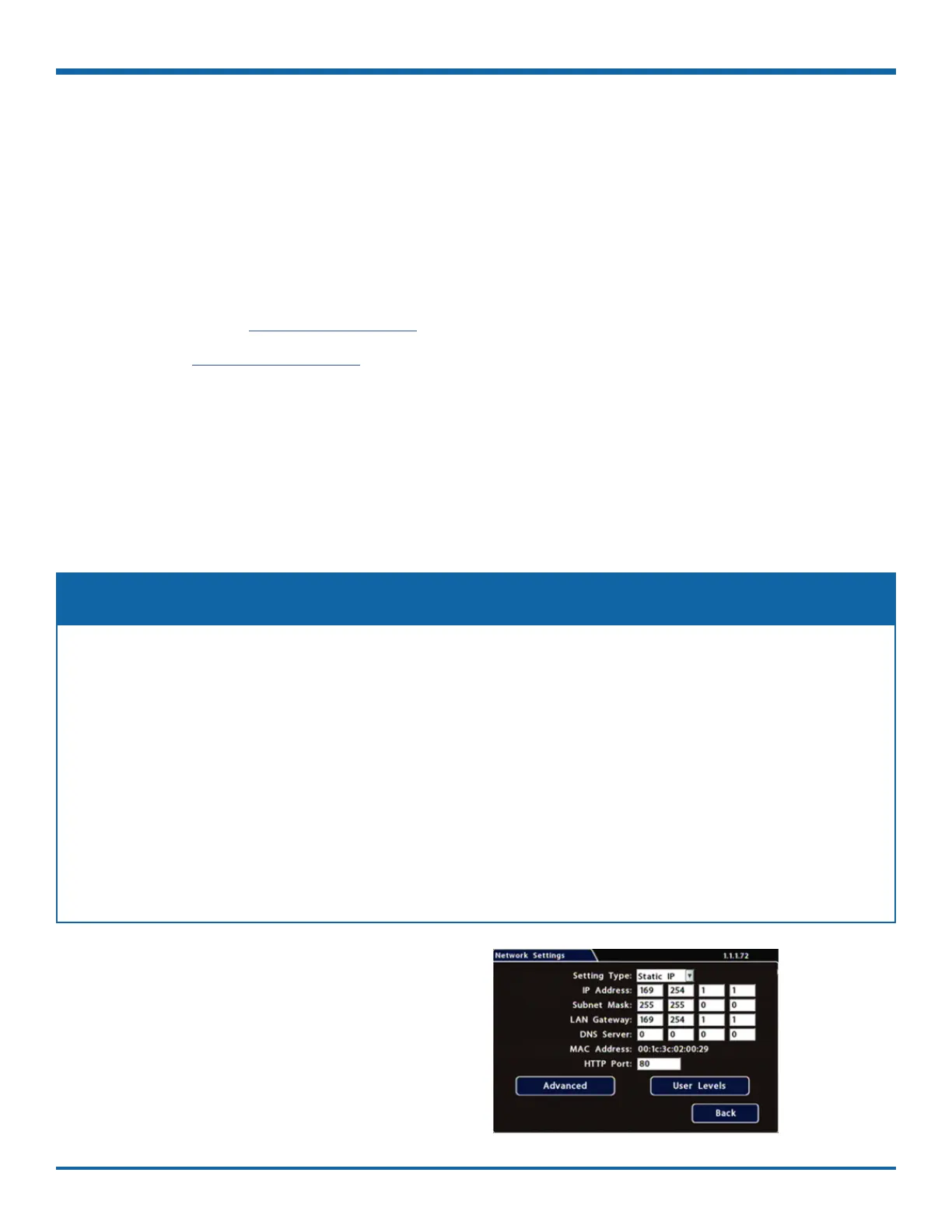
Network Settings
About
This topic describes the communication parameters required to use Smart-Reach Mobile wireless bridge
equipment and Ethernet to connect the DVR to computers and networks.
More information on related products and features is available from:
Commander User Guide (Safe Fleet Community)
View User Guide (Safe Fleet Community)
Before you begin...
Power up the DVR with a monitor and USB mouse connected, then right-click in Live view and select
Conguration.
For more information, see "Accessing the On-screen Display" on page 25.
Network Tab
A qualied IT administrator is required to provide information and congure Network Settings and
Advanced Network settings.
These tasks should only be performed by engineering services or the eet system administrator.
• Each host (computer) connected to the network must have a unique IP address.
• If the DVR is attached to a WiFi bridge, change these settings to those supplied by the system
administrator.
• If the IP information is changed and saved in a conguration le for upload to other DVRs,
their settings must also be updated. For more information, see TH Conguration: Copying DVR
Conguration.
Contact Technical Support to assign an IP address or reset the Smart-Reach Mobile wireless bridge, or for
more information.
NOTE: Conguring Network Settings and Advanced Network Settings
To congure Network Settings:
1. Select Network to open the tab.
2. Congure settings as required.
For details, see , below.
3. Click Back to save changes and return to the
Conguration menu.



 To Next Page