© 2019 Safe Fleet | All rights reserved | Part #: 700-1123 R4
p. 49
TH8 Installation and Conguration Guide
About
This topic describes how alarms work and how to congure them. Triggered alarms create searchable ags
in the recorded video, making it easy to locate alarm events and associated metadata later (for details, see
the on the Safe Fleet Community. You can also tell the system to switch to higher recording
quality settings when an alarm is triggered - for example, to help identify people or license plates when
reviewing video of the event. If the system is wirelessly enabled with Commander, agged video can be
automatically downloaded to your network (for more information, see the on the Safe
Fleet Community.
Before you begin...
Power up the DVR with a monitor and USB mouse connected, then right-click in Live view and select
Conguration. For more information, see "Accessing the On-screen Display" on page 25.
To congure Alarms:
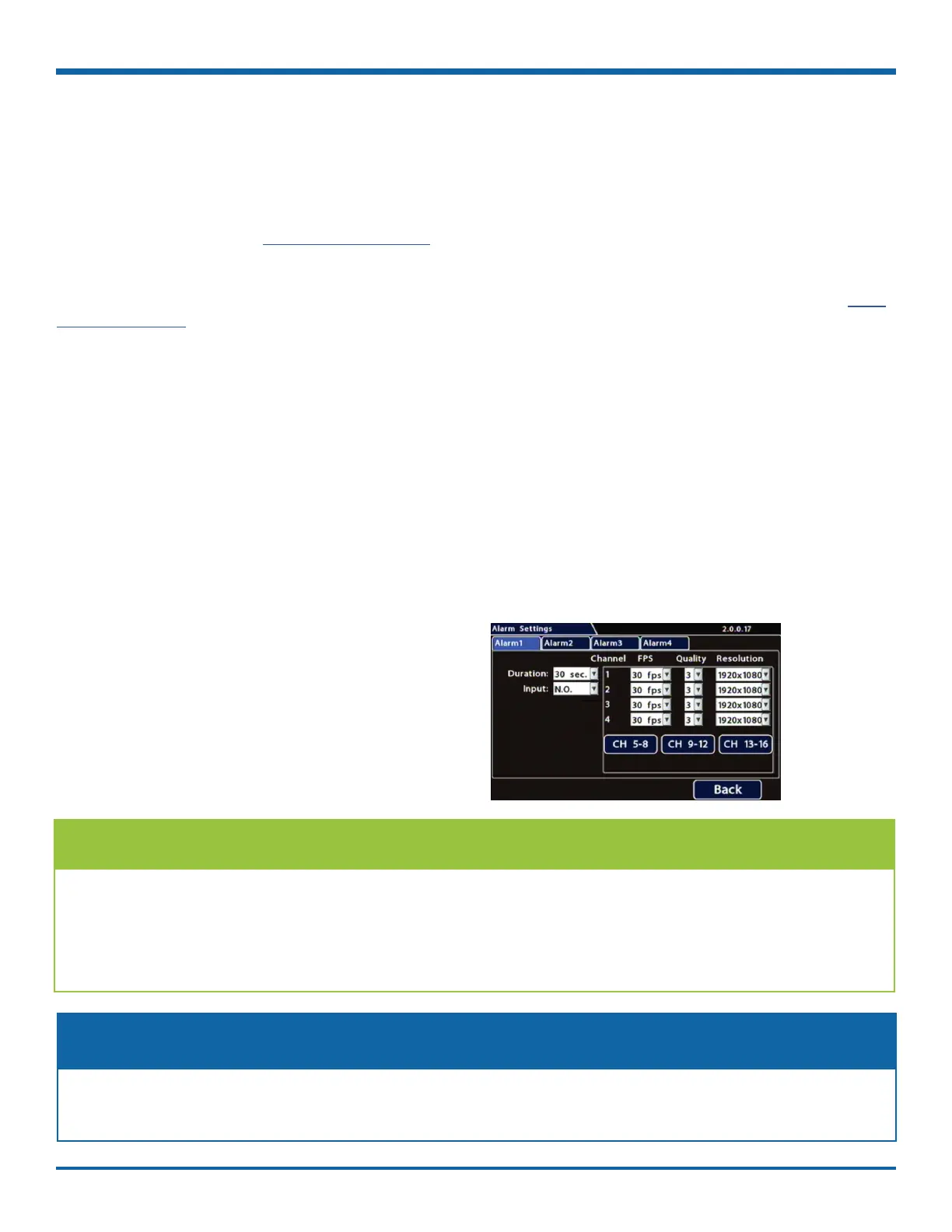
1. Select Alarm/Signal Alarms to open the tab.
2. Congure alarm settings as required. For details,
see , below.
3. Click Back to save settings, then click Back
again to return to the Conguration menu.
TIP: Higher recording quality settings for Alarm events
Select higher speed (FPS), Quality, and Resolution in Alarm Settings to increase video quality for a short
duration to record an alarm event.
Higher quality video involves greater storage requirements, which reduces the amount of video you can
store before it is overwritten. Therefore, a DVR usually records in a mode that conserves storage space.
Alarms
Alarm Settings
The DVR supports 4 independent alarms. An operator can trigger Alarm 1 using the optional Event/Diagnostic
button installed in the vehicle (for more information, see "Tagging Video for Review" on page 24). Alarm 2
can be activated by an operator button or covert trigger connected to the ALARM 2 port on the DVR rear panel.
You can also set Alarms 1-4 to trigger automatically based on vehicle speed (ssee page 64), a G Sensor
threshold (see page 61), GPS fence (see page 65), or a Signal activation (see page 47).
FPS, Quality, and Resolution elds are blank/unavailable in Alarm Settings screens for unsupported
cameras or RTSP streams, including those from a companion DVR.
NOTE: Higher quality settings for supported cameras only



 To Next Page