© 2019 Safe Fleet | All rights reserved | Part #: 700-1123 R4
p. 42
TH8 Installation and Conguration Guide
Camera Settings
About
This topic describes how to set up camera recording parameters.
Before you begin...
Power up the DVR with a monitor and USB mouse connected, then right-click in Live view and select
Conguration. For more information, see "Accessing the On-screen Display" on page 25.
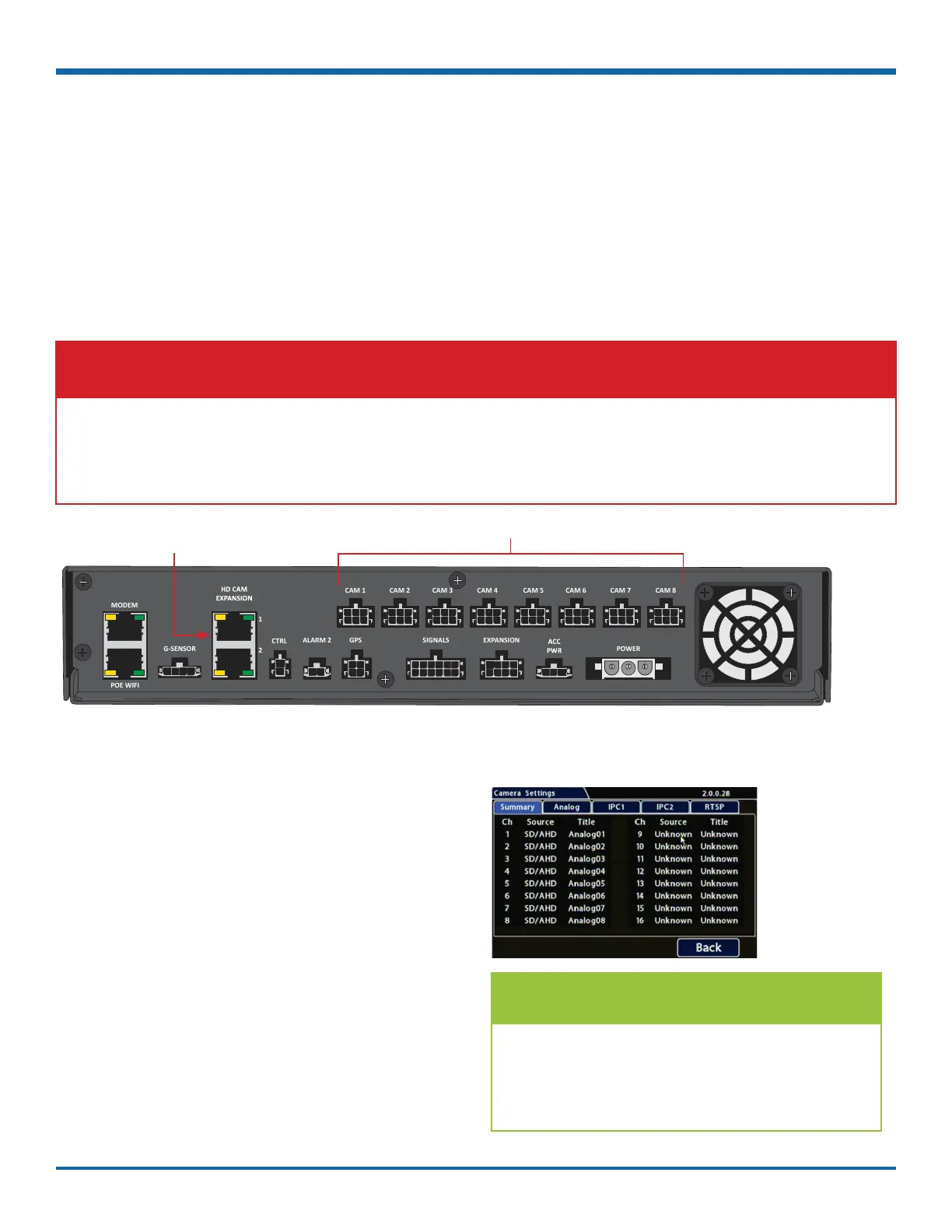
2 IP Cameras or 1 IP camera and a
companion DVR (e.g. TH4C)
8 Standard Resolution and/or High Denition Cameras
Summary Tab
Select Record Camera to display Camera Settings.
The Summary tab displays information about the
cameras detected by the DVR:
Ch - channel number (see "Camera Settings - Menu
Options" on page 46)
Source - the video signal detected:
• SD/AHD: standard or high denition analog
camera
• C3*9PD or CHW8PD: IP camera
• RTSP: generic RTSP video source (including
camera streams from a companion DVR)
• Unknown: channel is disabled
Title - the assigned camera name (see "Camera
Settings - Menu Options" on page 46)
IMPORTANT: IP Cameras and Video Sources
If an IP camera or RTSP video source (including a companion DVR such as the TH4C) is connected
to an HD Cam Expansion port, the port must be set up before you can work with the camera recording
parameters described in this section. For instructions, see "IP Cameras and RTSP Video Sources" in
"Recording Settings" on page 52.
TIP: Conguration Conict
Red font indicates the detected video source
does not match the channel's selected camera
conguration (for more information, see
"Conguring Video Sources" on page 43).



 To Next Page