© 2019 Safe Fleet | All rights reserved | Part #: 700-1123 R4
p. 24
TH8 Installation and Conguration Guide
Tagging Video for Review
About
This topic explains how to ag an event, so the video footage can be located easily at a later time.
Before you begin...
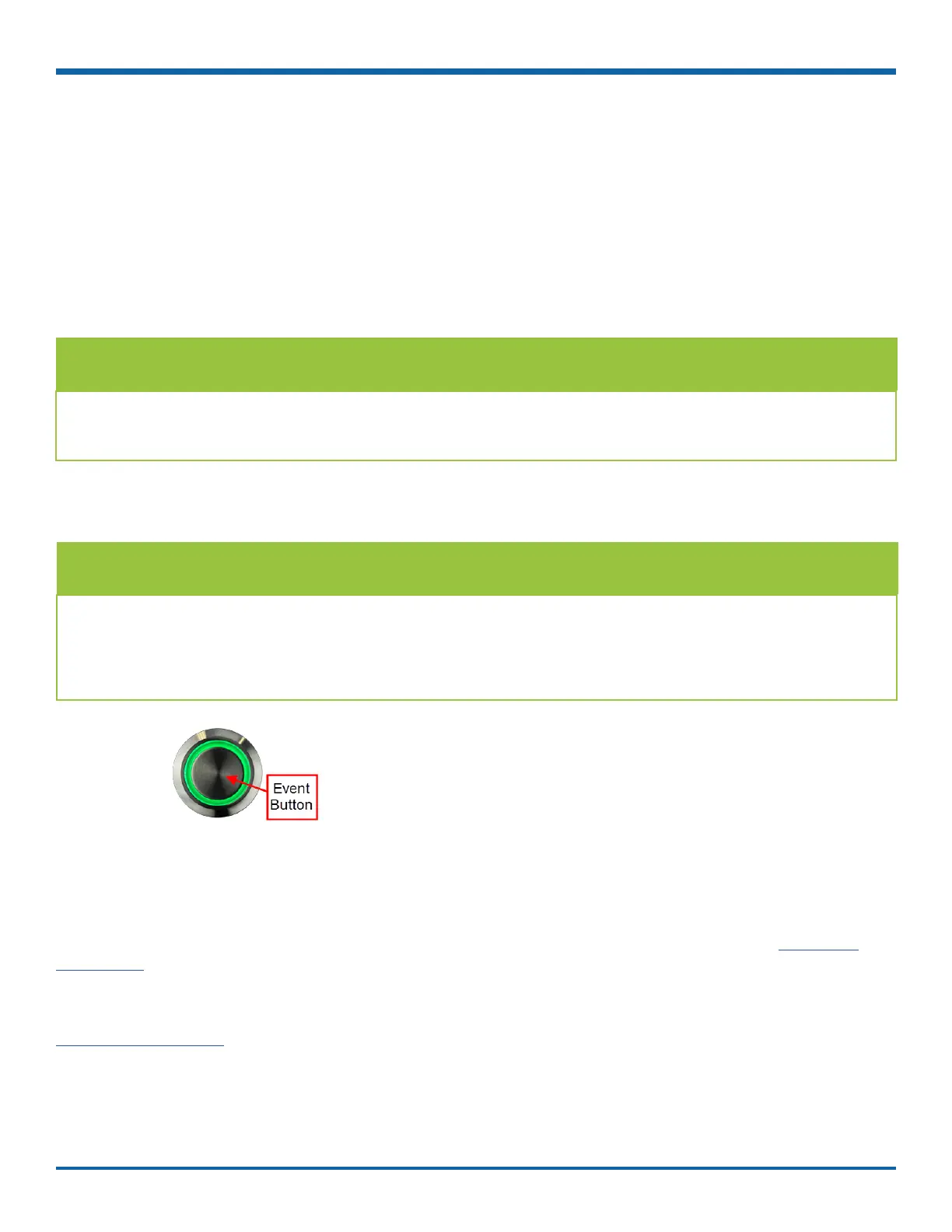
In order for an operator to tag video, an Event/Diagnostic Button or Alarm Button must be installed in the
vehicle. For more information, contact Technical Support.
Each time an event is agged, the system places a special Alarm tag on the video, as well as the date and time.
Upon playback, any triggered Alarms are displayed, and the reviewer can jump directly to the tagged sections
and see the associated video (details depend on how the DVR is congured).
For more information on accessing and viewing recorded video, see the on the Safe Fleet
Community.
If your organization uses Commander, tagged video can be automatically downloaded and made available to
reviewers when your vehicle returns to the depot. For more information, see the on the
Safe Fleet Community.
TIP: Automatic alarm triggers
Alarms can also tag video automatically when applied to a G Sensor threshold, excessive speed, or a GPS
fence. For more information, see "Alarms" on page 49.
To tag an event so the video is available later:
TIP: DVR is always recording!
Under normal conditions, the DVR is continuously recording when the vehicle ignition is on.
If something happens that should be agged for review, press the Event Button to ensure the event is
easy-to-nd later.



 To Next Page