© 2019 Safe Fleet | All rights reserved | Part #: 700-1123 R4
p. 73
TH8 Installation and Conguration Guide
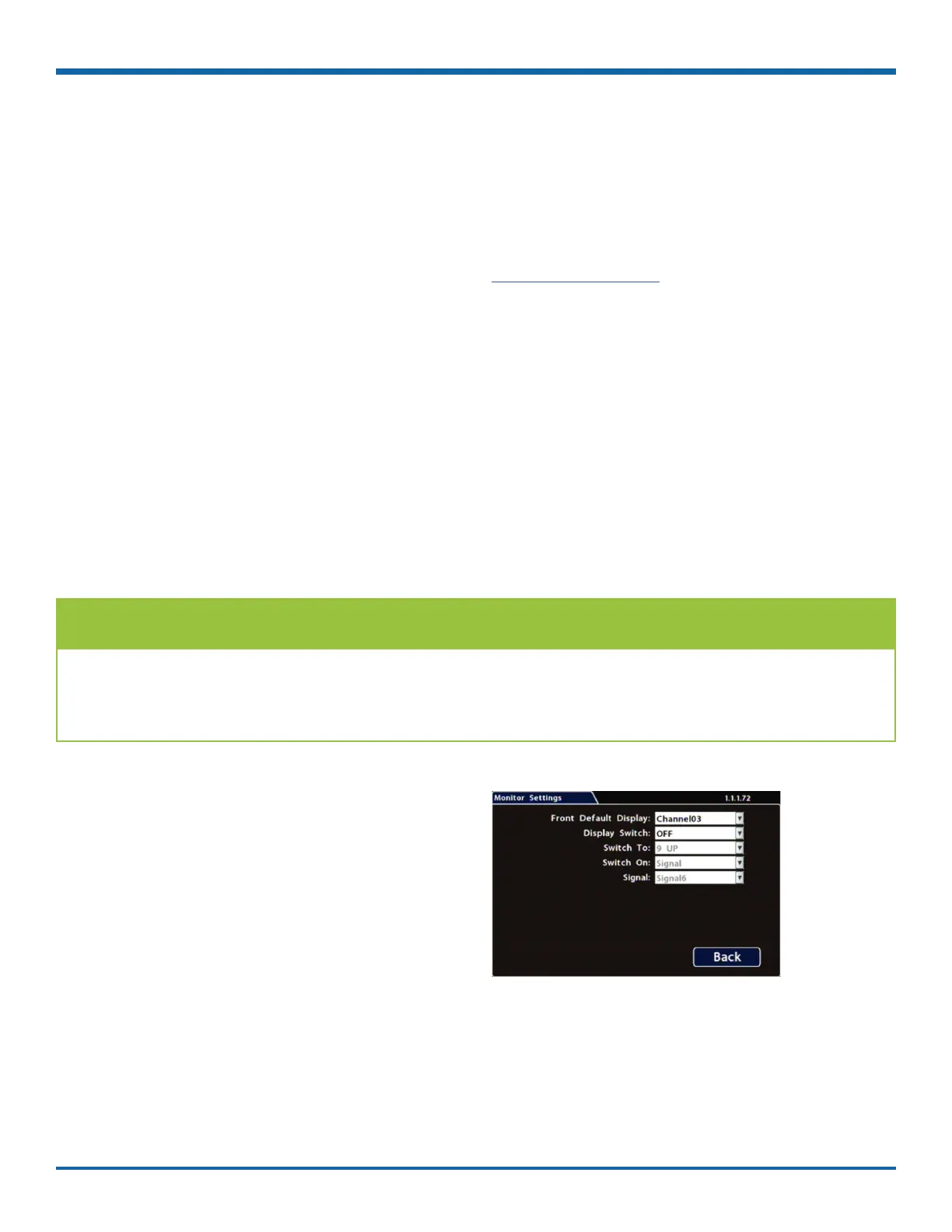
Monitor Settings
About
This topic describes the Monitor Settings tab. It provides options to control the camera feed displayed in the
DVR's On-screen Display "Live View". Monitor Settings also apply to the Rear Vision System (RVS) for vehicles.
For more information, see the RVS documentation on the Safe Fleet Community.
Before you begin...
Power up the DVR with a monitor and USB mouse connected, then right-click in Live view and select
Conguration.
For more information, see "Accessing the On-screen Display" on page 25.
Monitor Settings
Monitor Settings control camera feeds sent to both the Video Out RCA jack on the DVR front panel and the
Expansion socket on the rear panel. For more information, see "DVR Front Panel Features" on page 20 and
"DVR Back Panel Features" on page 21.
To congure Monitor Settings:
1. Select Title/Display Monitor Settings to open
the tab.
2. Congure options as required.
For details, see , below.
3. Click Back to save settings, then click Back
again to return to the Conguration menu.
In addition to Rear Vision Systems (backup cameras), Monitor Settings can support custom
implementations such as an entry/exit bus door camera with a dedicated monitor to advertise the fact that
riders are under surveillance.
TIP: Custom Monitor Displays



 To Next Page