SMARTRG INC. PROPRIETARY AND CONFIDENTIAL. ALL RIGHTS RESERVED. COPYRIGHT © 2014 10
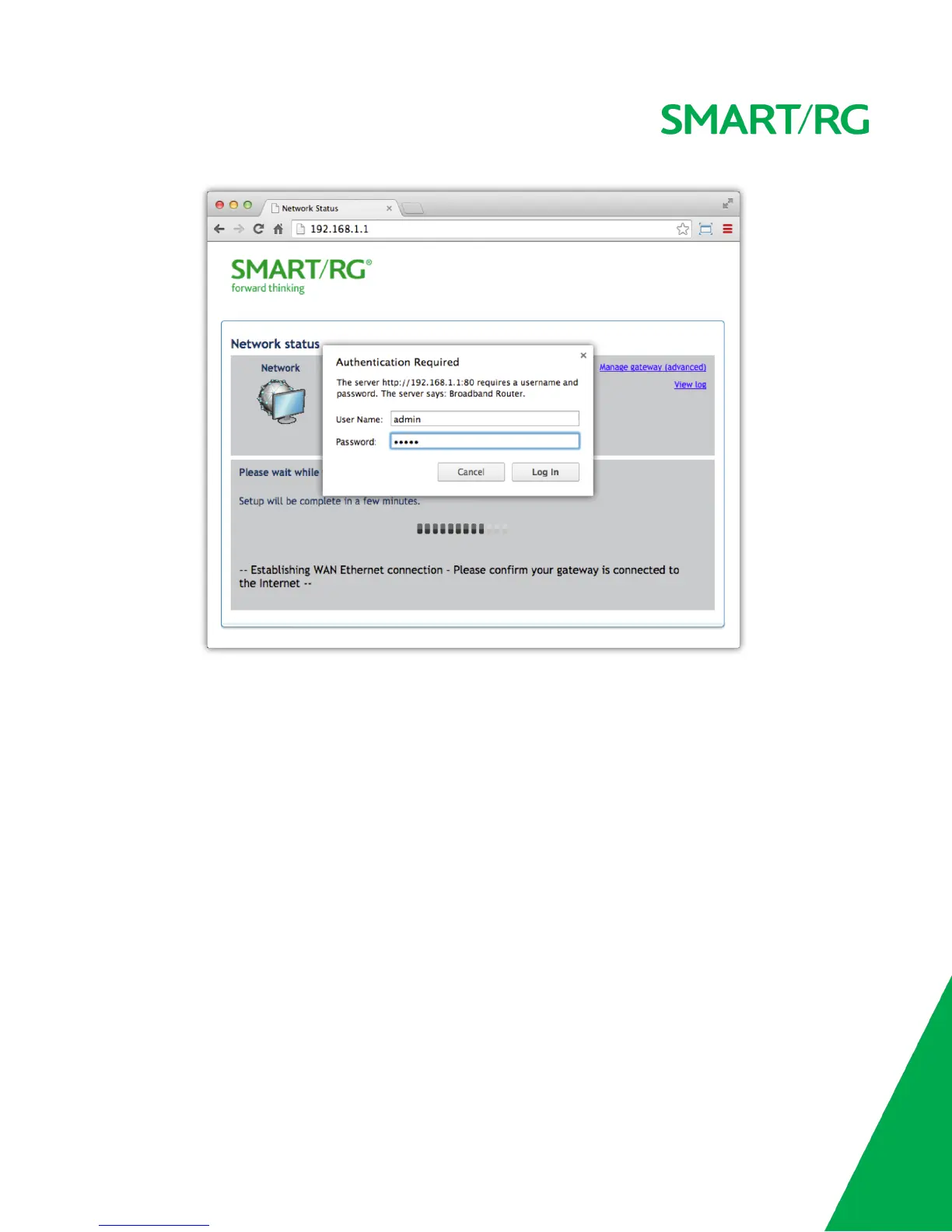
NOTE: The gateway's UI can be accessed via the WAN connection by entering the WAN IP address in your browser's address bar and entering the
default username and password: support/support. WAN HTTP access control MUST be enabled to access the gateway's UI via the WAN
connection. Reference section on Management Access Controlfor details.
If your SmartRG gateway is configured for "bridge mode" (modem) operation, your PC will NOT be able to acquire an address via CPE's DHCP.
Instead, manually configure your PC's interface with an IP address on the default network (e.g. 192.168.1.100).
The balance of this guide is dedicated to a sequential walk-through of the user interface of your gateway. Here you will find a visual reference of
each screen along with a Description for each of the parameters displayed. Where applicable, a range of valid values is outlined along with an
overview narrative of each screen.
For in depth "how-to" information for specific scenarios, please take advantage of the knowledge base found at our support web site. Access to
this site is restricted to SmartRG customers and partners. Do not attempt to share links to this site with your subscribers.


 To Next Page