SMARTRG INC. PROPRIETARY AND CONFIDENTIAL. ALL RIGHTS RESERVED. COPYRIGHT © 2014 48
Time Restriction
Time Restriction features can be established on a per MAC address basis for individual LAN hosts. Access constraints by day of week and time of
day are available to customize per the preferences of the subscriber.
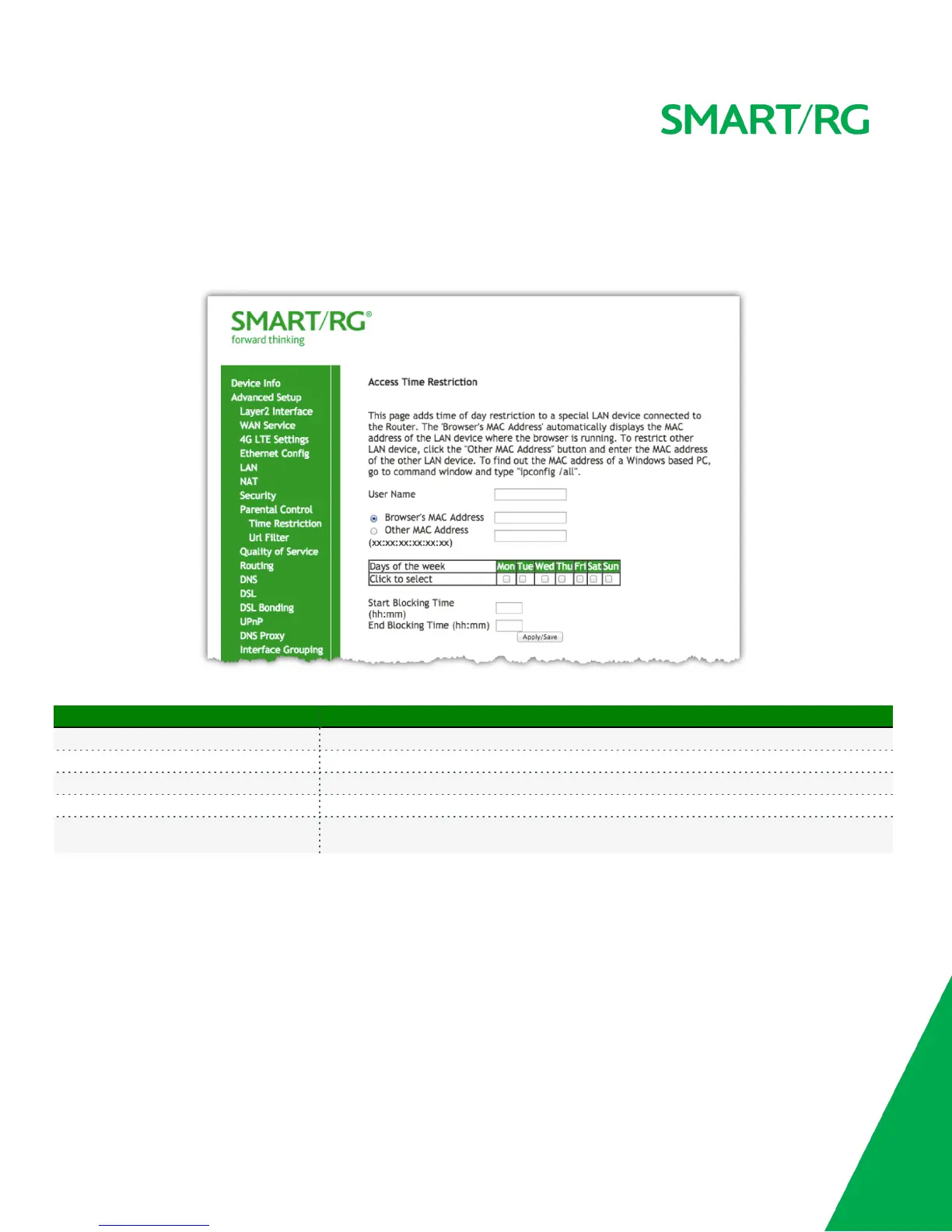
After selecting Advanced Setup -> Parental Control -> Time Restriction, click the Add button toward the center. The following screen will appear:
The individual fields on this screen are defined as follows:
Field Name Description
User Name A free form text field. Enter and intuitive name for this restriction.
Browser's MAC Address MAC address of the PC to which this restriction will uniquely apply.
Other MAC Address (xx:xx:xx:xx:xx:xx) MAC address of another LAN device to restrict.
Days of the week Check the box(es) for day(s) Mon - Sun the restrictions apply.
Start Time Blocking / End Time Blocking
Enter the range of time that the above stated device(s) is to be restricted from access to the
Internet.
URL Filter
The other side of the Parental Controls coin is URL filtering. From the left navigation bar, select Advanced Setup -> Parental Control -> Url Filter.
Choose the Exclude List radio button to add a URL to be blocked. Note that the Include List is a feature of Cisco Prime Home™ Plus and is only
supported when the gateway is under management by Cisco Prime Home™. In that event, these settings must be applied via the, "Content
Filtering" features Cisco Prime Home™ and not from this native, gateway user interface.
Next click the Add button toward the center of the screen. The following screen will appear:


 To Next Page