SMARTRG INC. PROPRIETARY AND CONFIDENTIAL. ALL RIGHTS RESERVED. COPYRIGHT © 2014 8
For models with a stand-alone, RJ45, WAN port and a DSL port, the WAN port can be re-purposed to function as an additional LAN port when your
internet connection is via DSL.
See the ETH Interface section of this manual for further instructions to enable this SmartPortTM feature.
LAN
The set of four, RJ45 ports across the back of your gateway labeled LAN1, LAN2, LAN3, LAN4 are the means to connect client devices such as
computers and printers to your gateway.
On some models, one of these four ports may be labeled as WAN indicating SmartPortTM support. SmartPortTM enables a LAN port to be re-
purposed to function as an Ethernet WAN port (describe above). When this port is serving as a LAN port, the corresponding LED on the face of the
unit is labeled, "WAN" .
See the ETH Interface section of this manual for further instructions to enable this SmartPortTM feature.
USB
USB ports on SmartRG products currently provide +5 DC volts. Future firmware updates will enable data transfer via USB.
POWER
Use only the power supply included with your gateway. Intended for indoor use only.
External Buttons:
Smart RG gateways provide pushbutton controls on the exterior for critical features. These buttons give you a convenient means to, trigger WPS
mode, toggle the WiFi radio on and off or reset the gateway.
The following describes specifics for each of these controls.
WPS Button
Wi-Fi Protected Setup™ (WPS) is standard means for secure connection between your gateway and various wireless client devices. It is designed
to simplify the pairing process between devices.
If you have client devices that support WPS, use this to automatically configure wireless security for your network. WPS configures one client
device at a time. Reference the Quick Start Guide included with your gateway for specific instructions. Also see the Wireless chapter of this
manual.
Repeat the steps as necessary for each additional WPS compliant device you wish to connect.
The location of the WPS button varies by model.
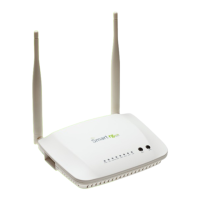
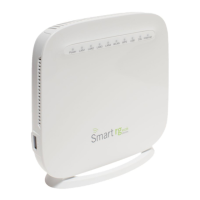
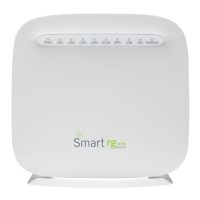
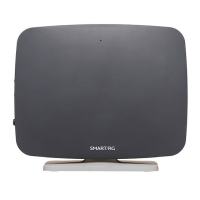
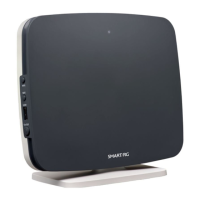
l On models SR550n, SR510n, and SR552n, the button is located on the left side of the unit.
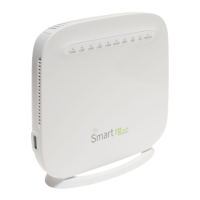
l SR360n, locate the WPS button on the top of the unit.
l For the SR350n and SR500n models, an exterior button is not present however WPS is supported via the on-board software.
Reference the Quick Start Guide included with your gateway for specific instructions.


 To Next Page