Paramount ME User’s Guide
107
On the Paramount ME with the MKS 3000, remove the access panel on the
control panel mounted on the back of the RA box. Once removed, you will see
the adapter board with numerous wires and ribbon cables attached. There are
two DIP switches on this board labeled Program on one side and Run on the other.
Make sure the mount is turned off, and then switch both from Run to Program.
This will allow TheSky6 Professional Edition to update the control software in the
flash memory of the Paramount via the serial port.
After the DIP switches are set to Program, turn on the Paramount. Note that the motors
will not turn as they do when the DIP switches are set to Run.
Next, launch TheSky6 Professional Edition and click Telescope > Link > Establish.
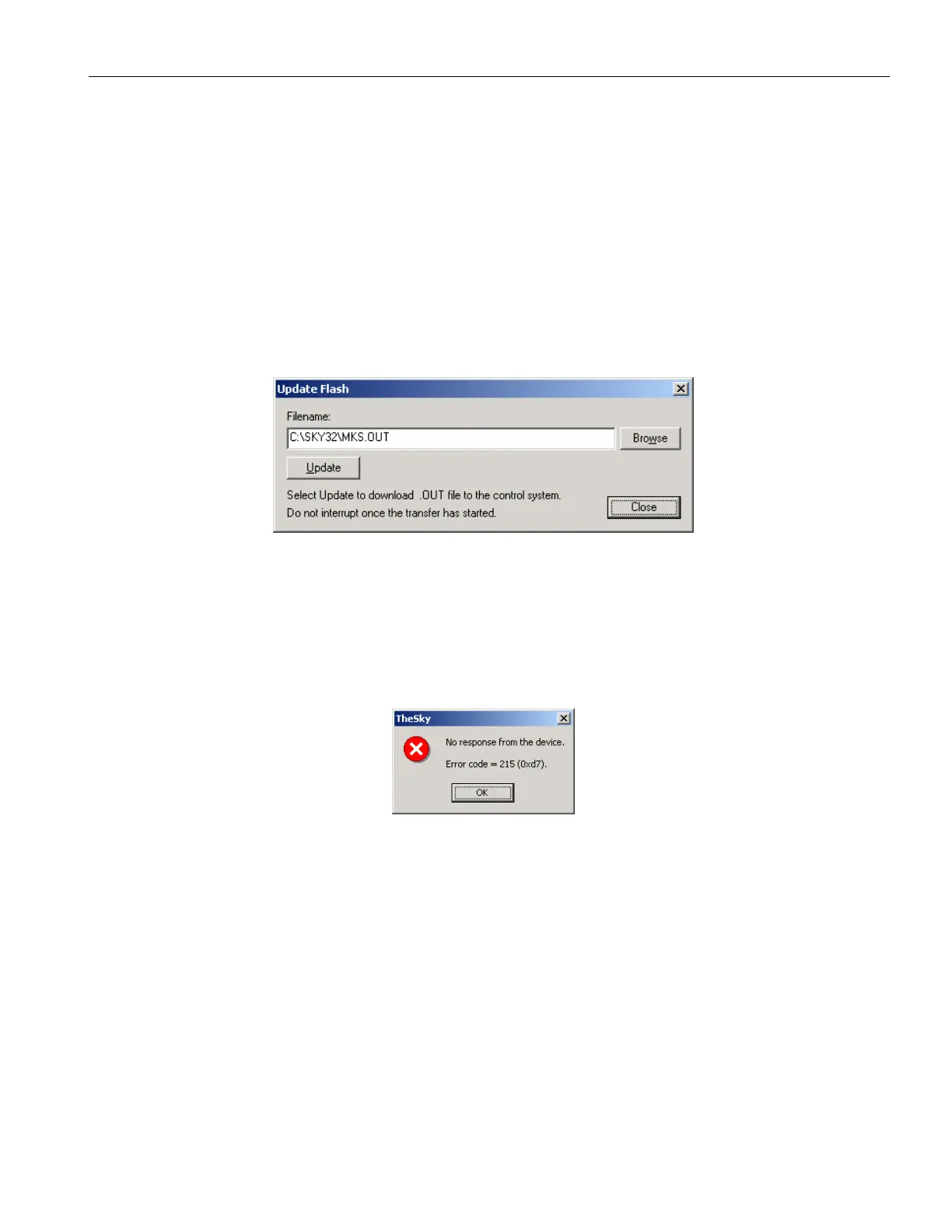
Instead of the normal homing question, you will see the following dialog box:
Figure 79: The Update Flash dialog.
Click Update to begin updating the firmware. The entire process takes about 25 seconds
to complete. The message, “Programming Complete!” appears if the FLASH is
successfully updated.
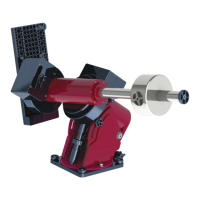
When you close the Update Flash dialog box, you will see the following:
Figure 80: Update Flash error message.
Don’t be alarmed; this error simply indicates that TheSky6 Professional Edition could not
connect to the control system normally because the DIP switches are set to the Program
mode.
Next, turn off Paramount and return both of the DIP switches to the Run position.
Replace the side panel on the Paramount GT-1100S, or the access panel on the Paramount
ME, and the mount is ready to operate using the new control software.



 To Next Page