C
LEAR
P
ATH
-EC
U
SER
M
ANUAL REV
1.11
18
C
ONNECTING A
C
LEAR
P
ATH
-EC
M
OTOR TO
Y
OUR
PC
1. Power up your ClearPath-EC motor.
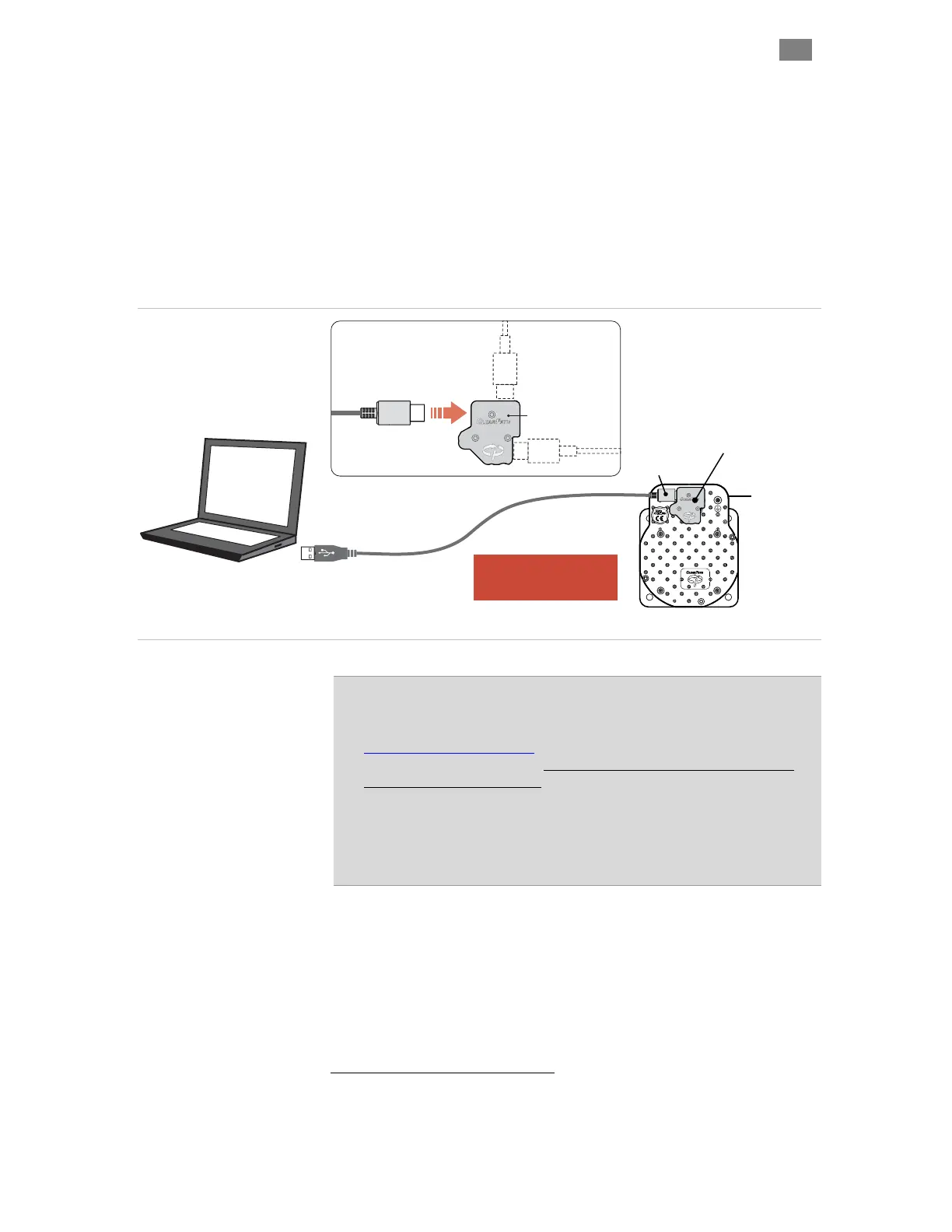
2. Connect a high-quality USB cable (A to C or C to C) to the USB-IR
Converter (CPMS-USB-IR) and magnetically attach it to the motor's
IR communication port. See figure below
2
.
3. If this is a first-time connection, wait for ClearPath to automatically
install its driver software before proceeding. This should only take a
few seconds.
USB Type A or Type C
(hardware dependent)
Windows PC
(Win 10, 11 with
ClearView installed)
ClearPath Motor
Attach CPMS-USB-IR
to USB-IR Port
(magnetic attachment)
Note: ClearPath motor must
be powered up to establish
communication.
USB Type C
USB-
IR Converter
P/N: CPMS-USB-IR
USB Type C
Connect USB cable to one
of the three available connection
points. You choose.
Motor power
cable (not shown)
Connect ClearPath to your PC
Important Communication Notes
x For best performance use USB-IF certified cables such as Teknic's
CPM-CABLE-USB-118AC. Avoid using USB cables of unknown origin
(i.e. found in junk drawer). Cables designed for charging only will
not work with this product.
x You may connect your ClearPath to a PC at any time to use ClearView
3.0 configuration and diagnostic software tools.
x ClearPath does not require a USB to PC connection during normal
machine operation.
2
The diagnostic communication scheme allows all ClearPath-EC motors to be sealed to
IP67/66K without having to depend on sealing from auxiliary covers when not in use.
NOTE: The CPMS-USB-IR adapter is not sealed and should not be left installed in wet
environments.
T
EKNIC
,
I
NC
. T
EL
.
(585)
784-7454


 To Next Page