C
LEAR
P
ATH
-EC
U
SER
M
ANUAL REV
1.11
22
S
TARTING THE
A
UTO
-T
UNER
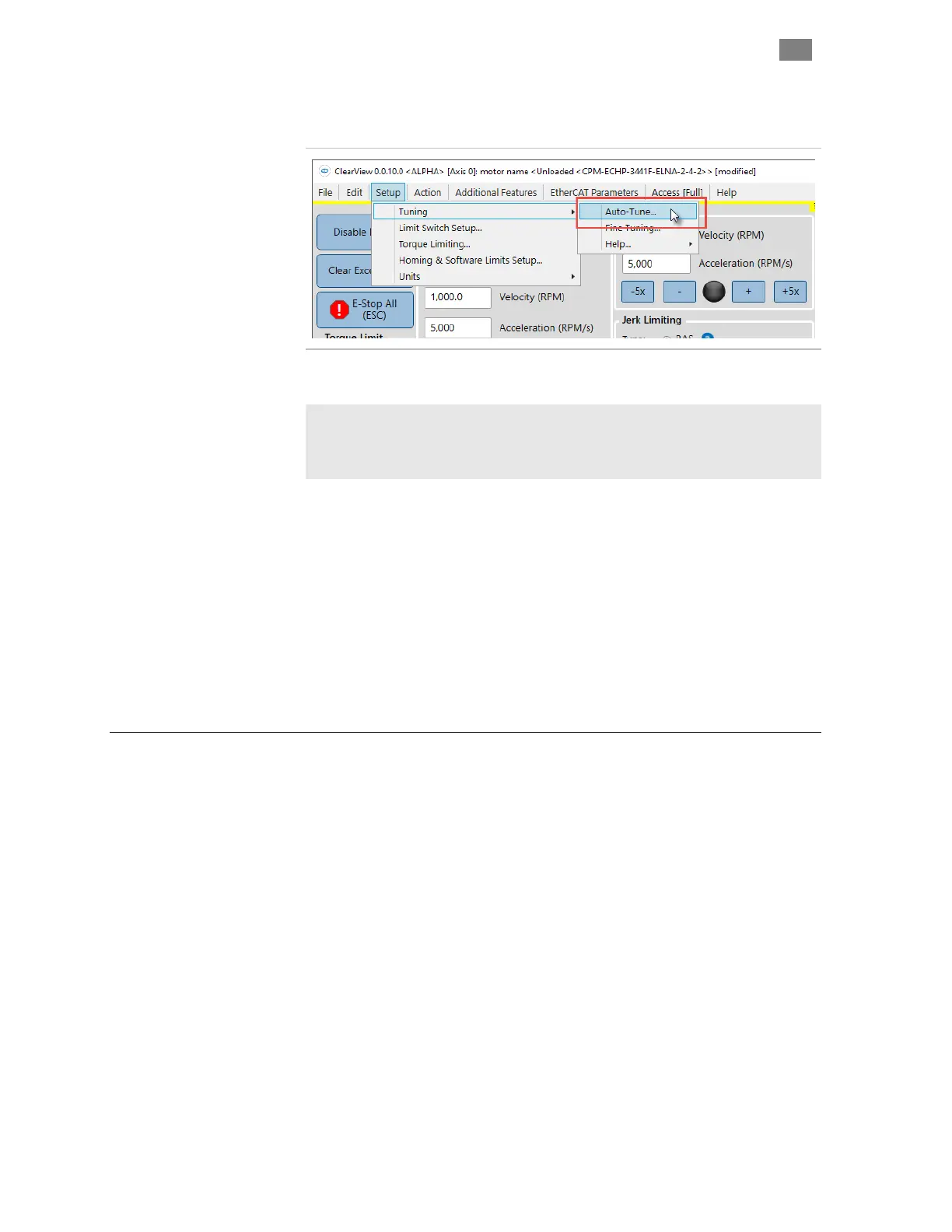
In ClearView 3.0, click Setup>Tuning>Auto-Tune.
Start the Auto-Tuner
Important: The Auto-Tune application was designed to walk the user
through the tuning process in a safe, step-by-step manner. Anyone
engaged in Auto-Tuning must be able to read and follow all instructions
presented.
D
URING THE
A
UTO
-T
UNE PROCESS
x Be careful. Immobilize your motor with a clamp or vise. Keep
your hands, hair and clothing away from the motor shaft and
mechanical system.
x Be patient. Auto-Tune will take several minutes (5-15 minutes is
typical).
x Be calm. Expect to hear humming, buzzing, clicks and clacks.
Loud squeals and buzzes are perfectly normal while ClearPath
explores the limits of your mechanical system.
B
EFORE
Y
OU
S
EEK
T
ECHNICAL
H
ELP
Issue: The status LED on the motor is not lit, and my ClearPath
apparently has no power.
x Connect power cable to ClearPath.
x Plug in and turn on power supply.
x Verify wall outlet is powered and no circuit breakers are tripped.
x If you accidentally reversed DC power to your ClearPath motor, it
may be damaged and in need of repair or replacement.
Issue: The status LED is working, but my ClearPath and PC are
not communicating.
x Disconnect the USB cable from ClearPath and your PC, close
ClearView 3.0, restart, and reconnect the USB cable.
Issue: Auto-Tune failed to complete.
T
EKNIC
,
I
NC
. T
EL
.
(585)
784-7454


 To Next Page