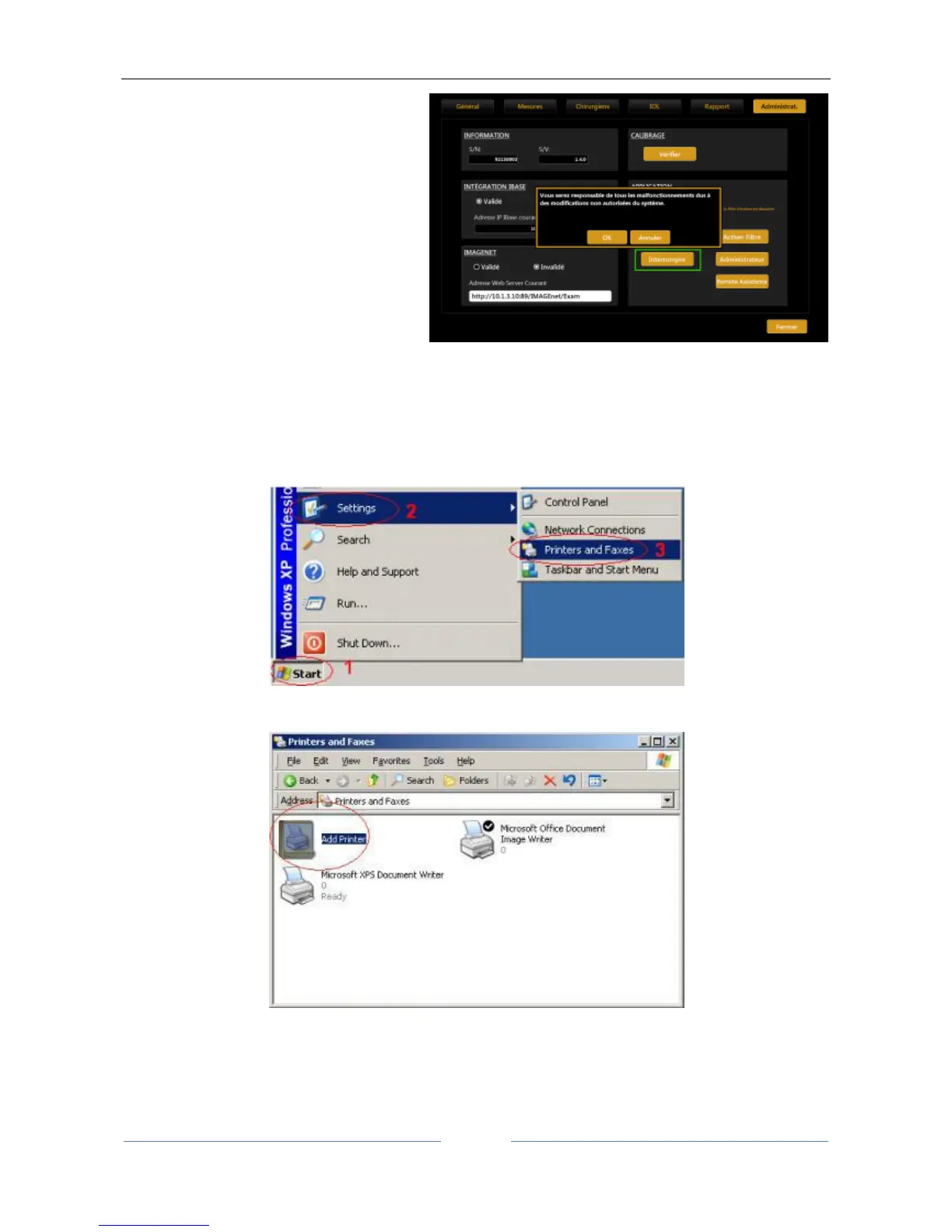
SettingsAdmin Close App
Press OK
5. You will have access to the
Desktop of the machine.
6. Connect the USB pen with the
downloaded drivers to Aladdin.
17.3 Installing a local printer (USB)
The following instructions are for a Windows XP system. On Windows 7 machines follow similar steps.
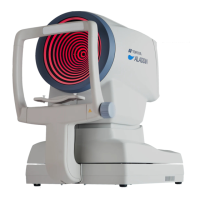
Close the software using the procedure explained before in step 2. From the ALADDIN Windows Start menu,
select Settings then Printers and Faxes.
Figure 103
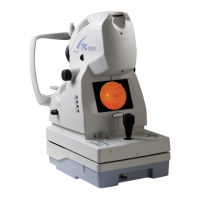
Double-click the Add Printer icon (or “File” “Add Printer”).
Figure 104
The Add Printer Wizard will appear. Click Next.


 To Next Page