159
• Restart the modem and the mesh device.
1 ) Power off your modem and mesh device, and leave them off for 1 minute.
2 ) Power on your modem first, and wait about 2 minutes until it gets a solid cable
or Internet light.
3 ) Power on the mesh device.
4 ) Wait another 1 or 2 minutes and check the internet access.
• Reset the mesh device to factory default settings and reconfigure the mesh device.
• Upgrade the firmware of the mesh device.
• Check the TCP/IP settings on the particular device if all other devices can get internet
from the mesh device.
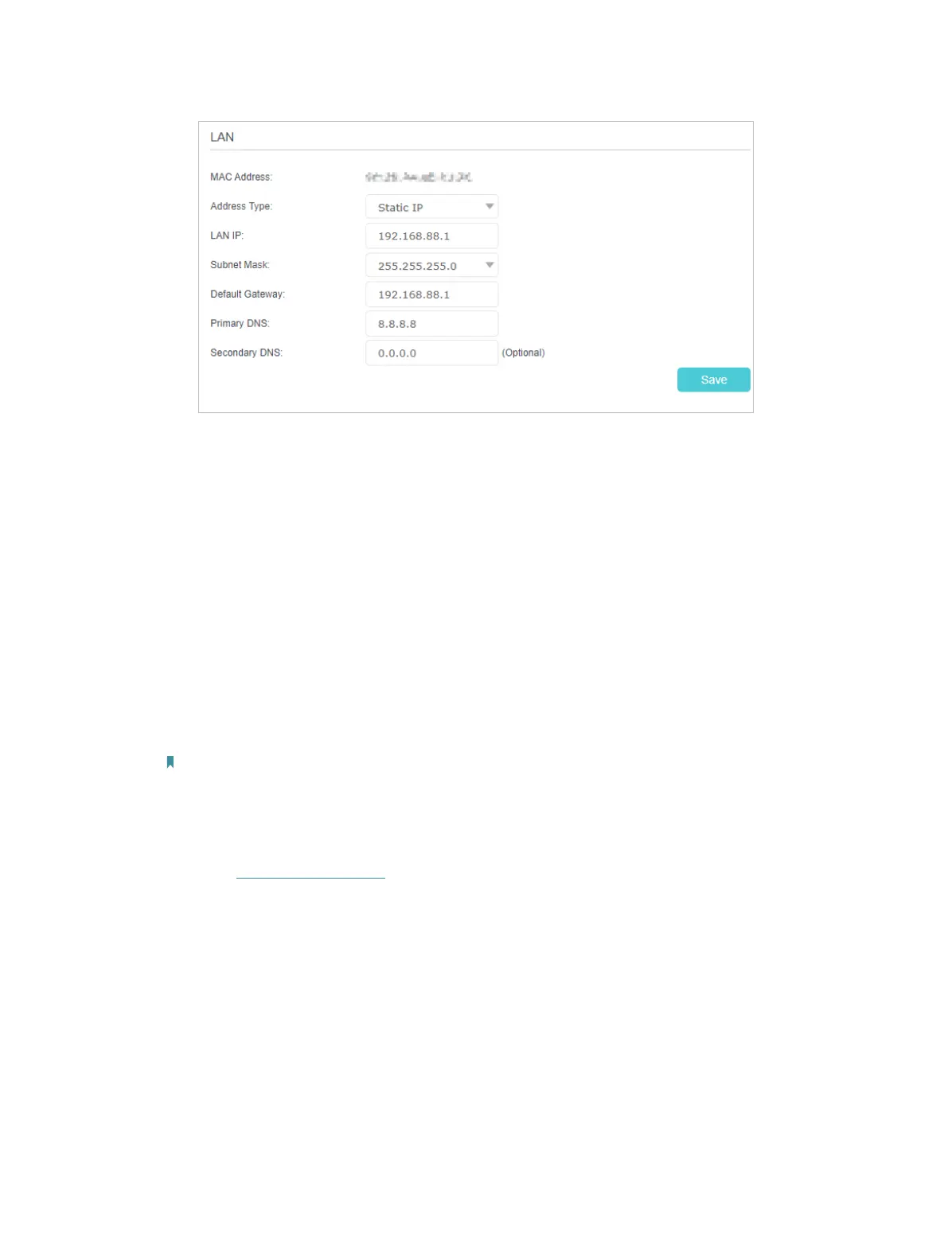
• Modify the LAN IP address of the mesh device.
Note:
Most TP-Link mesh devices use 192.168.88.1as their default LAN IP address, which may conflict with the IP range
of your existing ADSL modem/router. If so, the mesh device is not able to communicate with your modem and you
can’t access the internet. To resolve this problem, we need to change the LAN IP address of the mesh device to
avoid such conflict, for example, 192.168.2.1.
1 ) Visit http://tplinkwifi.net and log in with your TP-Link ID or the password you set
for the mesh device.
2 ) Go to Setting > Network > LAN Settings.
3 ) Modify the LAN IP address as the follow picture shows. Here we take 192.168.2.1
as an example.
4 ) Click Save.







 To Next Page