65
Chapter 6
Customize Your Network Settings
• 802.11b/g/n/ax/be mixed: Select if you are using a mix of 802.11b, 11g, 11n, 11ax and
11be wireless clients.
• 802.11b/g/n/ax mixed: Select if you are using a mix of 802.11b, 11g, 11n and 11ax
wireless clients.
5GHz Mode: Select the desired transmission mode.
• 802.11a/n/ac/ax/be mixed: Select if you are using a mix of 802.11a, 11n, 11ac, 11ax
and 11be wireless clients.
• 802.11a/n/ac/ax mixed: Select if you are using a mix of 802.11a, 11n, 11ac, 11ax
wireless clients.
Note: It is strongly recommended that you select 802.11b/g/n/ax/be mixed (for 2.4GHz) and 802.11a/n/ac/ax/be mixed
(for 5GHz), and all of 802.11a, 802.11b, 802.11g, 802.11n, 802.11ac, and 802.11ax wireless stations can connect to the
mesh device.
2.4GHz/5GHz Channel: Select the channel you want to use from the drop-down list.
This field determines which operating frequency will be used. It is not necessary to
change the wireless channel unless you notice interference problems with another
nearby access point.
2.4GHz/5GHz Channel Width: Select the channel width from the drop-down list. The
default setting is Auto, which can adjust the channel width for your clients automatically.
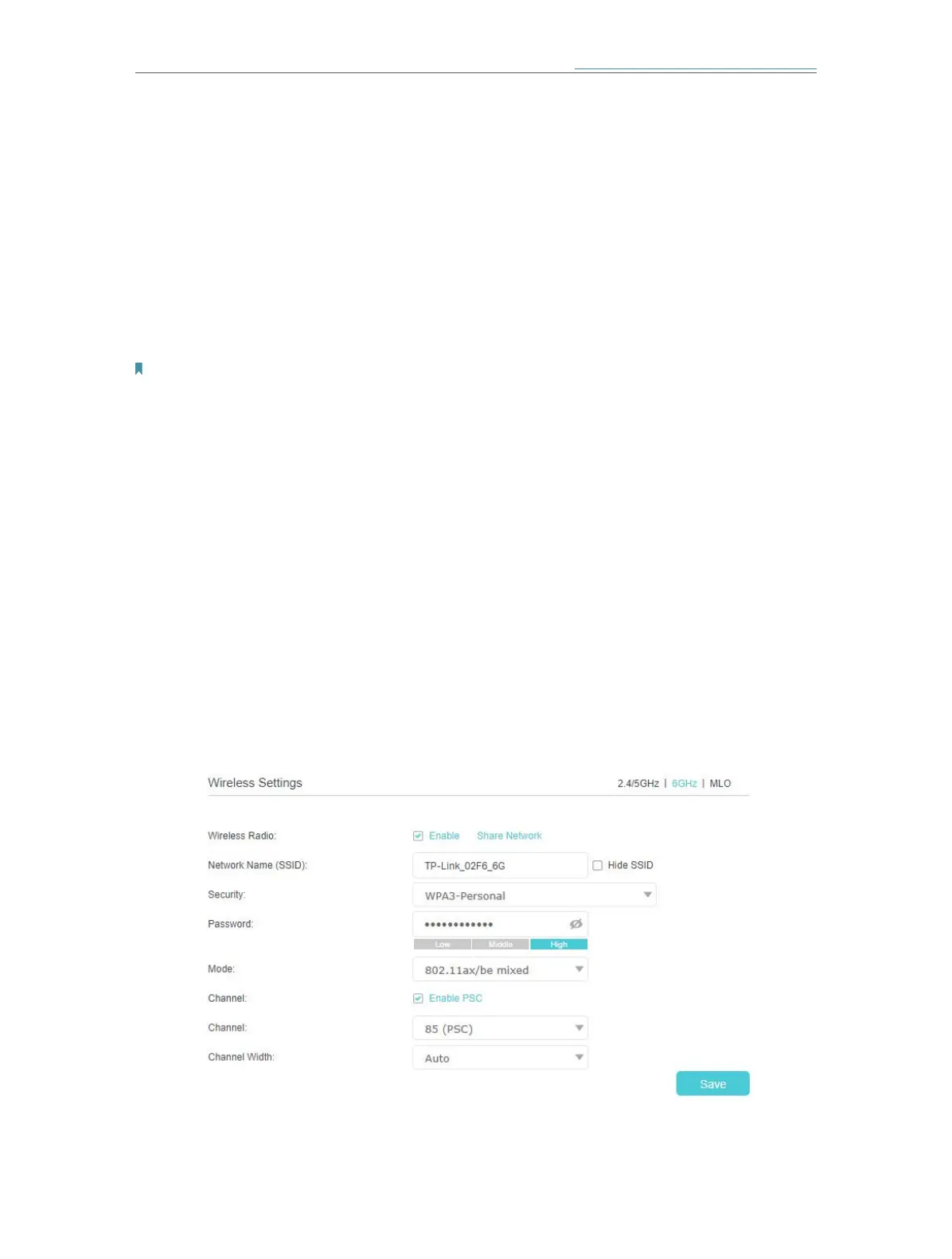
¾ To change the 6GHz mode or channel:
1. Go to Setting > Wireless > Wireless Settings (AP Mode) or Advanced > Wireless >
Wireless Settings (Router Mode), and switch to the 6GHz section.
2. Select the wireless network mode or channel and click Save to make the settings
effective.
Mode: Select the desired transmission mode.
•
802.11ax/be mixed: Select if you are using a mix of 802.11ax and 11be wireless clients.







 To Next Page