VEMCO – VR100 Manual 28 May 2018 27
3.8.4 Save Tag and Map Setups
The tag and map setups that you’ve created in VR100 PC can be saved as a resource
file (see section 6.6.3) and opened at a later time or on a different computer. This
allows multiple VR100 receivers to quickly be setup with the same settings. Select
“Save” or “Save As” in the File menu found in the Tag Setup window to save the
current settings as a resource file.
3.8.5 Import Tags
The import feature in the Tag Manager window allows multiple resource files to be combined into one file.
Follow the steps listed below to merge resource files.
1. Open one of the files to be merged (see 6.6.3.1).
2. Select Import from the PC Setup menu in the Tag Manager window. The Import window will open.
3. Select the second resource file to be merged and click the “Open” button.
4. Repeat steps 2 and 3 until all the desired resource files are merged.
5. If desired, save the merged file using the Save As… feature.
The merged file will not contain any duplication of information. For example, if the sensor transmitter with
the serial number 6739 is setup in two different resource files, it will only appear in the merged file once.
3.8.6 Refresh Lists
The Refresh command in the Receiver Setup menu retrieves the current setup (sensor tags and maps) from the
receiver and displays that setup in the right side of the Tag Manager window (called Receiver Setup). The
Refresh command is automatically executed each time the Tag Manager window is opened.
3.9 Options...
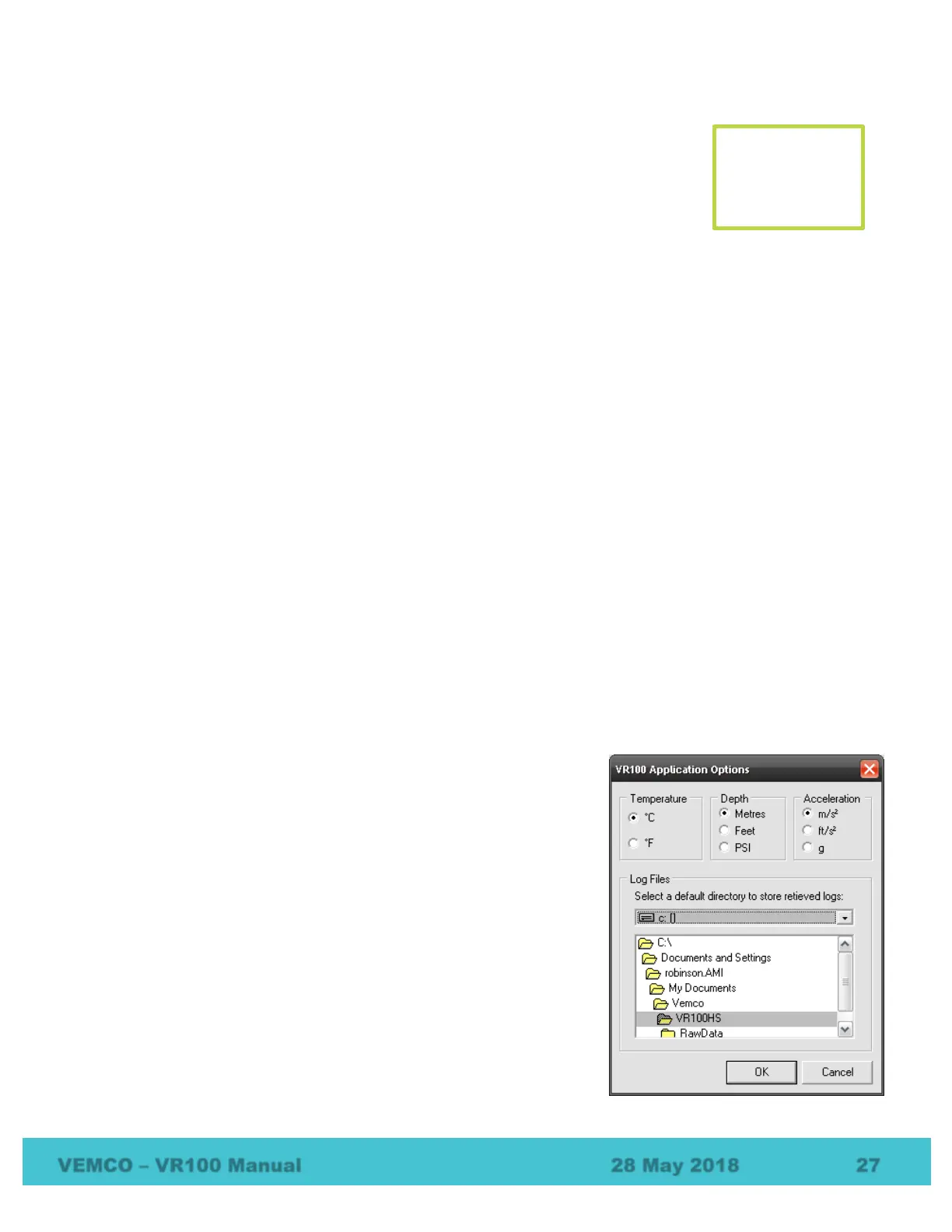
There are four options that are set in the Options window, shown here.
Three of these options relate to the units used to display temperature,
depth and acceleration data. These settings are global. For example, if
°C is selected for temperature units, then all the temperature data
displayed by the software is in degrees Celsius (°C).
VEMCO publishes sensor calibration data in SI units (°C, meters, m/s
2
).
Slope and intercept values for sensor tags should always be entered
directly from the tag data sheet in SI units. The PC software will
automatically convert from the base SI units to the units configured in
this dialog for all displayed tag data.
The default location for saving log and sensor data files is also selected
in the Options window.
Save tag and
map setups by
creating a
resource file.


 To Next Page