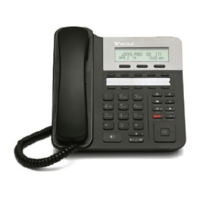
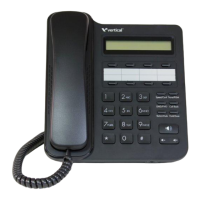
Edge SIP Phone 5000i - 8 button 5-13
About Wave SIP Phones
Wave Phone User Guide
Using the Phonebook button on an Edge SIP 5000i phone
To access the Phonebook on an Edge SIP 5000i phone, do either of the following:
1. Press the Configuration button on the phone, select
Directory, and then select
Remote Phonebook.
2. Press the programmable button assigned to the Phonebook feature, if one is
configured for your phone.
Either of these methods brings up a search screen.
To search for a specific name:
1. Use the numeric keypad to type in a case-sensitive search string, and then press
OK. Press Mode to change the input mode between Upper Case, Lower Case,
Numeric, and Symbols.
Phonebook entries that have a first or last name starting with the search string
are displayed.
To view the entire Phonebook:
1. Press
OK to enter a blank search string.
All of the Groups that you, as the logged-in user, are configured to see are
displayed.
To navigate through the list:
1. Use the
Previous and Next buttons to move through the list.
Pressing
Previous when you are at the beginning of a list takes you to the bottom.
To view Group members:
1. Select a Group and press
OK to view the members of the Group.
To view a Group member’s numbers:
1. Select a Group member to display a list of numbers for the member.
For a general extension, only the extension number is displayed.
For a user, the user's extension is listed first, followed by any additional phone
numbers the user has made public (Home, Mobile, and so forth).
For a contact, the contact’s default number is listed first, followed by any other
numbers.




 To Next Page