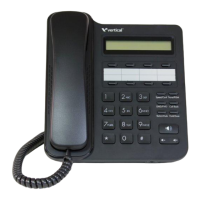
Edge 700 Phone - 8 Button 6-9
About Wave Digital Phones
Wave Phone User Guide
Feature Keys & Functions
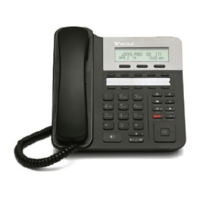
Edge 700 8-button Digital Phone Menu Controls
The Edge 700 8-button digital phone does not have softkeys located below the phone’s LCD
that allow the user to access the phone’s MENU screen options, for example to change the
phone’s language or time settings. You can now use the phone’s TRANS, TAP and volume
control buttons to access the phone’s MENU screens.
IMPORTANT: Important: In order for this feature to work as expected, the phone's TAP and
TRANS keys must be configured for the TAP and TRNS/CONF features. You do this in the
Global Administrator Management Console either on a phone template basis via User
Configuration (Templates), or on a per-user basis via User/Group Management. For more
information see Chapter 10 in the Wave Global Administrator Guide.
Feature Used to …
1
Handset Answer or place an internal or external call.
2
Speaker Hear the other party during a call without using the handset or headset
(Speaker Mode).
3
Display View information about the options and status of your phone.
4
Message Waiting Light Indicate when you have a new voicemail message.
5
Pre-programmed (PGM)
Buttons (8, with red LEDs only)
Perform special phone functions (pre-programmed by the System
Administrator).
6
TRANS (Transfer) Put a call on hold while you dial the destination extension number when
transferring calls.
7
Volume Up/Down (-/+)
Buttons
Decrease/increase the loudness of the speaker or handset while on a call, or
the ringer when not on a call.
8
TAP Button Reconnect (or toggle between) calls on hold, during call transfer, and when
creating conference calls. Also, while dialing, pressing this button once
will erase the last dialed digit and pressing it twice will clear all the dialed
digits.
9
Microphone Speak to a caller when using the speaker instead of holding the handset.
10
HOLD Button Place a call on hold and keep the party connected while you hang up or use
other phone features.
Note: If more than one call is on hold, and you are not currently connected
to a call, you can press this button to scroll through a list of calls on
hold; press Tap to connect to the displayed call.
11
SPEAKER button Switch to Speaker mode to hear a caller instead of holding the handset.
12
Headset (2.5mm) Jack Speak to a caller when using a headset instead of holding the handset.




 To Next Page