Installing and Configuring the eyeBeam SIP Softphone A-9
CounterPath SIP Softphone
Wave Phone User Guide
Under the General tab.
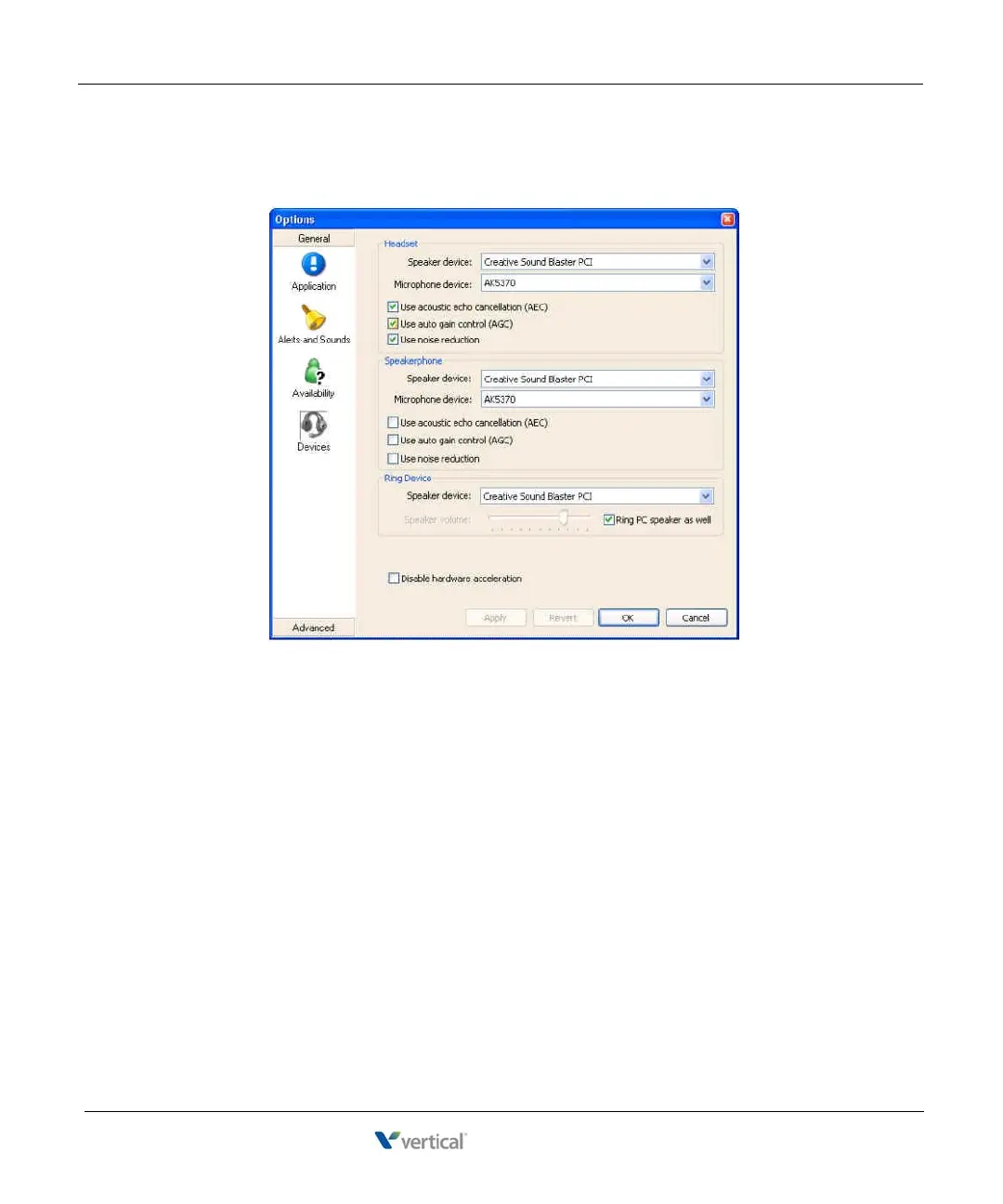
17. Click on the Devices icon
18. Make sure that the correct audio devices on your PC are selected for voice
capture
and audio.
19. Click OK or Apply to save your changes.
Hint: If the configuration has been made correctly the eyeBeam should show
“Logged in - enter phone number” and “Your Number is <username>”.




 To Next Page