Chapter 5, Using Vitals Mobile-TC (TC-100 Controller): Displaying and Searching Valve Information
E.H. Wachs Part No. 79-MAN-04, Rev. I 51
9.
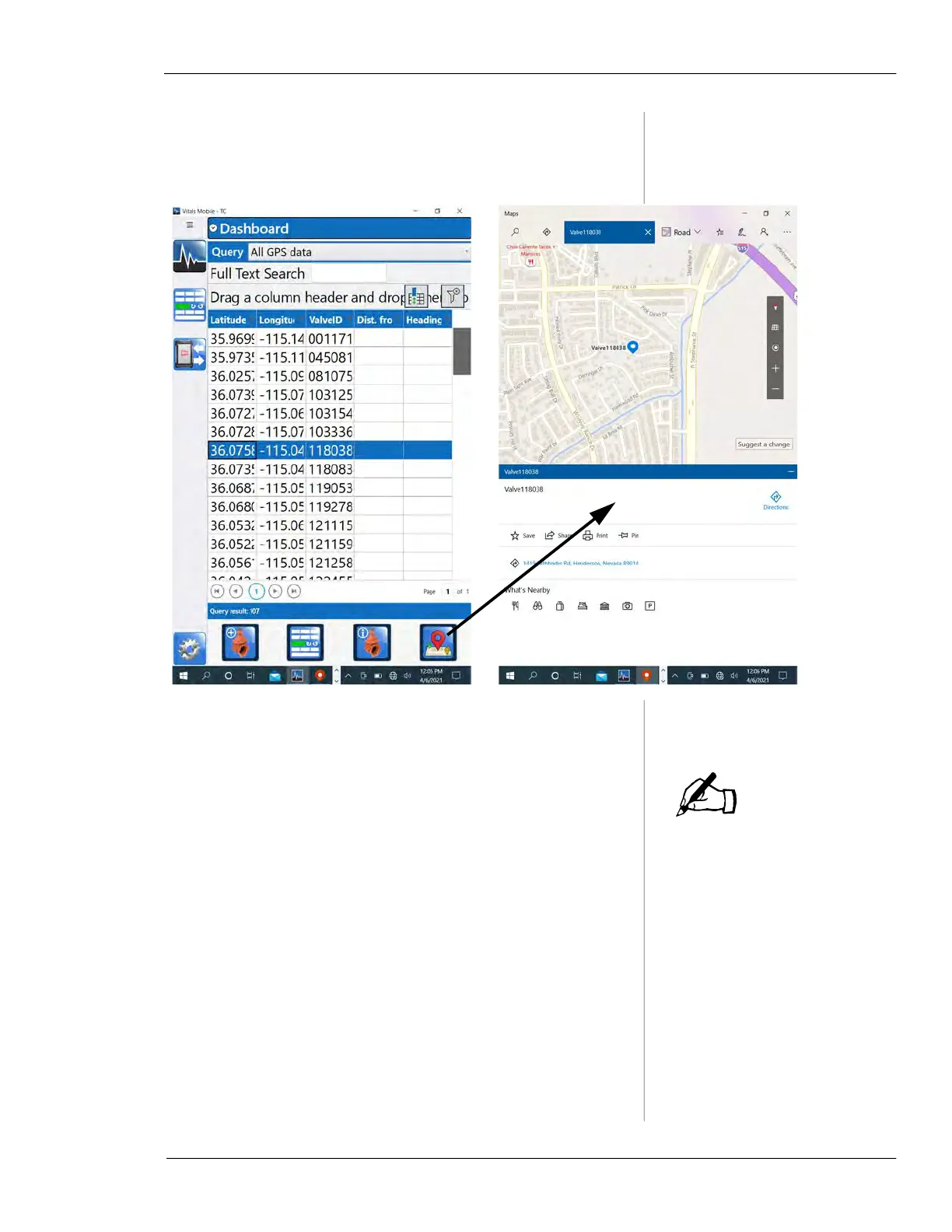
When you select an activity or valve with GPS data,
the Maps icon is highlighted. Tap the icon to open
Maps and display the valve location.
Figure 5-27. When the Maps icon is highlighted, you
can tap it to display the valve location in Maps.
Live Maps data are available
only when the TC-100 is
online (connected to wi-fi or a
mobile hotspot). To use Maps
without an internet connec-
tion, download your local
map. Tap the Windows icon,
go to Settings, then
Apps>Offline Maps. Find your
location and download the
map.
• Maps is a separate app. You will have to return
to Vitals Mobile-TC to continue.
10.
From your search results, you can select valves and
proceed to valve operation. See “Starting a New
Activity with Existing Valve” on page 54.
NOTE


 To Next Page