Chapter 6, Using Vitals Mobile-HC (HC-100 Controller): Starting Vitals Mobile
E.H. Wachs Part No. 79-MAN-04, Rev. I 77
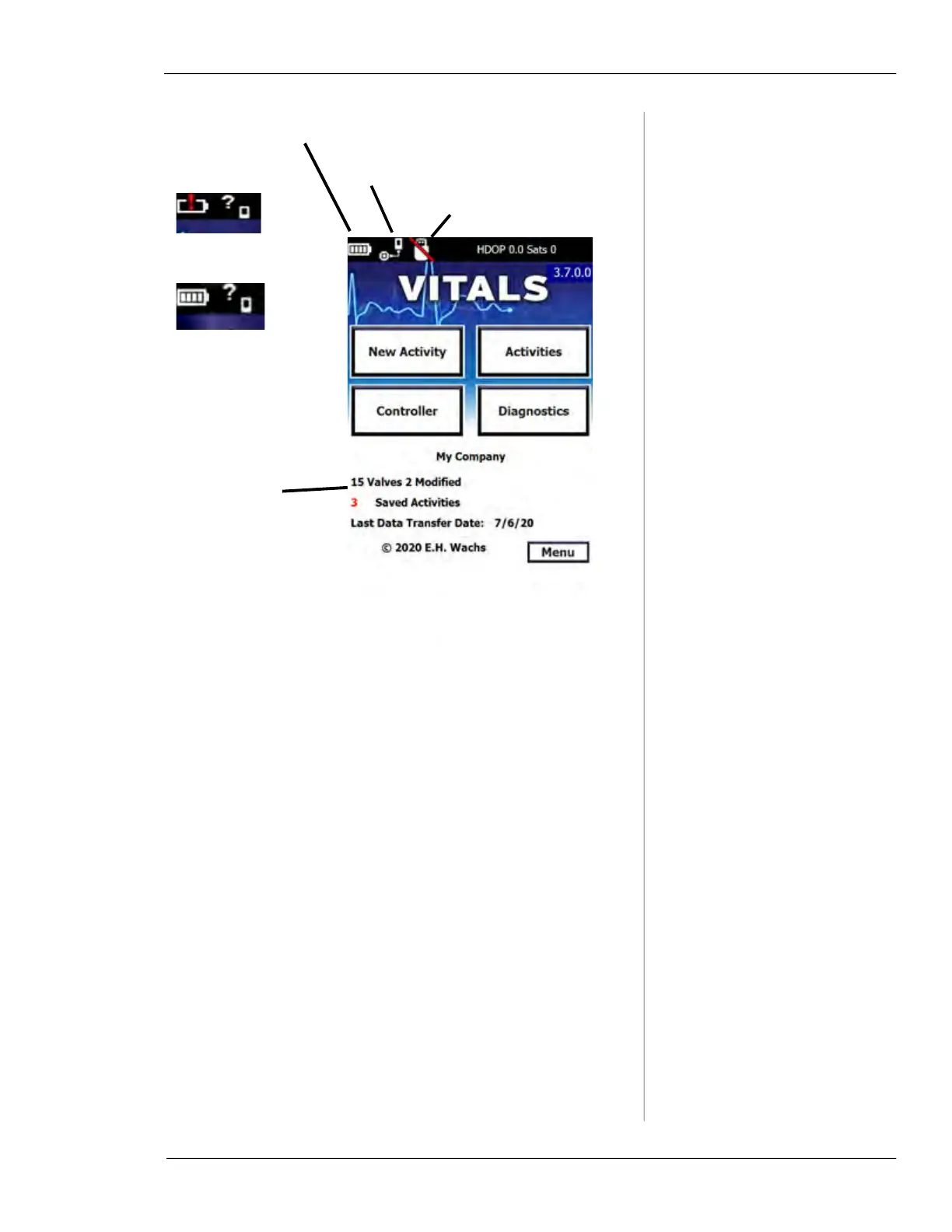
Figure 6-2. Vitals Mobile Main Screen
Main Screen Reference
• The
New Activity button starts a new valve activity with
data logging. Choose an existing valve ID, create a new
one, or open the data entry screen. Search for nearby
valves by pressing the
GPS Search button.
• The
Activities button opens the saved activities screen,
containing a list of previously saved activities since the
last Data Transfer.
• The
Controller button opens the Vitals Controller pro-
gram, enabling you to exercise a valve. Some activity
information will be automatically entered, while most
information will be left blank, giving you the option to
enter data and save the activity after the exercise.
• The
Diagnostics button opens the valve Diagnostics pro-
gram, which helps identify valve operator problems.
• The
Menu button displays the following commands.
Battery status (shown
Charging)
Battery low status:
Battery charged status:
Machine connection status (shown
Cable connected to machine).
Touch icon to go to Settings screen.
Valve Database
Status
—number of valve
records stored on con-
troller
—number of valve activi-
ties stored on controller
—date of last transfer of
valve activities to Vitals
Desktop
USB flash drive status.


 To Next Page