WDR Software User Manual System Setup
24-10437-3 Rev. A 2-9
This document contains confidential and proprietary information of Weldex Corporation. 9/10/08
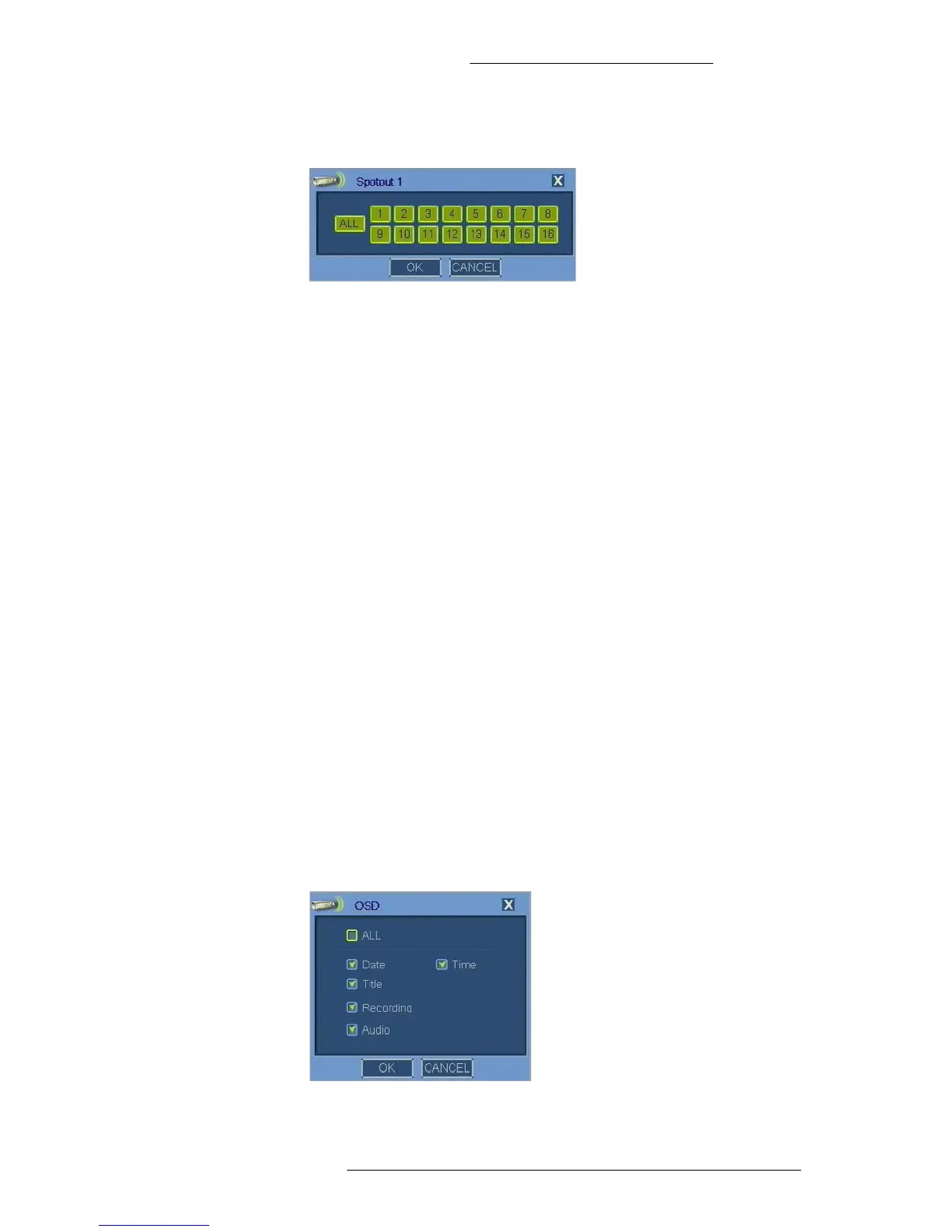
select or un-select all cameras at once. You can also use the numeric buttons
to select or un-select single cameras.
4. Click OK in the Spotout window to save the settings.
5. Repeat steps 2-4 for each spot out.
6. Click OK in the Spot Out window
.
On-Screen Display
This section describes how to configure on-screen display (OSD) settings.
The on-screen display feature allows you to select information
that will be visible on
the main viewing screen when the Fix to Taskbar feature is disabled (taskbar is not
locked on the screen). If the Fix to Taskbar feature is enabled, the following OSD
selections will be behind the taskbar and therefore not visible on screen: date, time,
recording indicator, and audio. Title is not affected by the taskbar.
T
o configure on-screen display (OSD):
1. In the General window click the OSD bu
tton.
2. In the OSD window select the items to be displayed on-screen. The AL
L
button allows you to select all items at once. You can also select individual
items:
+ Date - Select this check box to display date.
+ Time - Select this check box to display time.
+ Title - Select this check box to display camera information (default
number or custom name, if defined).
+ Recording - Select this check box to display recording indicator.
+ Audio - Select this check box to display audio indicator.
3. Click OK.


 To Next Page