WDR Software User Manual Operation
24-10437-3 Rev. A 3-5
This document contains confidential and proprietary information of Weldex Corporation. 9/10/08
the taskbar and reappear when you move the mouse over it in the lower
portion of the screen.
To toggle this feature on/off, click on the Fi
x to Taskbar button.
LIVE MODE
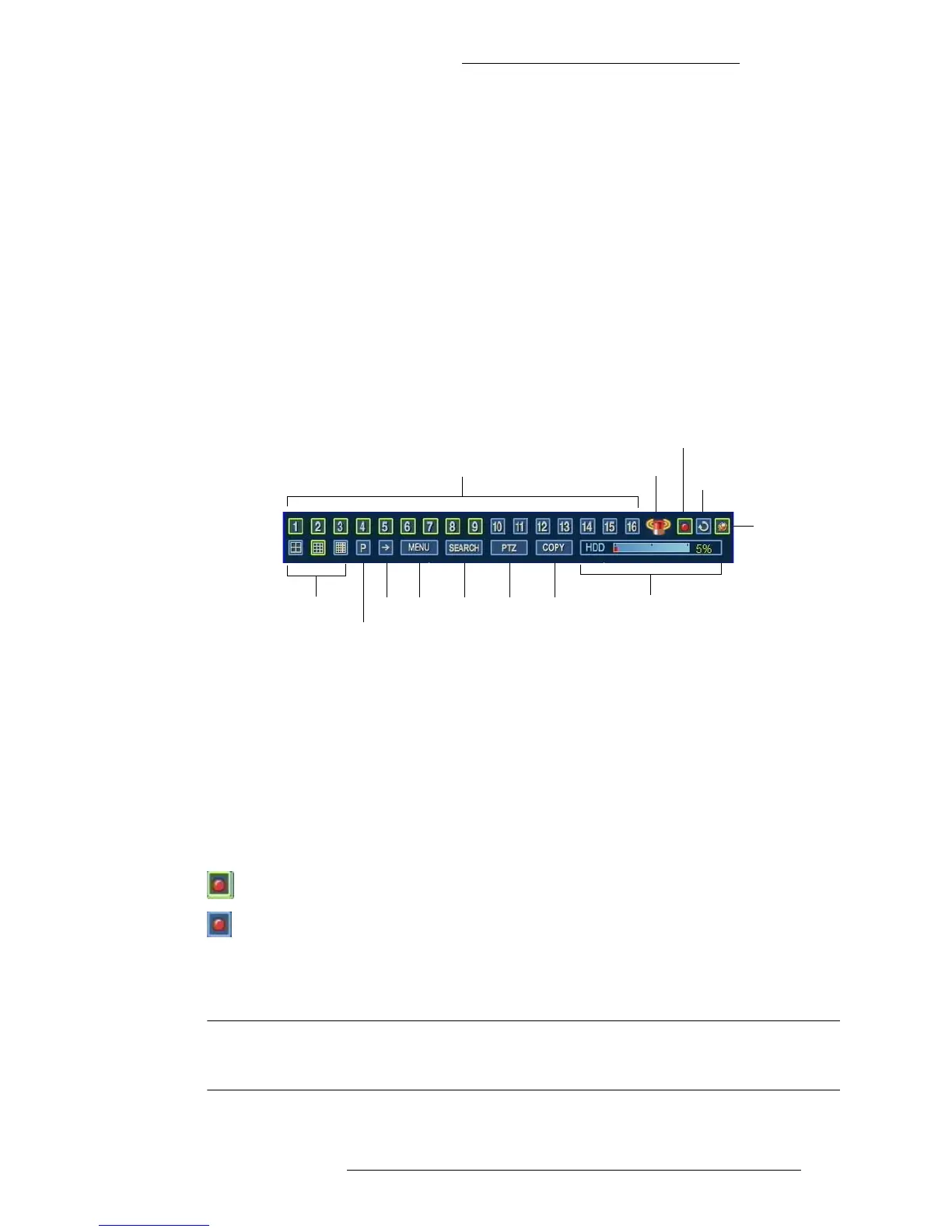
The Live Mode taskbar gives you access to basic DVR functions and to the Main menu.
To access the Live Mode taskbar, press the
“ESC” button on the WDR device. Also, the
“PTZ” button on the device toggles the display between the PTZ and Live Modes.
When you exit the Search Mode or Playback Mode,
you return to the Live Mode as well.
Channels (1 - 16) Event
Record
Sequence
Fix to
Taskbar
Multi-split screen
PIP
Next
channel
Menu Search PTZ COPY HDD
Channels (1 - 16) – Select the channel from which to display the live image.
Event
– When an event occurs, this icon appears and remains for a pre-defined dwell time.
The type of event will also be displayed (but not the specific camera or sensor involved).
This feature requires Icon and Tooltip to be enabled for a particular alarm type; see “Alarm
Notifications” on page 2-36.
Record –
Click to stop/start recording. You will be required to enter administrator’s
password. By default, recording is turned on.
When the DVR is in the recording mode, the Record button is highlighted.
When the DVR is not in the recording mode, the Record button is not highlighted.
Sequence –
Activates the sequence feature in which video from the subsequent cameras is
being shown.
NOTE
In order to activate the Sequence mode, change the display to single
camera view first.


 To Next Page