WDR Software User Manual System Setup
24-10437-3 Rev. A 2-15
This document contains confidential and proprietary information of Weldex Corporation. 9/10/08
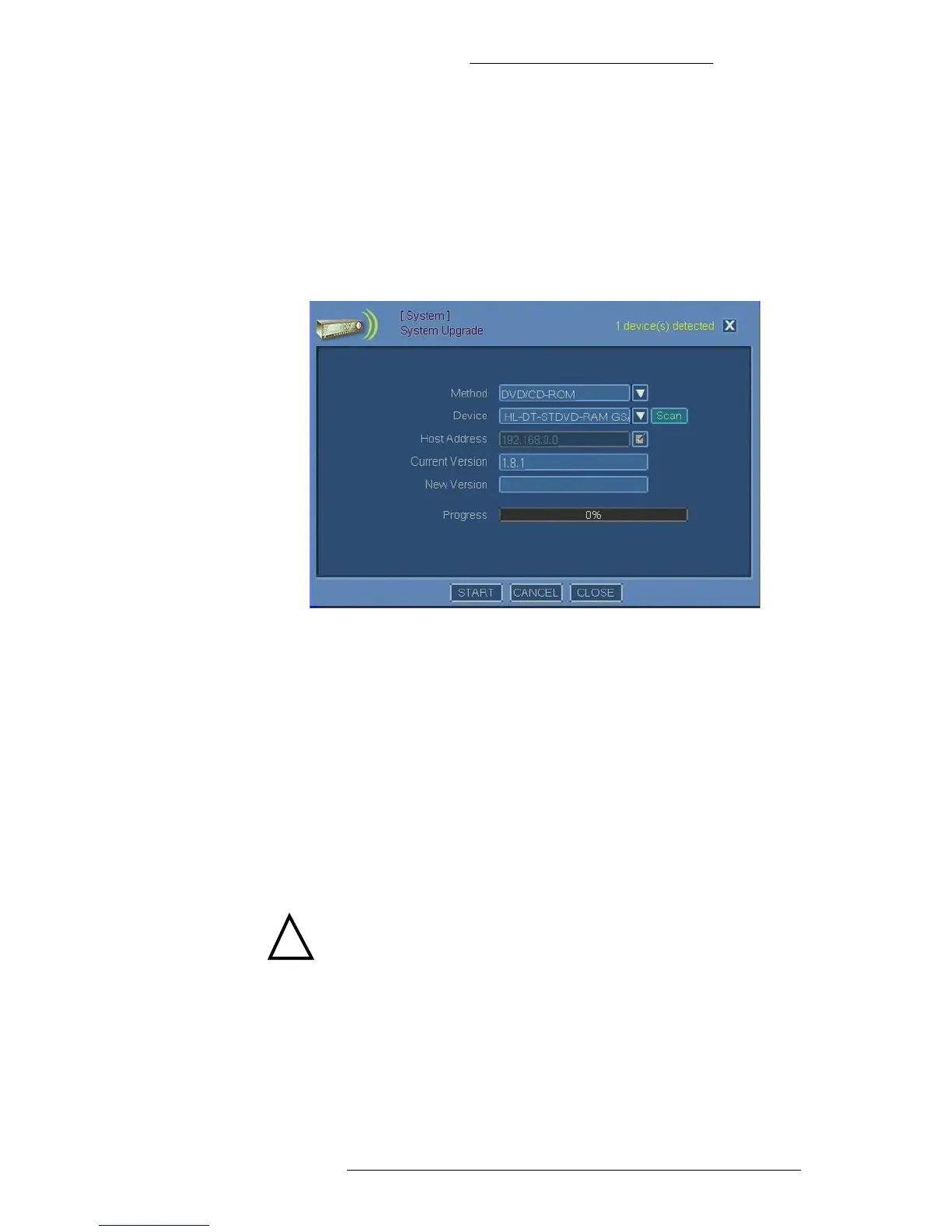
+ USB HDD/Stick - Select this method if the firmware upgrade is on a
flash drive or USB-equipped hard drive. Make sure the upgrade software
is copied to the root location of the drive you are using.
+ FTP - Select this method if there is a TFTP server running on a LAN
computer with the firmware upgrade file.
4. If
you are using a CD, DVD, or a USB flash drive: Insert the corresponding
media and press SCAN.
5. Select a device from the Device drop
-down list.
6. If you are using the FTP method: In the Host field specify the TFTP server's
IP address using the virtual keyboard.
7. Click ST
ART.
8. The New
Version field will display what firmware upgrade is being installed.
9. When Pr
ogress bar indicates upgrade completion, click Close.
10. The system will reboot automatically.
Configuring HDD Options
The HDD Info window allows you to view hard drive(s) information and set the
recording option according to the needs of your system.
!
CAUTION
By default, when the hard drive is full, the recording with the oldest date
will be overwritten by the new recording, and therefore will be lost.
The DVR supports up to 2 hard disk drives.
T
o configure HDD options:
1. From the Main menu select System>HD
D Info.
2. View the information displayed. Refer to “HDD Info Field Definitions” for
details.


 To Next Page