Operation WDR Software User Manual
3-8 24-10437-3 Rev. A
This document contains confidential and proprietary information of Weldex Corporation.9/10/08
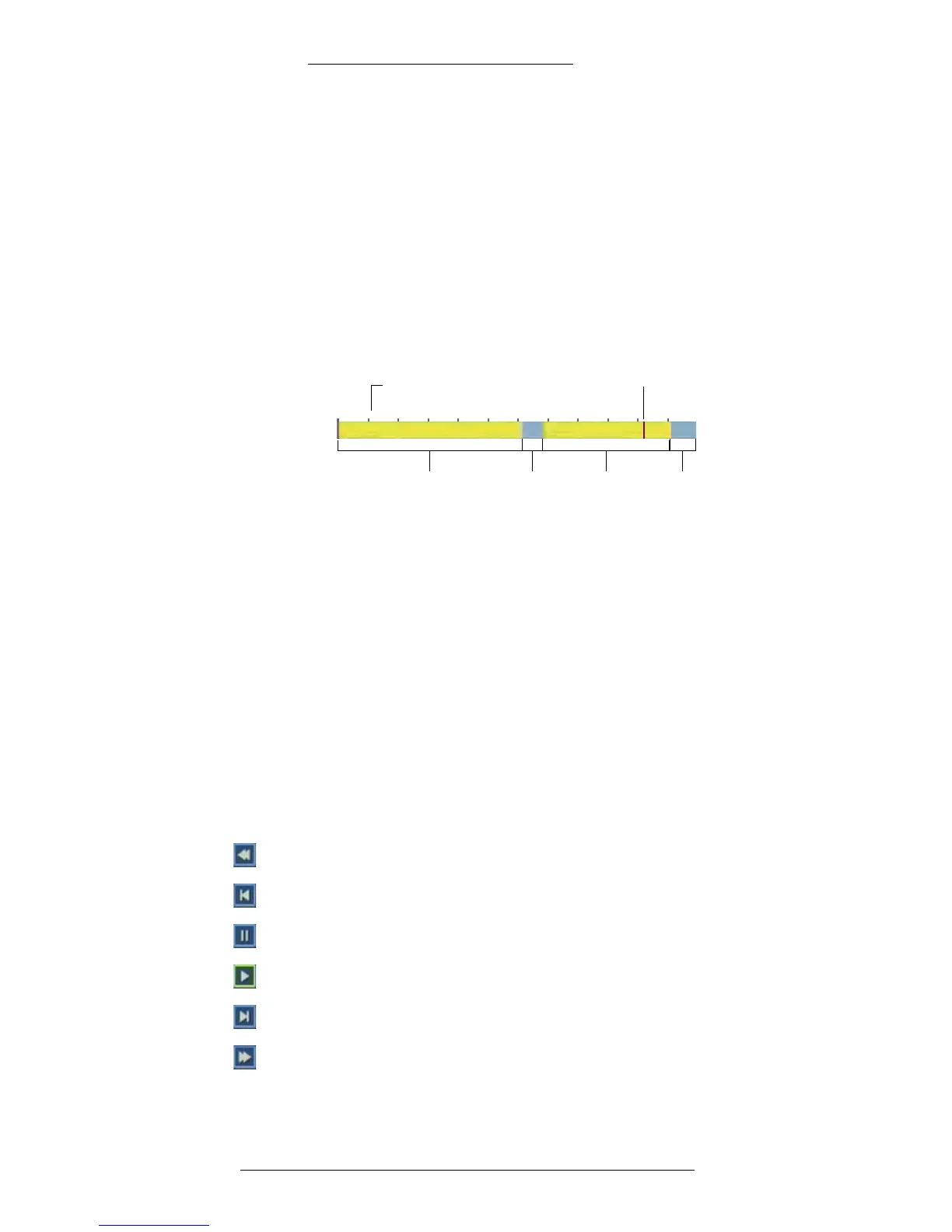
Intelligent search bar – The intelligent search bar allows you to view recording pattern for a
selected day and quickly access recording from any hour.
+ Markers on top of the bar indicate 2-hour intervals
+ Yellow highlighting indicates recorded video
+ Gray area indicates no recording
+ Playback indicator marks the current playback time
You can move the P
layback indicator and change the current playback time by clicking on
other areas of the yellow bar.
Playback indicator
No recording
2-hour interval
marker
Recorded video Recorded video No recording
Playback indicator –The red mark indicates the current playback time. You can change the
current play time by clicking on other areas of the yellow bar.
Next day
– Click to go to the recording from the following day.
Fix to Taskbar – T
oggles the Fix to Taskbar feature on and off.
Multi-split screen –
Allows you to change screen display to 1, 4, 9, or 16-channels
(depending on the WDR model).
Next channel – Go
to next screen.
Search –
Click to open the Search pop-up menu. See page 3-11 for details.
Playback buttons – Play
back buttons:
Fast rewind - Click to increase the rewind speed 2, 4, 8, 16, or 32 times.
Frame-by-frame rewind - Click to rewind the recording one frame at a time.
Pause - Click to pause the recording.
Play - Click to play the recording.
Frame-by-frame forward - Click to forward the recording one frame at a time.
Fast forward - Click to increase the forward speed 2, 4, 8, 16, or 32 times.
Exit
– Click to return to live mode with Live Mode taskbar.


 To Next Page