46 Rev.B
NAVIGATION
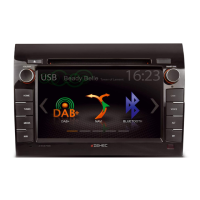
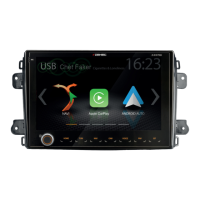
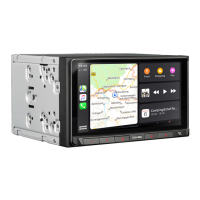
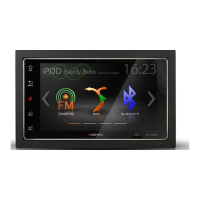
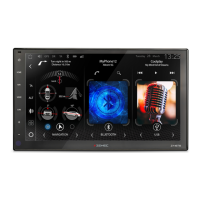
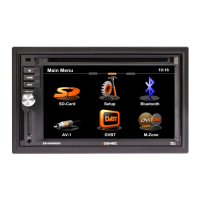
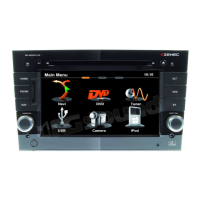
For the ZENEC device Z-E2050 a navigation package is available separately. This bundle comes
with multilanguage Quickstart manual and navigation software on 16GB microSDHC card. The
images shown on this double page, as well as instructions, are taken from this solution.
NOTE
Map updates can be carried out by visiting https://zenec.naviextras.com/shop/portal.
Safety instructions: see page 4.
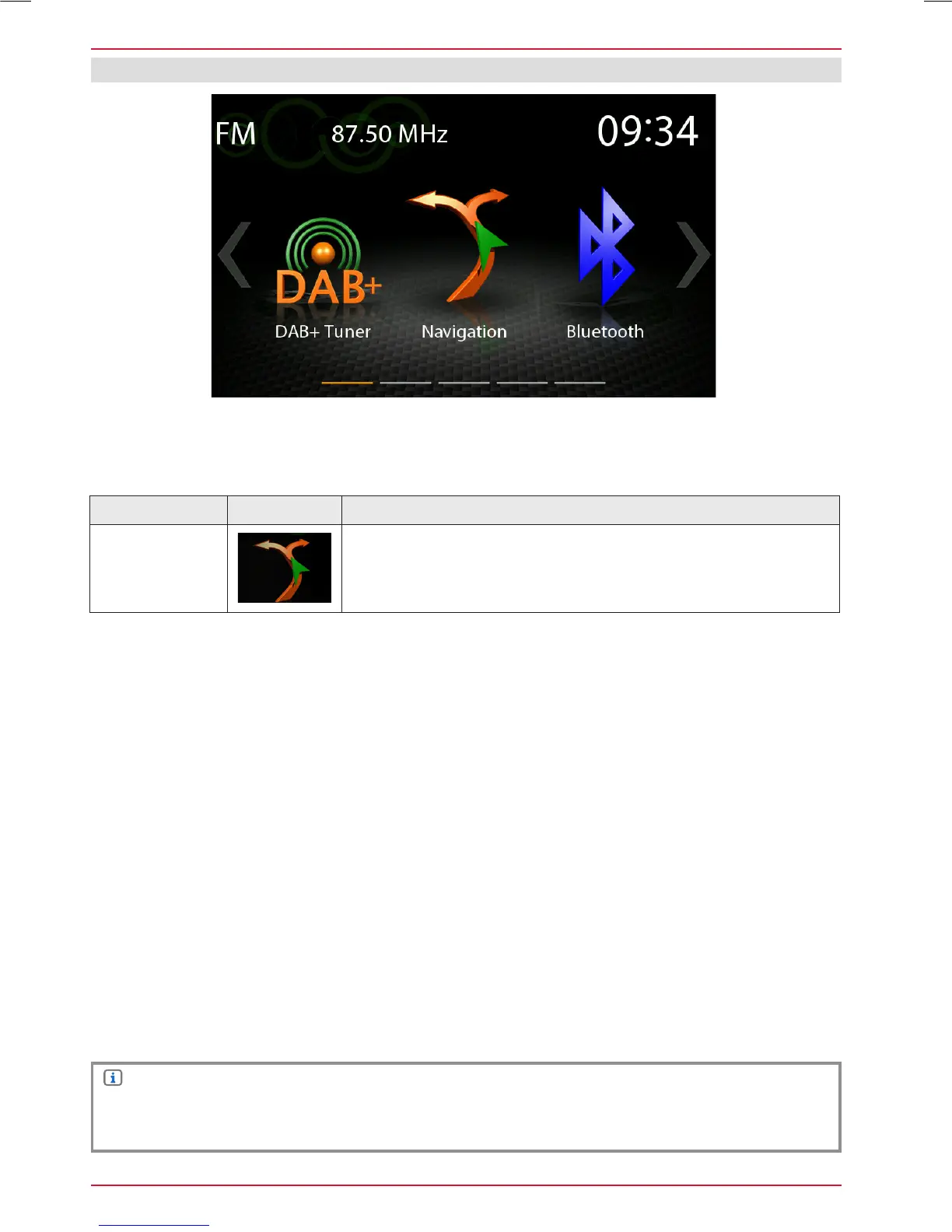
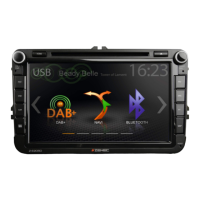
Function Icon Operation
Navigation
Tap to start navigation and show map view (Only if microSDHD
card from the Z-EMAP50 package in the device)
NAVIGATION UPDATE
Activation of the free 12-month map software update period begins once the ZENEC system is
turned on and license was activated by driving >10 km.
Requirements
1. PC or notebook with a Windows 7 operating system or higher, an SD card reader, together with
broadband Internet access. Apple OS not supported.
2. An activated navigation map microSD card (set content)
3. Latest Naviextras Toolbox software, installed on your computer.
Download-Link: https://zenec.naviextras.com/shop/portal/downloads
To be able to update your ZENEC device with new maps, proceed as follows:
1. Go to https://zenec.naviextras.com/shop/portal and set up a user account with a password and
the personal data for your navigation device.
2. Download the Toolbox Software: Naviextras Toolbox Download. Read through the application
instructions before taking any further steps. The Toolbox is periodically updated. Therefore,
should you want to make a map update at a later time, always download the latest Toolbox
version. This will guarantee optimal compatibility of all data transfer functions.


 To Next Page