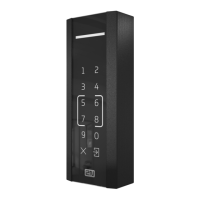
2N Access Unit Configuration Manual
•
•
•
•
•
•
•
•
•
Current Switch State– display the current switch state (On/Off).
Current Switch Function–Display the current switch function.
Normal: the switch is not locked or held.
Held: the switch is held and unlocked.
Locked: the switch is locked (locking has priority over holding, the holding state is
irrelevant in this case).
Switch Locking– on: the switch is permanently in position 0 and cannot be controlled
until unlocked.Off: the switch is unlocked.
Switch Hold–on: the switch is permanently in position 1 and cannot be controlled until
released (if the switch hold and lock are active at the same time, the switch is locked).Off:
the switch not held in position 1.
Switch Hold by Time Profile– assign a predefined time profile to the switch or set a time
profile manually that allows for switch activation. If the assigned time profile is inactive,
the switch can be activated by tapping a valid RFID card, making a call, entering a code or
pressing a quick dial button.
Test the switch–activate the switch manually to test its function, e.g. an electric lock or
another device connected.
•
Security
The 12V output is used for lock connection. If, however, the unit (2N IP Intercom,
2N Access Unit) is installed where unauthorized tampering may happen, we
strongly recommend that the 2N
®
Security Relay (Part No. 9159010) be used for
enhanced installation security.



 To Next Page