Using Email Widget
After you sign in the email, you can choose the desired folder to display on the widget.
If you add an email widget to display the unread emails, and you want the widget to display the incoming
emails,
you should add a new widget.
Procedure
1.
Swipe left or right to go to the third idle screen.
2.
Tap the email widget.
3.
Tap the desired account, if you have more than one email account.
4.
Tap the desired folder to display on the widget.
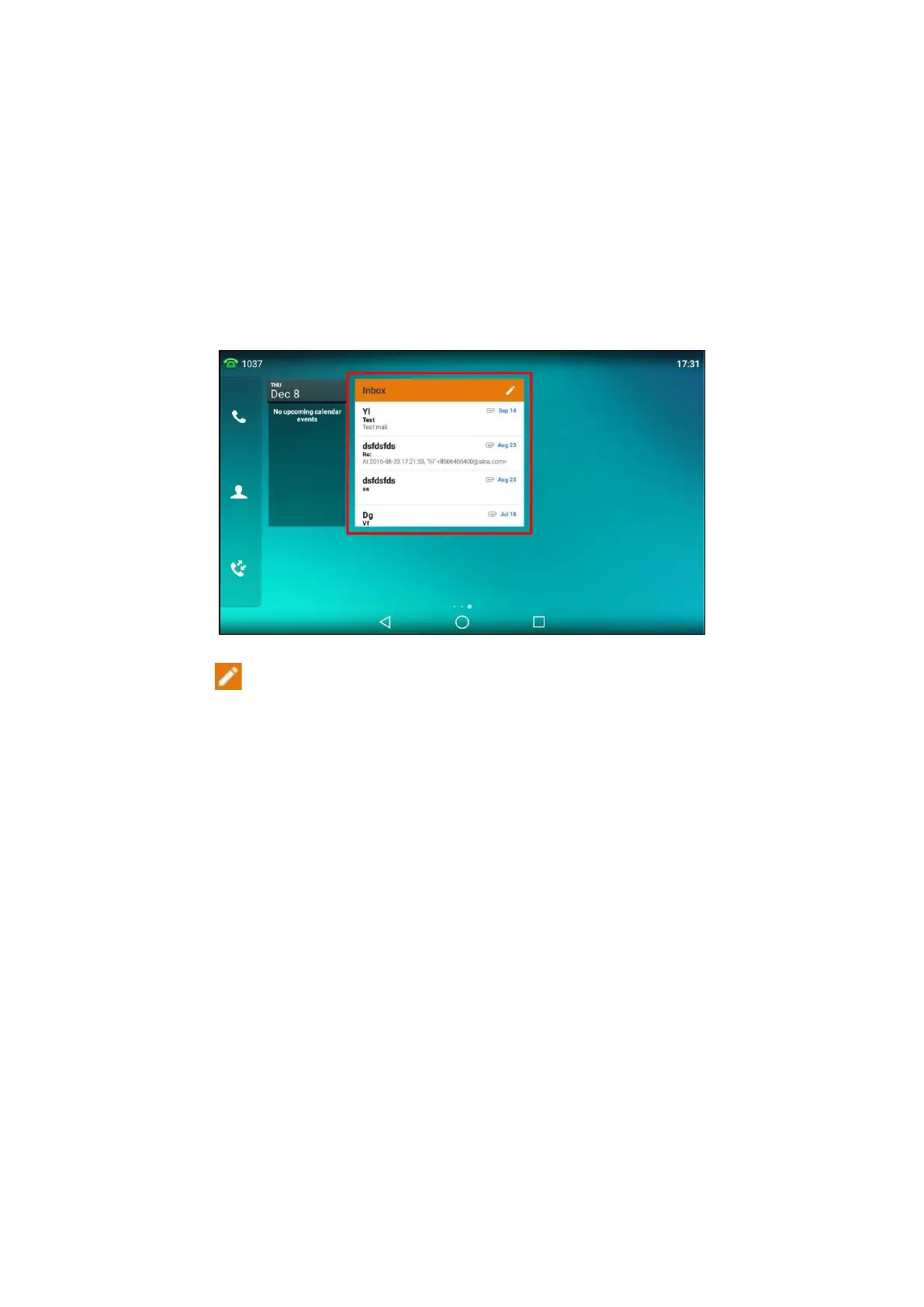
If you select Inbox, the email widget will display as below:
You can drag up and down to scroll through emails in inbox folder and tap the desired email to view. You
can
also tap
on the top-right of the widget to compose and send an email.
Related Topic
Adding APP
Accounts
Sending Files via Email
The Gallery and File Manager support data transfer via Email. You can send pictures, audio or videos as mail
attachments to another account.
Related Topic
Sharing Pictures/Videos/Audio via Email
Sharing Pictures/Videos via Email
Browser
The use of Browser is similar to PC's web browser, which allows you to browse web pages, set bookmarks, set
home pages, clear history records, and so on.
Topics
Browsing a Web
Page
Managing
Bookmarks
Setting a
Home Page
Clearing the Navigation History
Modifying the Browser Settings


 To Next Page