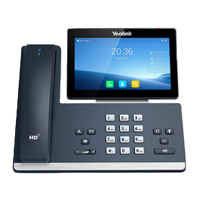
Setting a BLF Key
You can set a BLF key to monitor a specific line for status changes on the phone.
Procedure
1. Swipe left or right to go to the second idle screen.
2. Go to Settings > Features > Dsskey.
3.
Select the desired line key.
4.
Select BLF from the Type field.
5.
Select the desired line from the Account ID field.
6.
Do one of the following:
l
(Optional.) Enter the string that will appear on the phone screen in the Label field.
Enter the phone number or the extension you want to monitor in the Value field.
l
Select
and select the desired contact.
7.
(Optional.) Enter the directed call pickup code in the Extension field.
8. Select .
Tip
: By default, you can drag the line key to the
Edit
field to set it.
Picking up a Remote Call by BLF Key
When the monitored users are not at their desks and someone rings their lines, you can pick up the desired
call
simply by tapping the flashing BLF key.
If your system administrator sets the directed call pickup code in advance, you can use the BLF key to pick up
the
call directly. If not or if you want to set a pickup code for a specific BLF line, you can set a pickup code for
the BLF
key manually.
Before You Begin
You have edited the BLF key's Extension field with the directed call pickup code from your system administrator.
Procedure
1.
When the monitored line receives an incoming call, you can tap the BLF key to pick up the call for the
monitored line directly.
Related Topic
Setting a BLF Key
Transferring a Call by BLF Key
When there is already an active call on the IP phones, you can transfer the active call to the monitored line by
tap-
ping the BLF key.
The phone transfers the active call differently depending on the Transfer Mode via Dsskey feature configured by
your system administrator.
Topics
Performing a Blind
Transfer
Performing a Semi-attended/Attended
Transfer
Performing a Blind Transfer
During a call, you can transfer the call to the monitored contact in a blind-transfer
way.
Before You Begin


 To Next Page