LOCAL OPERATION GETTING STARTED
3-12
How to select functions
Whilst we believe that you will find the instrument’s touch screen easy and efficient to use, there
are also simple keyboard equivalents for each operation. These are mentioned in the text, where
relevant.
Main functions
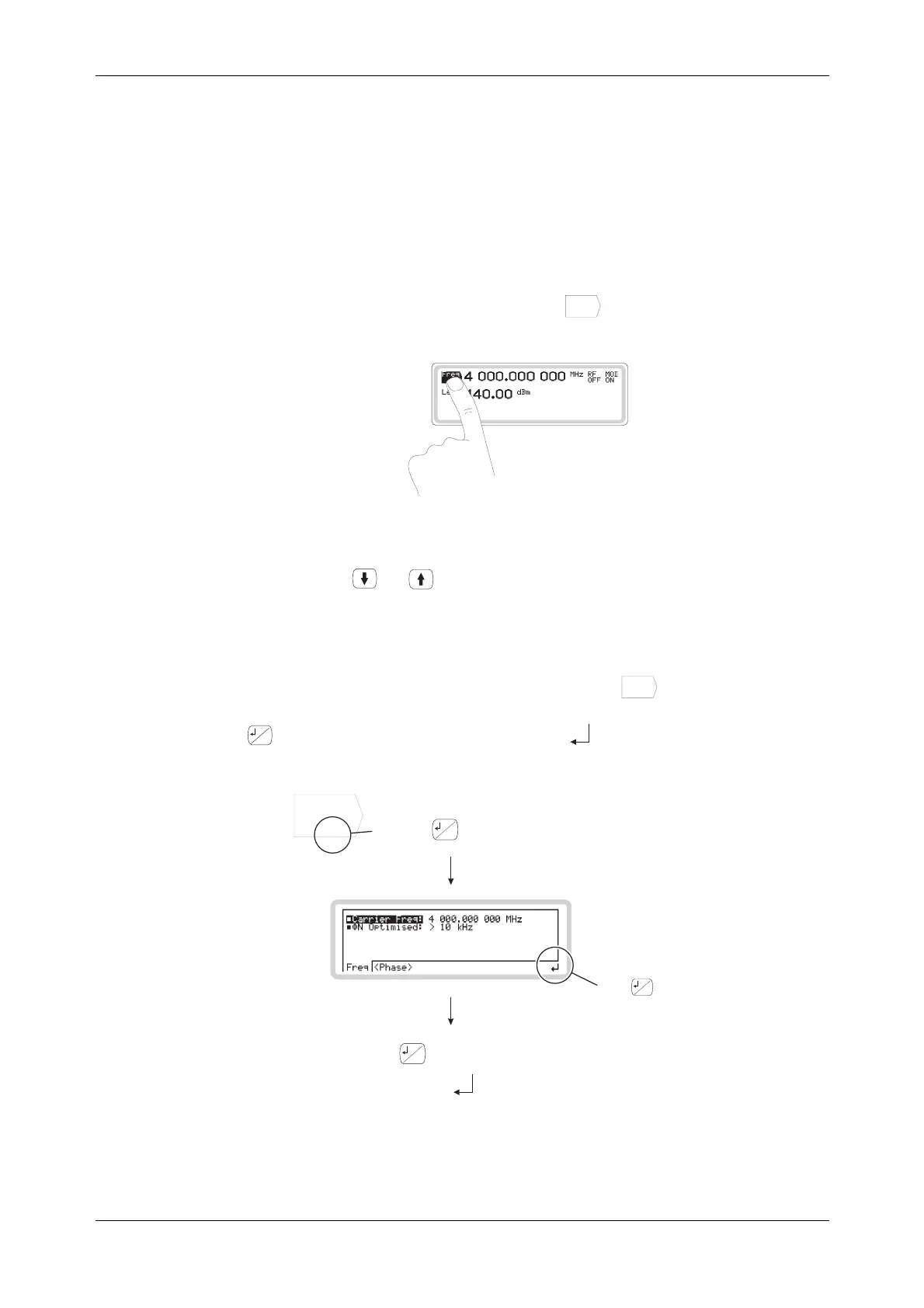
Touch the function label on the screen — for example,
Freq
...
. The label is highlighted, showing
that the function is active.
C5188
When the label of a main function — carrier frequency, RF level, modulation, modulation path —
is highlighted on the screen, you can change the displayed value by simply entering a new value.
Terminate the entry with the appropriate units key.
Keyboard control: use
and to move the highlighting up and down the screen.
Sub-menus
The three dots on a highlighted function label — for example,
Freq
...
— show that a sub-menu
exists for that function, giving you access to further parameters.
Press
...
to see the sub-menu, and to return again. A ' ' symbol appears in the corner of the
display to show that this key is active.
Freq
...
Press to go to the sub-menu
Press to go back again
...
...
The key is active
...
C5790
You may see three dots instead of the '
' symbol when setting up the modulation mode.


 To Next Page