Removing devicesRemoving devices
Allows you to specify the Maintenance Point ID that the unit will be known as
in the MA. Note that this is the only required parameter.
MACMAC
Allows you to specify the MAC address of the remote unit.
AcceptAccept
Touch the AcceptAccept button when you have entered the desired data in the dialog
box. The identified unit is then added to the list displayed on the Discovery
view screen. Note that the AcceptAccept button is enabled only when you have
entered a value in the MEP IDMEP ID field.
To remove a device from the list displayed on the Discovery view screen, select
the device and then touch the RemoveRemove button on the left side of the screen.
66..11..22..88 FilterFilter
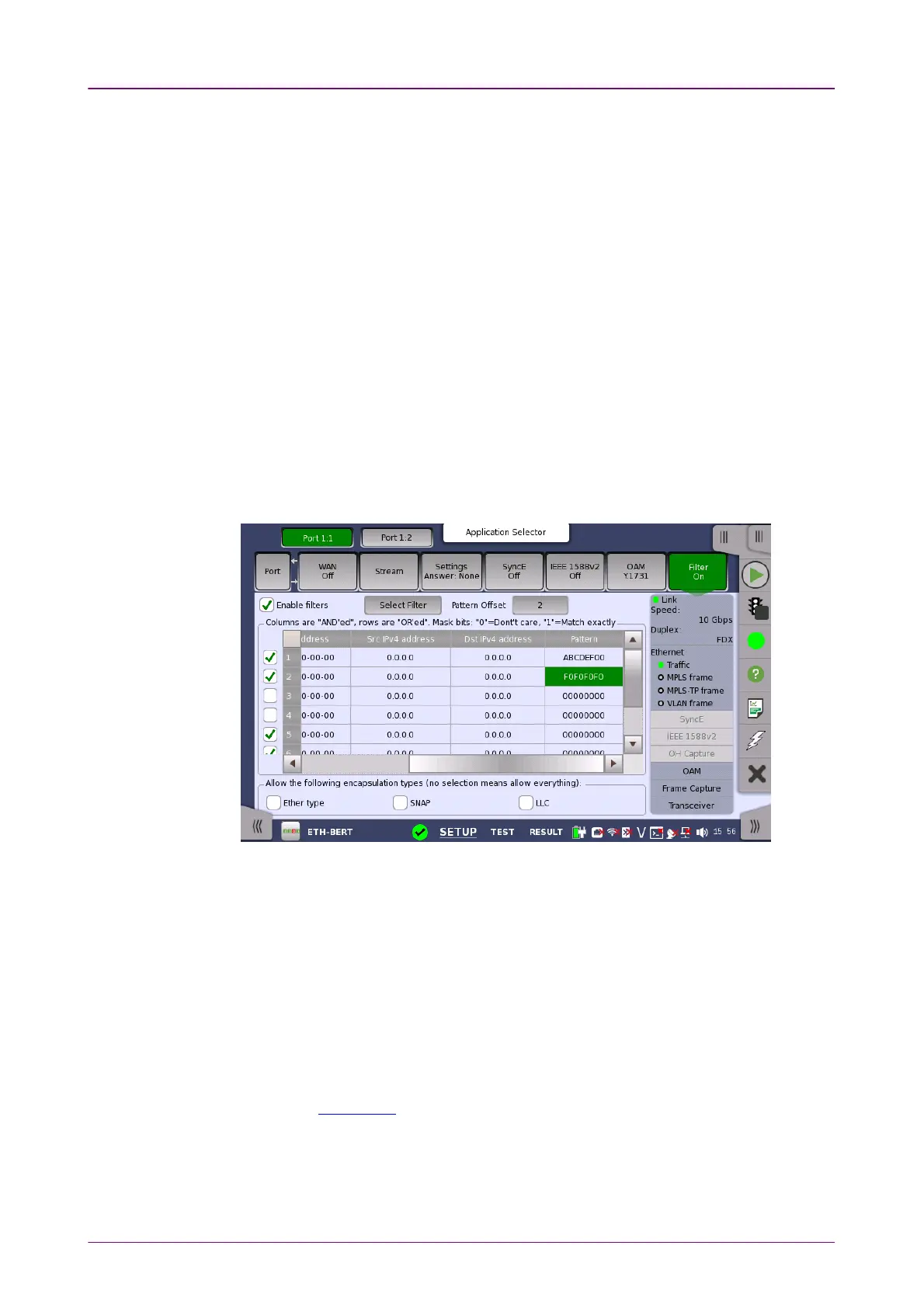
Touching the FilterFilter button in the navigation area will display the screen shown
below.
This screen allows you to set up filters and masks for the reception of Ethernet
frames. It can also be used to inspect the current status of the selected port. Up
to four filters are available when the interface bit rate is 200 Gbps or 400 Gbps.
The configuration options available in the setup area of the screen are
described below. The status information is described in a separate section.
Enable filtersEnable filters
Select this check box to be able to set up new filters or make changes to the
existing ones.
Select FilterSelect Filter
Opens the dialog box to set target fields to be filtered.
Pattern OffsetPattern Offset
The button will be enabled if PatternPattern is selected in Select FilterSelect Filter dialog box. Set
the number of bytes counted from top of destination MAC address byte.


 To Next Page