Installing and Setting Up the Printer Driver
QL-E100 User Guide 36
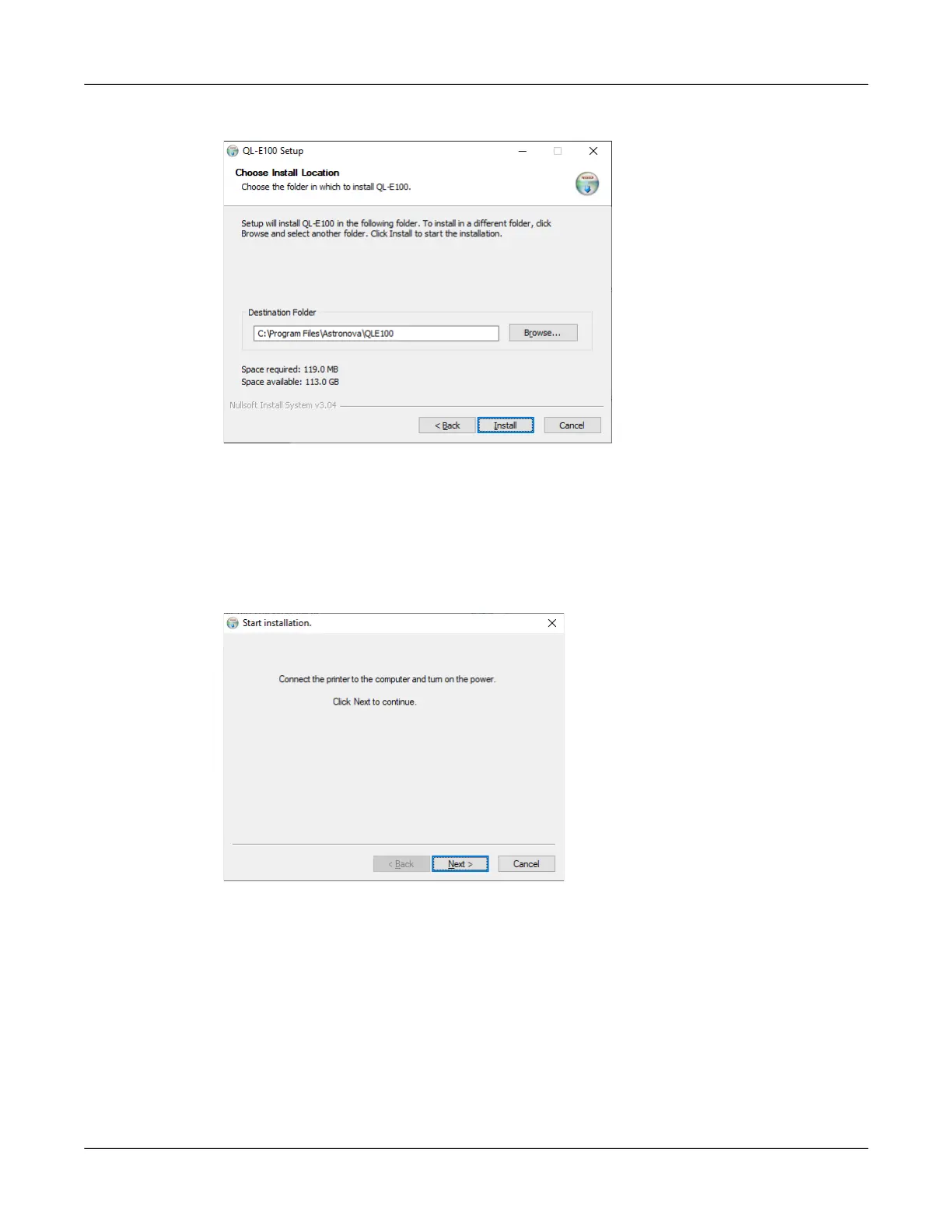
8. The next screen shows where the printer software will be installed.
If necessary, select an installation location for the software. The default location should be
used in most cases. Then choose the Install button.
9. The software installation will start. The message “Installed printer found. Update driver?” will
be displayed. Choose OK.
The previous driver version will be removed and the updated driver will be installed.
10. You will be prompted to connect the printer to the computer.



 To Next Page