Touchscreen Controls and Functions
QL-E100 User Guide 62
Offsets Tab
Tap the Offsets icon.
The Offsets tab will open.
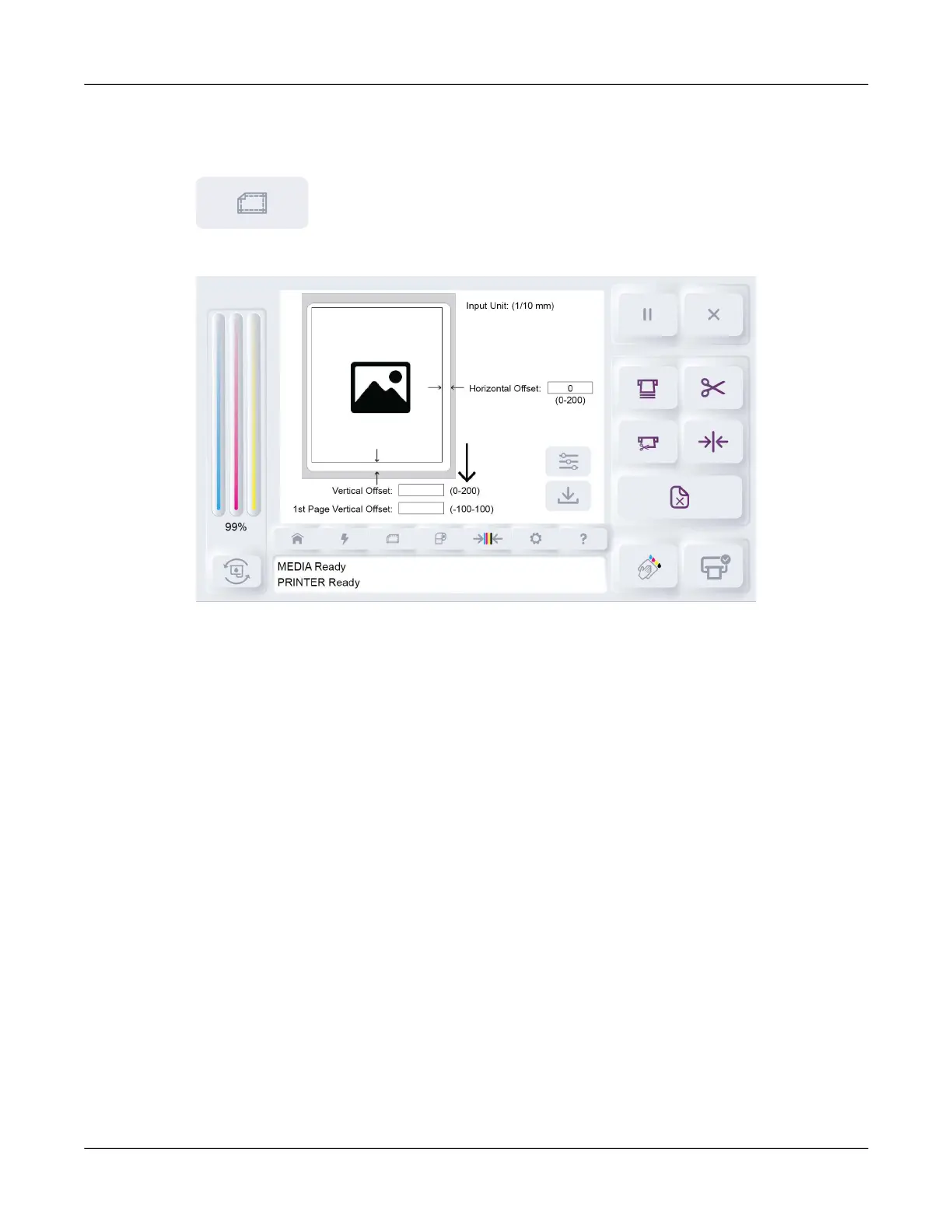
The Offsets tab shows a sample label and settings for adjusting horizontal and vertical offsets.
• Horizontal Offset adjusts the horizontal position of the printed label on the media.
• Vertical Offset adjusts the vertical position of the printed label on the media.
Use offsets to make fine adjustments to the position of the printed label on the media. Offsets are
usually applied when printing labels that bleed over the label’s edge. You can make fine label
placement adjustments to achieve full-bleed printing while minimizing the amount of ink sprayed
outside of the label area.
Settings in the Offset tab apply to printing from a computer and QuickPrint printing.
Sample Label Illustration
A sample label is shown on the screen and a downward arrow shows its print direction. The
bottom part of the sample is the leading edge, as it is the first part of the printed label to exit the
printer.
The sample label is oriented as if it is exiting the front of the printer. The Horizontal Offset and
Vertical Offset fields are shown next to the areas they will adjust.
Horizontal Offset
The Horizontal Offset setting is zero by default, resulting in no horizontal adjustment.
You can tap the Horizontal Offset field to change the offset. Enter an offset from zero to 200 (in
tenths of a millimeter). Increasing the horizontal offset moves the printed image away from the
indicated side.



 To Next Page