Installing and Setting Up the Printer Driver
QL-E100 User Guide 45
5. Select a color management system.
• None - Select this option to not use a color management system.
• Use Material Type - Select this option to use the best color management system for the
selected material type.
• Custom - Select this option to open and use an image color matching (ICC) file from your
computer.
6. Choose OK.
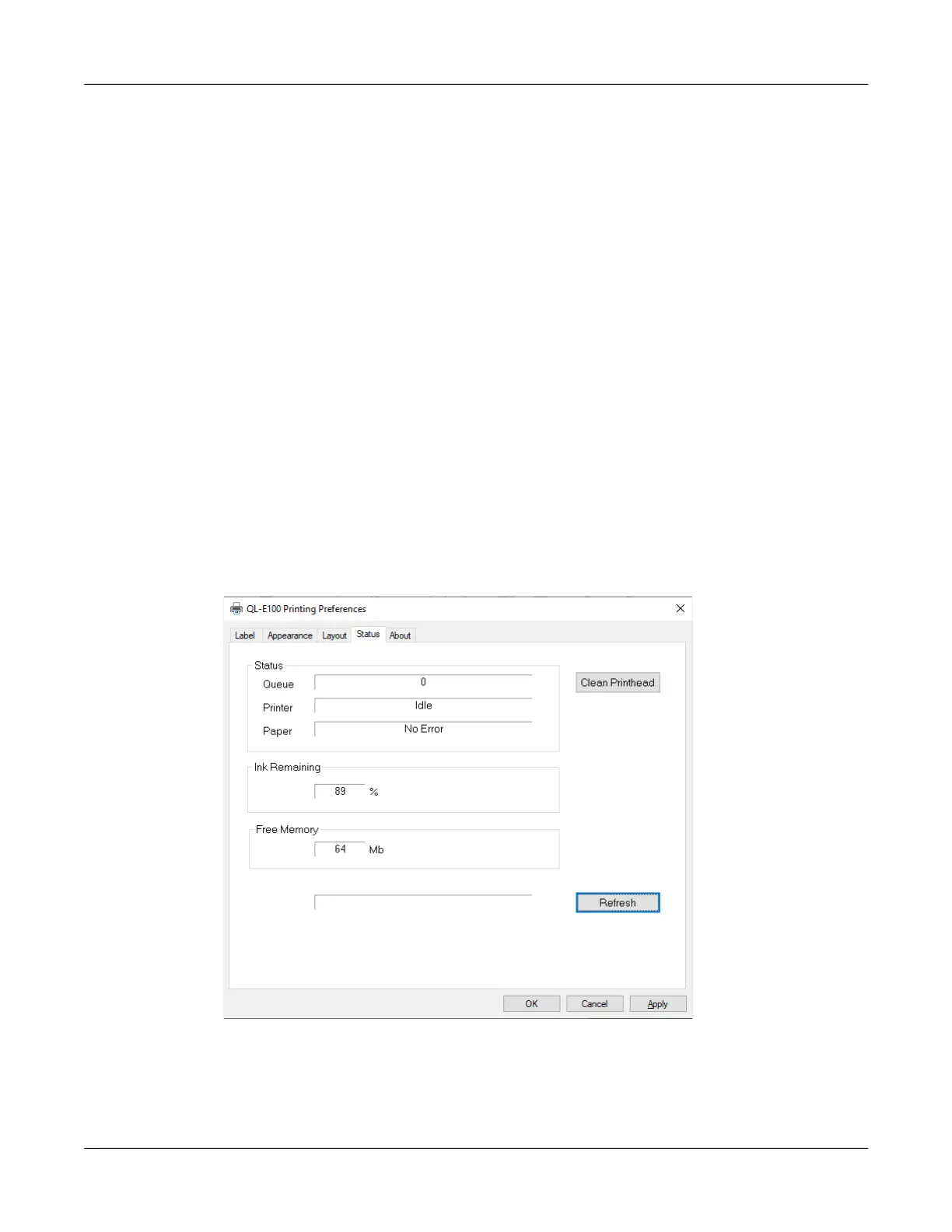
Viewing Status Information
You can view printer status information in the printer driver. You can also perform a printhead
cleaning routine.
1. In Windows 10 and later, choose the search box on the taskbar. Type “Control Panel”, and
then select the Control Panel icon. In the Control Panel window, click View Devices and
Printers.
Right-click the printer icon and choose Printing Preferences. The QuickLabel QL-E100
Printing Preferences window will open.
Note: You can also access the driver preferences via the application’s print dialog. From the
Print window in your software, select QuickLabel QL-E100 from the printer list and choose
Properties or Setup (varies based on program).
2. Choose the Status tab.



 To Next Page