Touchscreen Controls and Functions
QL-E100 User Guide 57
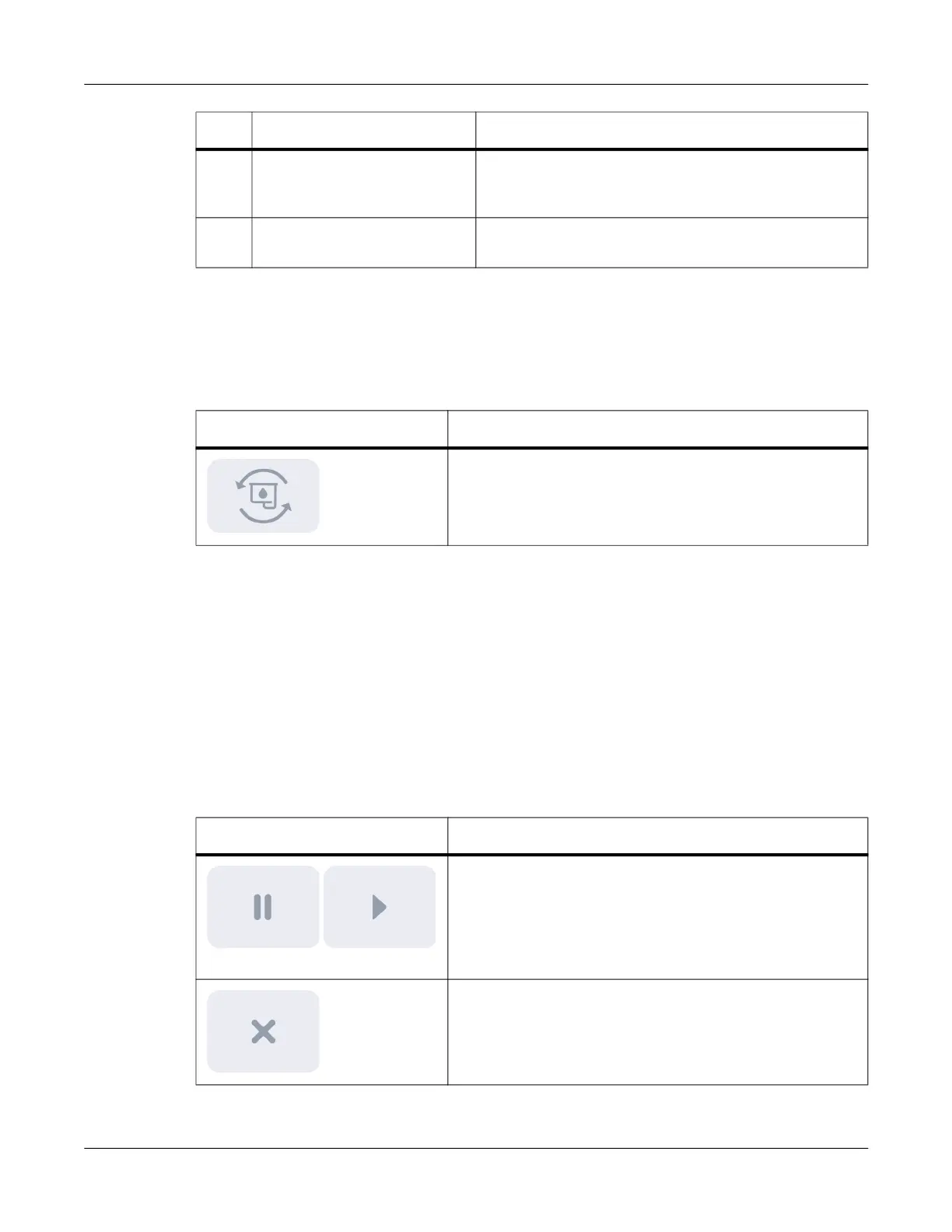
Ink Level and Ink Change Controls
Ink information is located on the left side of the touchscreen. The ink level is displayed using visual
CMY bars. The ink level is also displayed as a percentage under the bars. An icon is available for
replacing the ink cartridge.
Main Area
The main area of the touchscreen is used for a variety of purposes. It displays status information
about the printer and print jobs. It also provides access to printer settings and features.
The tab icons on the bottom of the main area change what is displayed. You will use these tabs to
view information and configure various settings. See “Main Area Tabs” on page 60.
Printing Controls
Printing controls are located in the upper-right corner of the touchscreen. You can use these
controls to perform functions such as pausing, resuming, and canceling a print job.
5 Maintenance Controls These icons perform functions such as cleaning the
printhead and checking the print mechanism. See
“Maintenance Controls” on page 59.
6 Printer and Media Status Printer and media status messages are displayed in
this area. See “Printer and Media Status” on page 59.
# Name Description
Icon Description
Change Ink Cartridge - Tap this icon to replace the ink
cartridge. See “Replacing the Ink Cartridge” on page 25.
Icon Description
Pause Printing - Tap this icon to pause a print job.
Resume Printing - Tap this icon to resume a paused print
job.
The image on the icon will change based on the current
state.
Cancel Print Job - Tap this icon to cancel the print job.



 To Next Page