Printing from a PC
QL-E100 User Guide 49
Printing from Adobe or other Third-Party Software
Use the following instructions to print labels with Adobe or other third-party software.
1. Make sure that your label media has been installed. See “Installing the Media Roll” on
page 30.
2. Configure the appropriate label settings in the printer driver.
• Use the Label tab to select the size, material, sensor type, and other options for your
labels. See “Setting up Label Options” on page 39.
• Use the Appearance tab to select print quality and other options for your labels. See
“Setting up Appearance Options” on page 42.
• Use the Layout tab to select cutter, color management, and other options for your labels.
See “Setting up Layout Options” on page 44.
3. Open the label file using the appropriate software. Then choose to print the label, and enter
the number of copies you would like to print.
Note: If your software has a collate option, disable it before printing.
4. If necessary, use the Home tab on the touchscreen to view information about the print job
status. See “Home Tab” on page 60.
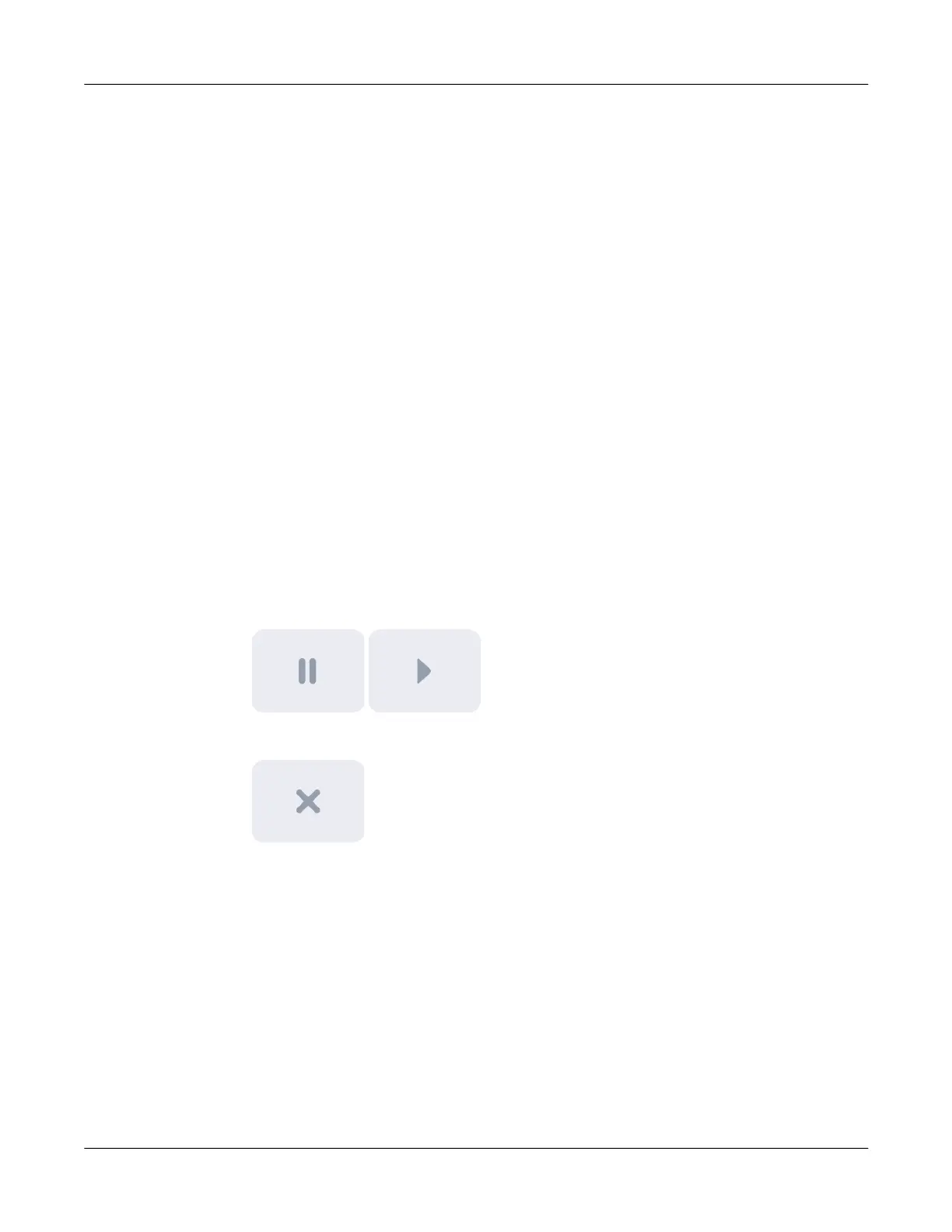
5. If necessary, you can use the printing controls in the upper-right corner of the touchscreen.
You can use these controls to perform functions such as pausing, resuming, and canceling a
print job
• To pause the print job, tap the Pause Printing icon. To resume printing, tap the Resume
Printing icon. The image on the icon will change based on the current state.
• To cancel the print job, tap the Cancel Print Job icon.
6. Receive the printed labels.
Note: Do not pull the printed labels in any direction as they exit the printer. Pulling the labels
may result in a media jam and damage to the printer.
Printing from CQL Pro
CQL Pro is a software application developed by QuickLabel to access special features in our
printers and allow customers to easily design and print labels.
For detailed label setup and printing instructions, please refer to the CQL Pro Help.



 To Next Page