Maintenance
QL-E100 User Guide 73
Upgrading the Printer Firmware
Firmware is the operating system of the QL-E100 printer. Firmware upgrades may be made
available to add new features or change operational characteristics of the printer. Use the
following instructions to install a firmware update.
1. Obtain the firmware upgrade file from AstroNova. Firmware upgrade files have a “.mim” file
extension. Copy this file to the root directory of a USB flash drive.
2. Insert the USB flash drive into one of the USB A ports on the rear panel of the printer.
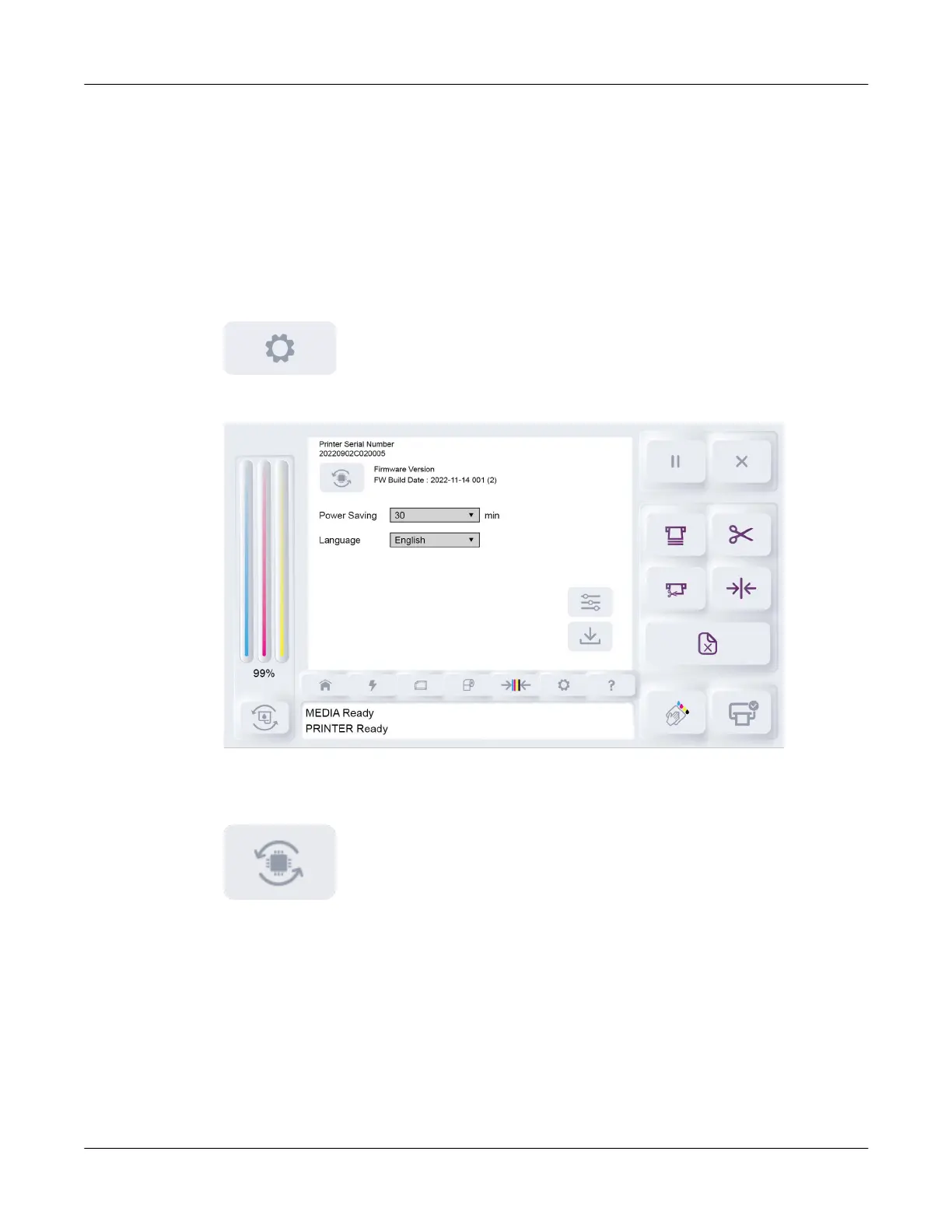
3. Tap the System Settings icon.
The System Settings tab will open.
This screen shows the printer’s current firmware version number.
4. Tap the Firmware Upgrade icon.
The system will detect the firmware upgrade file on the USB flash drive and a confirmation
message will appear on the display.
5. Choose to continue the firmware upgrade. The upgrade process will begin and messages will
be shown on the screen during this process.
The upgrade process requires several minutes. The printer will automatically restart after the
firmware is upgraded.



 To Next Page