Installing and Setting Up the Printer Driver
QL-E100 User Guide 43
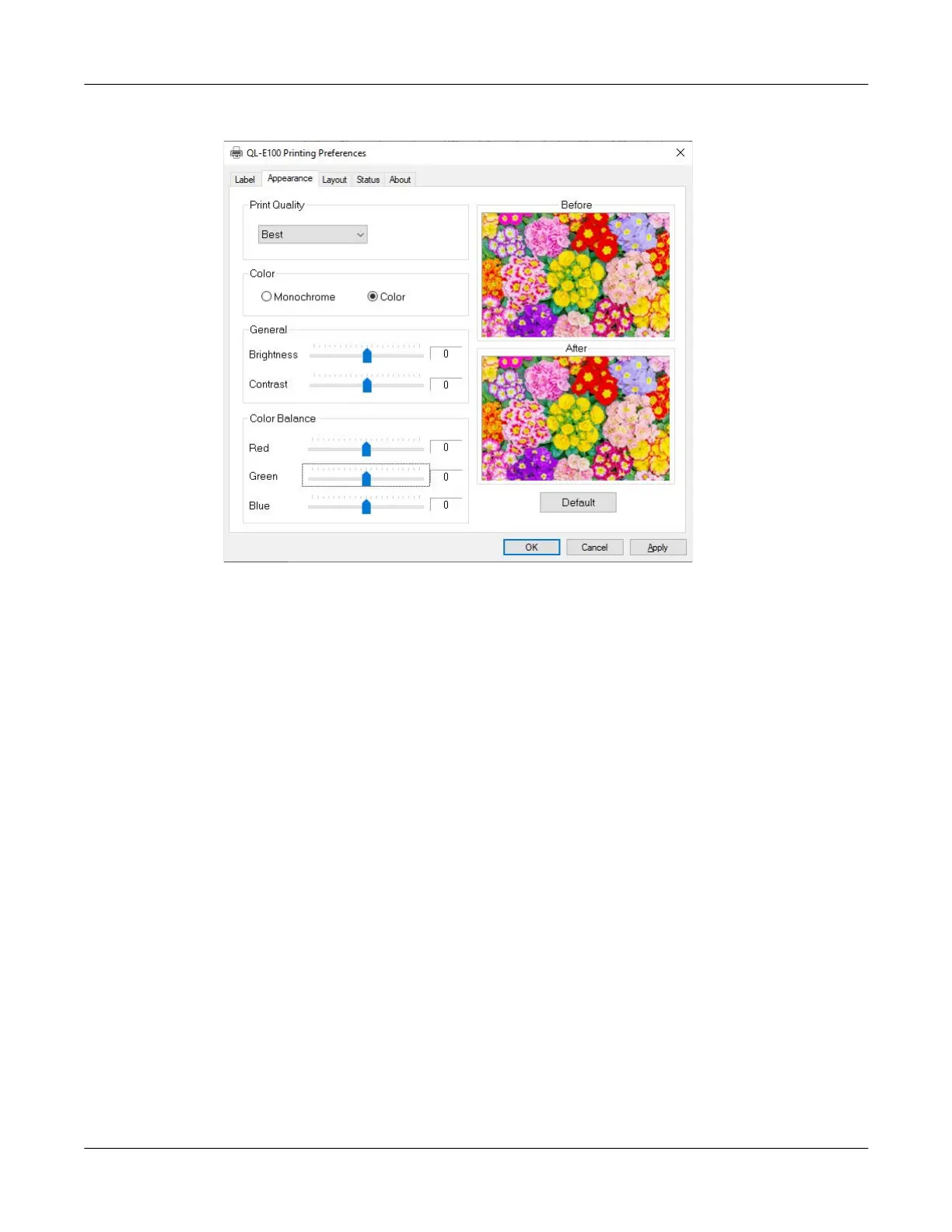
2. Choose the Appearance tab.
3. Select a print quality.
• Best - If you select this option, labels will be printed with the best possible quality. Labels
will be printed with a resolution of 1200 x 600 dots per inch. In this mode, the printhead will
pass over the same area multiple times while printing.
• Normal - If you select this option, labels will be printed with a resolution of 1200 x 600
dots per inch.
• Economy - If you select this option, labels will be printed with a resolution of 600 x 600
dots per inch.
• Draft - If you select this option, labels will be printed with a resolution of 300 x 300 dots
per inch. It provides the lowest possible resolution and saves the maximum amount of ink.
Use a higher print quality for printing production labels. Use a lower print quality for printing
label proofs.
4. Select whether to print Monochrome or Color labels.
5. Adjust the general options. You can increase or decrease Brightness and Contrast.
6. Adjust the color balance options. You can increase or decrease the Red, Green, and Blue
colors.
7. If necessary, you can restore default settings by choosing Default.
8. Choose OK.



 To Next Page